www.colorlightinside.com
20
6. LCD Operation Instruction
6.1 Operational Motion Instruction
Knob/OK:
Press the knob/OK under main interface to enter operation interface of menu.
Rotate the knob to select menu or press the knob/OK under the operation interface of
menu to select current menu or enter submenu.
Rotate the knob to adjust parameters after selecting the menu with parameter, and it
will be auto saved within one second after adjustment.
ESC: Return key, exit current menu or operation.
6.2 Main Interface
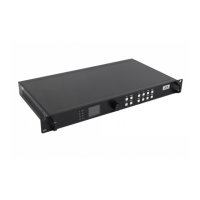
After starting X4e, main interface of LCD display is as follows:
First row: Company logo
Second row: Image resolution
Third row: Screen brightness, Output mode
6.3 Operation Instruction
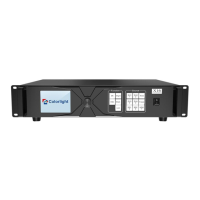
Press the knob/OK to enter the operation interface of main menu, and it includes 10
operation instructions: Display Setting, EDID Setting, Cropping Setting, Output Setting,
Preset Setting, Output Shift, Tile Mapping, Lock To Input, Language Setting, System
Setting.


 To Next Page