38
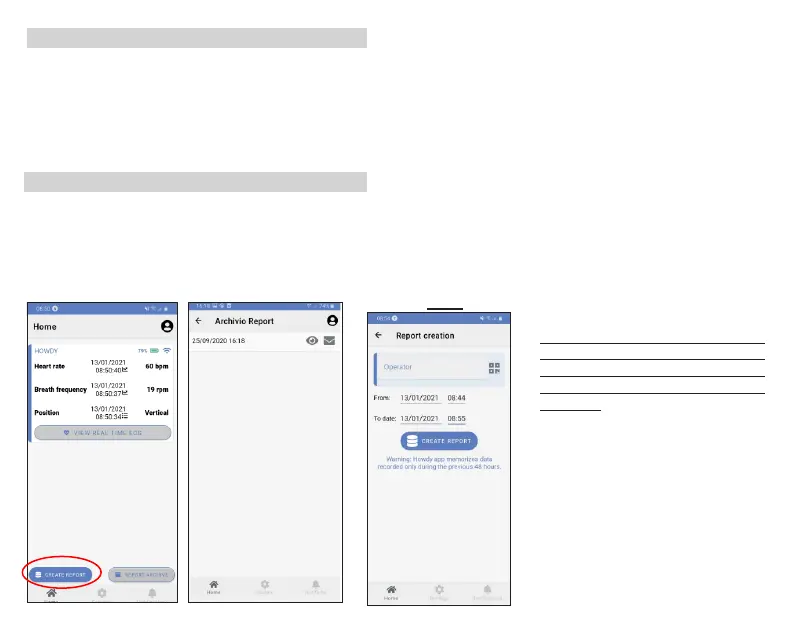
Figure 9.
Report generation screen
The monitoring session starts automatically with the
starting of the device. The app keeps the data of the
last 48 hours. With the function “Generate report” is
possible to select the period of interest among the last
48 hours and visualize the monitored data (also in case
of interruptions of the monitoring session).
MONITORING SESSION
While monitoring the phisiological parameters
measured by the sensors will be updated in real time.
You can generate a report at any time. With the function
generate report it is possible to enter the operator ID if
necessary and select the period of interest among the
last 48 hours. It is then possible to visualize the report
conrming the popup which appears.
The monitoring report consists of three parts: a header,
a generic table, with the aggregated physiological data
for the whole monitoring period, and some periodic
tables with the physiological data divided into time
periods (according to the duration of the monitoring).
With the “Report Archive” button you can access all the
generated reports and visualize them, send them via
e-mail, or delete them swiping to the right and pressing
the Trash Can symbol.
Note: ComfTech srl does not take any responsibility
To leave the App, you can use the following buttons of
your smartphone/tablet as described below.
“Home” button: he acquisition screen is hidden but it
keeps running.
“Back/Return” button: press twice to leave the
app. We recommend to close the App only once the
monitoring session has ended.
HOW TO LEAVE THE APP
about the use of such les.
WARNING: the tracings recorded
through the APP have only
qualitative value and they should
not be intended and/or for diagnostic
purposes.



 To Next Page