1)Check that the Bluetooth and the Position/Location of
your smartphone/tablet are turned on.
2)Switch on the electronic unit by lightly pressing on
the ON/OFF button; a red LED light will start ashing.
When the device is ready a blue LED light will start
ashing.
Sign in via the “Login without account” button. For
communication with an external portal, log in using the
credentials provided by the provider of the web portal.
In this way the user’s data are sent to the portal.
SIGN IN AND STARTING THE MONITORING
SESSION
36
3)Activate the App by touching with your nger the
corresponding icon. As soon as an external device
connects to the Electronic Unit, the blue LED light
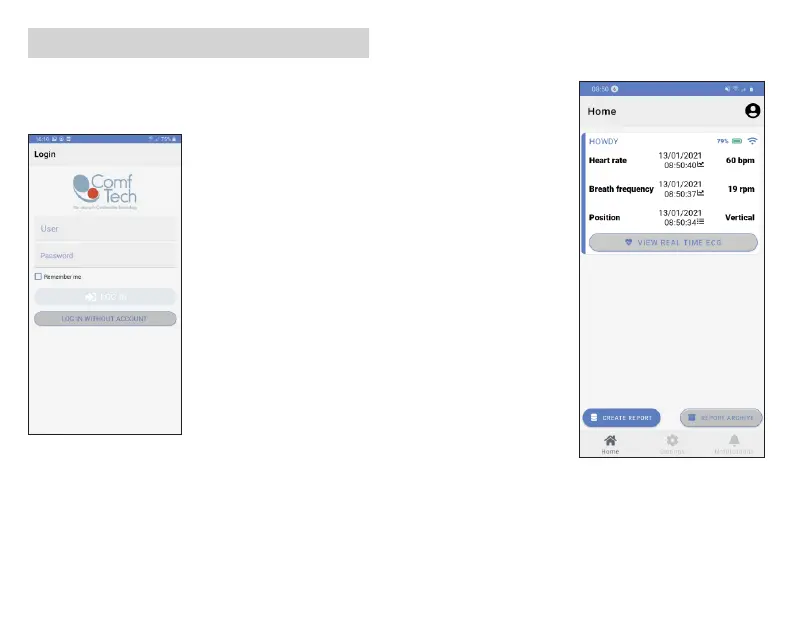
Figure 7.
Avaiable Functions
The Homepage is identied upwards and shows the
parameters measured by active sensors. The footer
shows report functions and the mask for browse
between Home,Options,Notications.
Figure 6.
Log-in Screen
The rst time you use it, you need to select the Electronic
Unit you intend to connect to on the smartphone/tablet
from the App Settings menu: choose
will turn o and the “Sensor connected” notication
will be dispayed on your smartphone/tablet. On your
smartphone/tablet display you will see this start screen:



 To Next Page