Basic user – Web interface Symphony BF
10 1.4/0222
Remember DHCP Settings: Activate this checkbox to save the previously obtained DHCP settings.
I.e. if the DHCP server is not reachable at the next boot up, then this saved DHCP settings will be
used for the Symphony BF device.
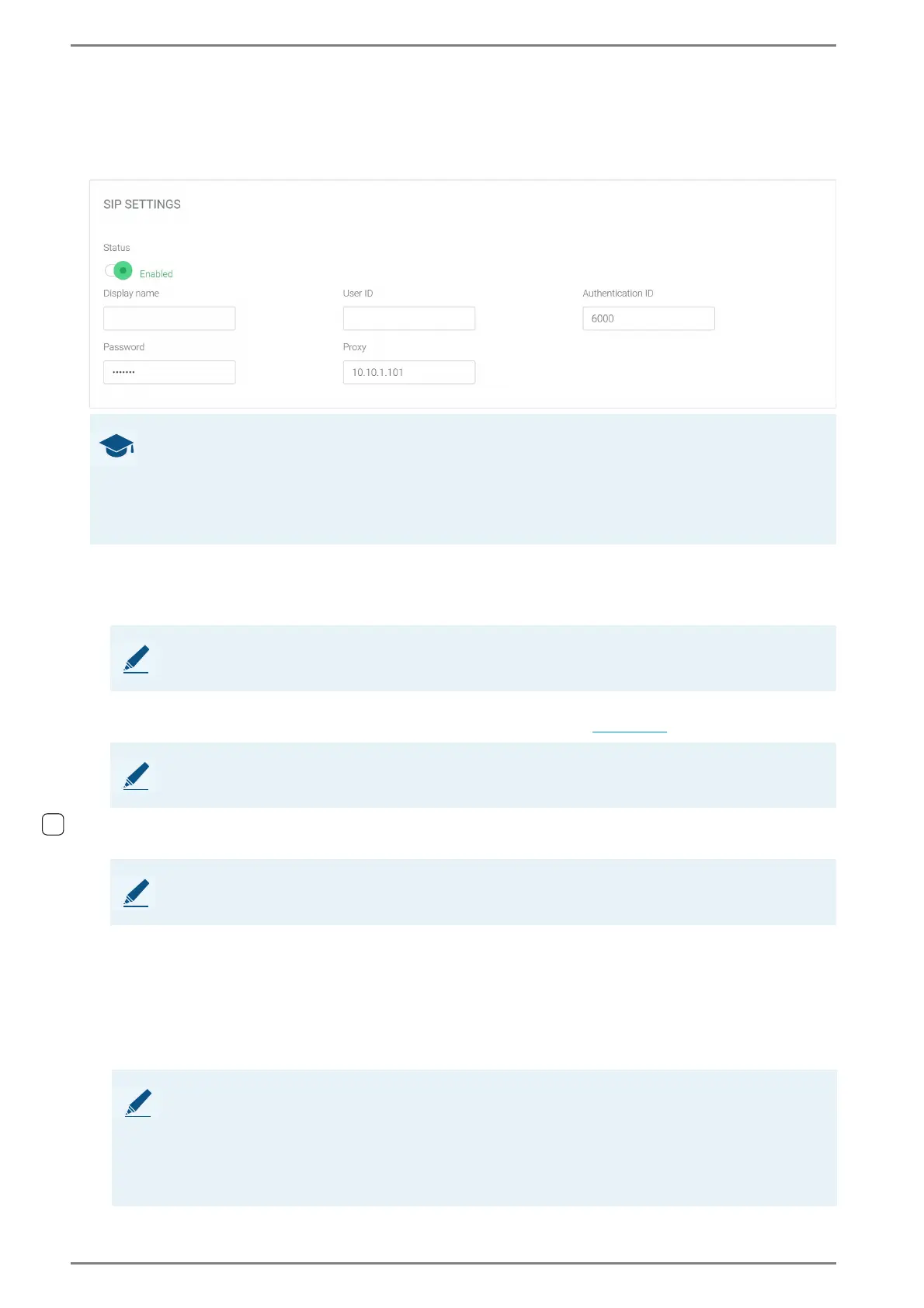
SIP Settings
In this section, settings required for the connection to a SIP server can be configured.
Display Name: Enter an individual caller description for the Symphony BF device. If the field Dis-
play Name is blank, the system uses the default value of the device.
Status: Activate this toggle button to register the Symphony BF device with the appropriate user
and password at the SIP server that is entered in the field Proxy (see below
).
User ID: In this field, enter the call number of the Symphony BF device for SIP registration (i.e. the
call number of the corresponding SIP account on the SIP server).
Authentication ID: In this field, enter the authentication ID of the SIP account. This ID is only nec-
essary for certain SIP servers.
Password: In this field, the corresponding password, which is configured at the SIP server, can be
entered for the authentication at the SIP server.
Proxy: In this field, the IP address or FQDN (fully qualified domain name) of the appropriate SIP
server can be entered, to which a connection shall be established (i.e. at which the Symphony BF
device shall be registered).
GOOD TO KNOW: Registrarless calls
By default, the field User ID holds the value of the first SIP server as well as for registrarless calls.
Your administrator can configure the user ID for registrarless call to another ID than the one config-
ured in the field User ID. Contact your administrator if you want to make sure the user ID configured
in the basic user interface is used for registrarless calls. If you want to use registrarless mode only,
deactivate the toggle button Status.
NOTE:
Usage of special characters (e.g. §,>,<, etc.) may be limited. The length of is restricted to 200 digits.
NOTE:
In case of operation without a server, this toggle button has to be disabled.
NOTE:
For some SIP servers, it may be required to additionally enter the domain: “userID@domain”.
NOTE:
If an IP address is entered in the field Proxy, the port number is set to “5060” by default. To change
it, add the desired port number to the IP address (e.g. “10.10.1.101:5070”).
If the FQDN is entered in the field Proxy, the port number is determined by SRV records. If SRV re-
cords are not supported by the domain, the correct port number for SIP registration has to be added
to the FQDN (e.g. “example.com:5070”). In this case, only A queries are performed.




 To Next Page