Symphony BF Basic user – Web interface
1.4/0222 13
Basic user – Device maintenance
SIP Series > Device Settings
System
Reboot device :
Click on the button Reboot device and confirm the pop-up notice to reboot the device.
Update device :
Click on the button Update device to open the update dialogue.
User Management
Login: Enter the user name for the web interface login and click Save in the dialogue that appears.
Old Password: Enter the default or current password and click Save in the dialogue that appears.
New Password: Enter the new password and click Save in the dialogue that appears.
Confirm Password: Confirm the new password and click Save in the dialogue that appears.
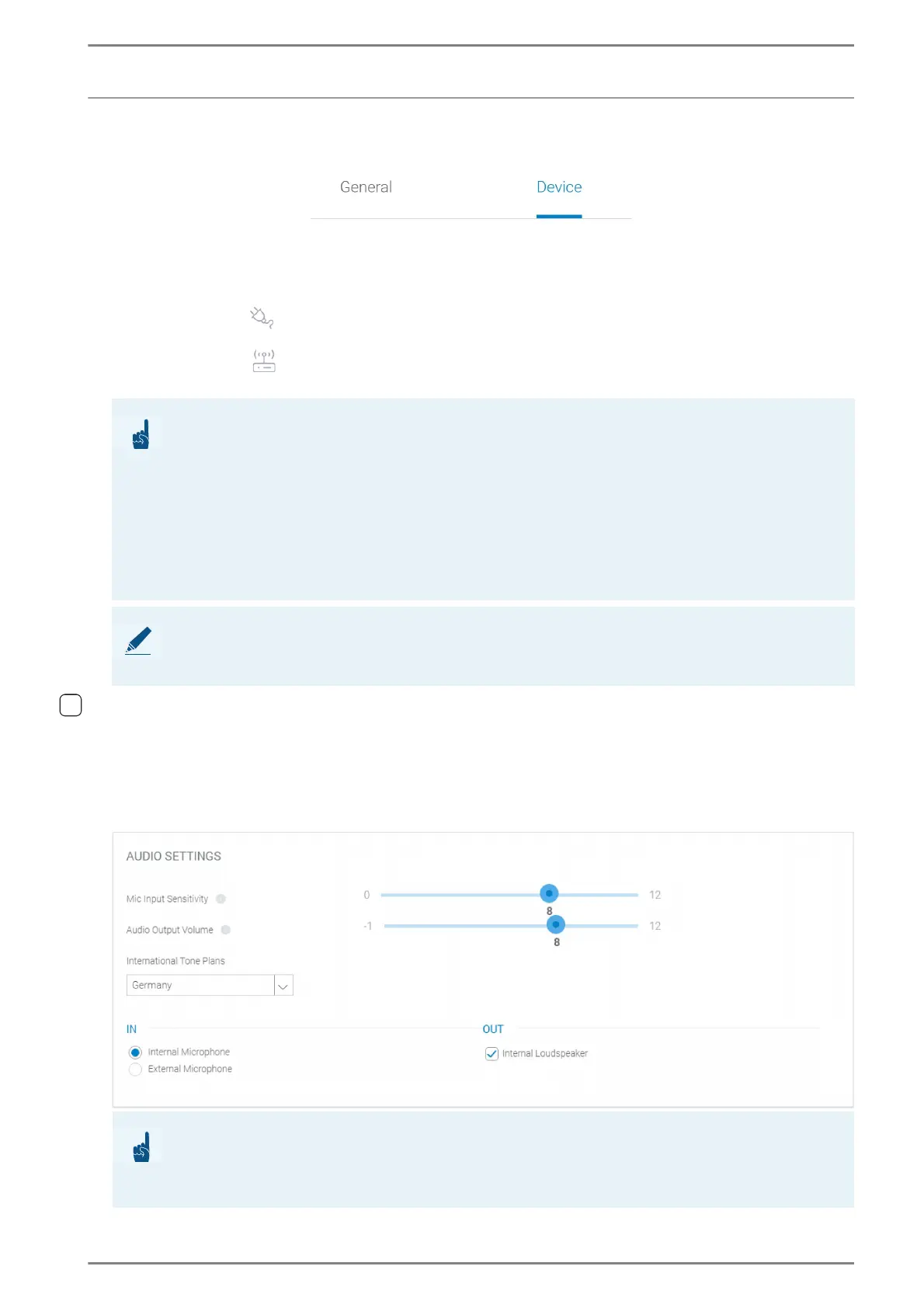
Audio Settings
ATTENTION:
The dialogue for confirming the start of the download process is shown 30 seconds after the update
button has been pressed. During the update, the reboot button is disabled to avoid an unintended
reboot of the device.
During a firmware update, the power supply of the Symphony BF device must not be disconnected
under any circumstances – THIS CAN DAMAGE THE STATION!
In case of an update from firmware 1.x to 2.0 or higher, specific settings will not be saved (e.g. button
configuration). Therefore, it is recommended to carry out a factory reset after updating to firmware
2.0 or higher. Contact your system administrator.
NOTE: Clear web browser cache after update or downgrade
A firmware update or a downgrade to a previous version can cause problems in the web interface due
to incorrect JavaScript files. Clear the cache of your web browser.
ATTENTION:
For changing the default values of the microphone sensitivity or volume level (in particular for
conversations between two SIP stations), in combination with changes of the values for the noise and
echo suppression, contact your system administrator.




 To Next Page