
 Need help?
Do you have a question about the Commend Symphony BF and is the answer not in the manual?
Device compliance with European directives and standards.
Guidelines for safe handling, disposal, and ESD protection.
Explanation of information boxes and requirement legends.
Overview of Symphony BF stations, SIP integration, and features.
Commend's emphasis on IT security for Symphony BF devices.
Explanation of speech connection using VoIP and SIP protocol.
Steps to log into the web interface as a basic user.
Overview of the web interface layout, menus, tabs, and cards.
Explanation of general icons and important attention notes.
Configuring network settings like IP addresses and DHCP.
Configuring SIP server connection details and registrarless calls.
Customizing call cancellation and answer methods.
Rebooting, updating devices, and managing user accounts.
Adjusting audio levels and managing pre-recorded sound files.
Configuring LED indicators and controlling relay outputs.
Guidelines for IT security best practices and password policies.
Explanation of the different operational states of the Symphony BF device.
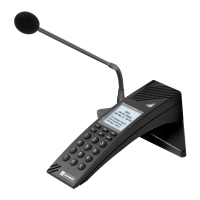
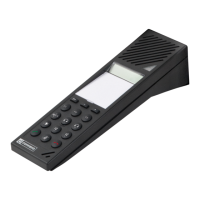
The Symphony BF device is a full-duplex capable station designed to bridge SIP technology with Commend's reliable and high-quality intercom solutions. These stations connect directly to an Ethernet LAN/WAN and, via the IP network, to a compatible SIP server. They also support registrarless calls, meaning they can operate without a SIP server. A built-in switch with a downlink function allows for the direct connection of an additional IP device, such as an IP camera.
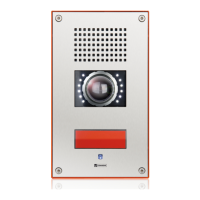
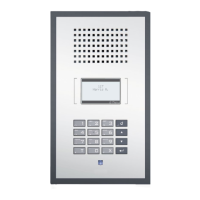
The Symphony BF stations offer a wide range of features beyond high volume levels. They can play pre-recorded audio for various purposes, such as acoustic indications for line faults, waiting information during call initiation, or providing crystal-clear communication in challenging situations through a configurable background noise canceller. Their integrated relay outputs make them ideal for use as door stations at entries and gateways. The robust construction ensures full protection against water, dirt, and dust, meeting IP65 standards. Each button on the device can be assigned a call number, and the corresponding label area can be customized.
The speech connection is established via Voice over IP (VoIP) according to the SIP standard over the connected Ethernet LAN. This can be done with the assistance of a SIP-capable PBX, a SIP provider, or by directly dialing an IP address. SIP (Session Initiation Protocol) is a network protocol used to establish conversations. It handles the signaling of the conversation, while the Session Description Protocol (SDP) negotiates conversation modalities like audio codecs and transmission protocols. The actual data stream, or coded speech, is transmitted via the Real-Time Transport Protocol (RTP), which breaks down audio data into packets and sends them over UDP (User Datagram Protocol).
Each VoIP subscriber automatically registers with their IP address at the corresponding SIP provider's server. The provider assigns a new address to the subscriber, following SIP standards, in the format "sip:01234567@providername.com," which is linked to a standard telephone number. When a subscriber dials this number, it is first translated into the SIP address, allowing the system to identify the current IP address of the called subscriber. This information is then sent back to the calling subscriber, whose hardware and software forward audio packets to the conversation partner's IP address. The calling subscriber also forwards their own current IP address to enable the conversation partner to answer.
The device supports IPv6 addresses from SIP firmware version 3.8 or higher. By default, IPv6 is enabled, and global IPv6 addresses are assigned via auto-configuration using the "neighbor discovery protocol" as per RFC 4861. However, DHCPv6 Fully Qualified Domain Name (FQDN) according to RFC 4704 is not supported.
The Symphony BF device offers a web interface for basic user configuration. To access it, users enter the device's IP address (e.g., http://192.168.1.200) into a web browser. Google Chrome's latest version is recommended. Users can log in as either an admin or a basic user, though additional accounts cannot be created. Basic user access is disabled by default and must be configured by an administrator.
The web interface is organized with a navigation bar, breadcrumbs showing the current location, a menu (for basic user view), tabs, cards, sections, and subsections. General icons are used throughout the interface for various features, such as adding elements, indicating warnings, expanding/collapsing elements, making calls, canceling/closing, managing contacts, deleting, downloading, duplicating, editing, providing error feedback, uploading, showing information, indicating saved changes, and representing logic sequences.
Call settings can be configured, including the method for canceling calls and conversations. Options include disabling cancellation, using an emergency button, default button, specific button, enter button, menu button, any input, any button, any input or button, input button rising edge, input button falling edge, or a module on input button. The number and labeling of buttons depend on the station version and configured direct dialing modules. To select an input or direct dialing module button, the respective option must be activated in the "input" tab.
The method for accepting incoming calls can also be selected. Options include "Auto Answer," where the call is automatically accepted after a configured delay, or using an emergency button. The "Auto answer Delay (s)" field allows configuring the delay in seconds for the auto-answer function (0 means no delay). If set to 0, no incoming call tone is played. Changing the delay from 0 restores the factory default incoming call tone.
Pre-recorded audio files can be loaded into the device's memory. These files can be used for "Outgoing Call" (e.g., as a calm-down message or individual call tone), "Incoming Call" (as a calling signal or pre-recorded audio), "Error" (for call establishment errors), "Location Message" (information for the called SIP device), and "Sequence Audio" (for "Play" or "Multicast" actions in a sequence). A single WAV file must not exceed 2 MB, and the total length of all audio files must not exceed 60 seconds. Audio files should be named with their file ending (e.g., <file_name>.wav). Exported WAV files are saved in OGG format. For reimport, it's recommended to use original WAV files, as re-using exported OGG files may lead to quality loss.
The RGB LED behavior can be configured for various call states: "Incoming Call," "Outgoing Call," "Call in Progress," "Standby," "Error," and "Relay 1/2." For each state, users can select "Nothing" (LED status maintained), "On" (LED permanently on), "Off" (LED off), "Flashing:Fast" (fast blinking), or "Flashing:Slow" (slow blinking). If the same setting is configured for multiple colors, the LED will blink in a mixed color.
Relay states can also be configured for "Relay 1," "Relay 2," "EB2E2A Relay 1," and "EB2E2A Relay 2" (if an EB2E2A option board is connected). Settings include "Nothing" (LED setting remains as configured in Call states), "Combine" (LED on when relay is active), and "Inverse" (LED on when relay is inactive). Manual actions for relays include "On" (close output), "Off" (open output), "Flashing" (blink), "Toggle" (invert state), and "Door Opener" (close output for a configurable time). DTMF buttons (0–9, *, #) from a SIP telephone can be selected to control relay outputs during a conversation. The "Door Opener Timer (s)" field allows setting the duration for which the relay stays active after pressing the door opener button (default: 2 seconds).
Device maintenance includes options for "Reboot device" and "Update device." Clicking "Reboot device" prompts a confirmation to restart the device. "Update device" opens an update dialogue. During an update, the reboot button is disabled to prevent accidental reboots. It is crucial not to disconnect the power supply during a firmware update, as this can damage the station. For updates from firmware 1.x to 2.0 or higher, specific settings (e.g., button configuration) may not be saved, so a factory reset after updating to firmware 2.0 or higher is recommended. After any firmware update or downgrade, it is advised to clear the web browser cache to avoid problems caused by incorrect JavaScript files.
User management allows changing login credentials for the web interface. This includes entering a new user name, old password, new password, and confirming the new password.
Audio settings allow adjusting "Mic Input Sensitivity" and "Audio Output Volume" using sliders. These changes are applied immediately during a conversation. The default sensitivity is "8 (+0dB)" and default volume is "8 (+0dB)," with "-1" (-∞dB) for mute. The configured level also defines the volume of pre-recorded audio for incoming calls and signal tones. "International Tone Plans" can be selected from a drop-down list to specify tone plans for different countries.
Pre-recorded audio files can be imported by clicking "Add file" in the desired line, selecting the file, and then clicking "Upload." To erase pre-recorded audio files from memory, users can click "Use default" for the respective file, which resets the state to default settings. Default settings for "Incoming Call," "Outgoing Call," and "Error" states use factory default tones. For "Location Message," no signal tones are output. For "Sequence Audio" used for a multicast send action, the default pregong is used. For "Sequence Audio" used for a play action, the error tone is used.
Commend is committed to IT security, ensuring that Symphony BF stations provide maximum secure communication. This includes robust password management. Passwords must be a minimum of 12 characters (max 64), include allowed characters (space, alphanumeric, and various symbols), mix numbers, symbols, uppercase, and lowercase letters, not include user names or dictionary words, and be unique to prevent access to other devices. Regular password changes are recommended, and password manager software is suggested for secure storage. The system also prevents brute-force attacks by locking login to the web interface for 180 seconds after three failed attempts with invalid login data.
 General
| Networking | Ethernet, Fiber |
|---|---|
| Operating Temperature | 0°C |
| Microphone | N/A (Server only) |
| Speaker | N/A (Server only) |
| Material | Metal |
| Connection Type | Ethernet |



 To Next Page