EasyManua.ls Logo

Commodore CDTV/P - Page 24

Commodore CDTV/P
40 pages
Print Icon
To Next Page IconTo Next Page
To Previous Page IconTo Previous Page
Loading...
Getting Started 3-7
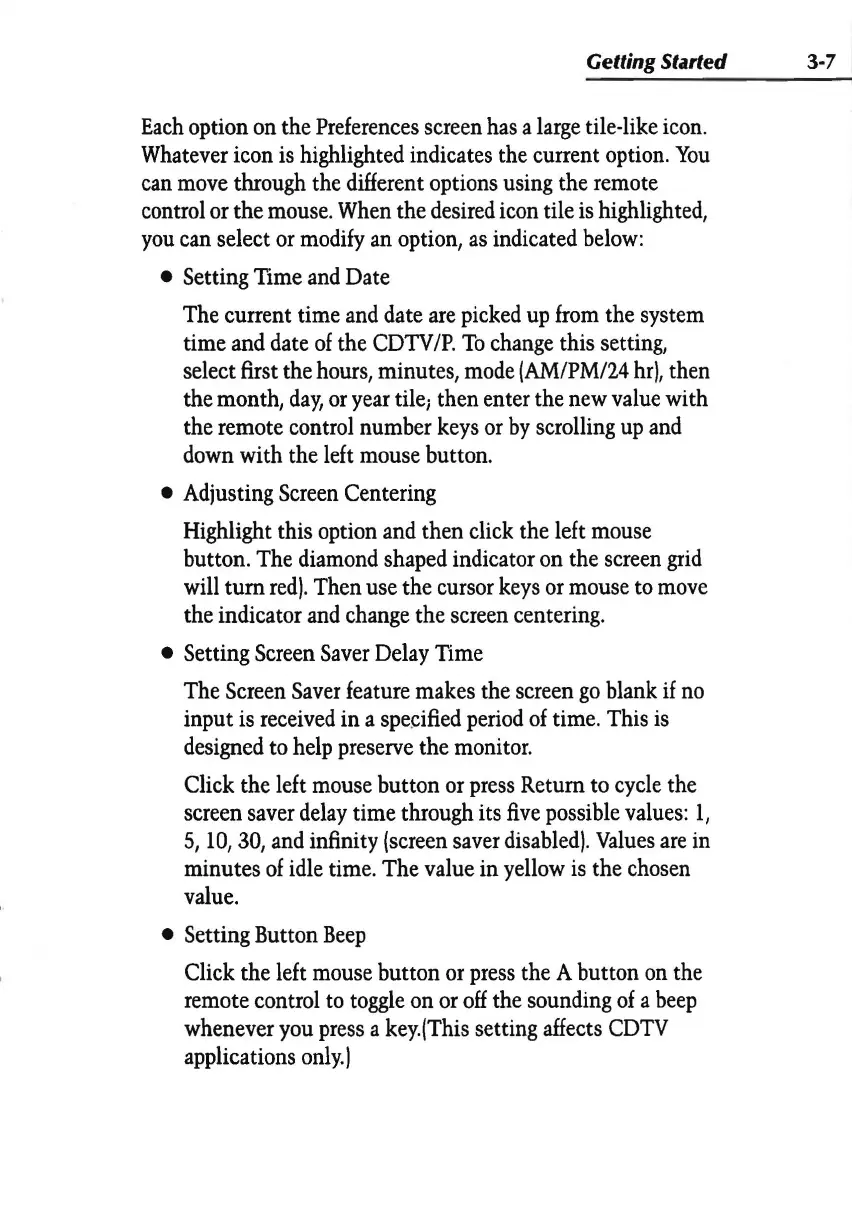
Each
option
on
the
Preferences
screen
has
a
large
tile-like
icon.
Whatever
icon
is
highlighted indicates the current option.
You
can
move
through the different options
using
the remote
control
or
the
mouse.
When
the
desired
icon tile
is
highlighted,
you
can
select
or
modify
an
option,
as
indicated
below:
Setting
Time
and
Date
The current time
and
date
are
picked
up
from
the system
time
and
date
of
the
CDTV
IP.
To
change
this setting,
select first the
hours,
minutes,
mode
IAM/PM/24
hrl,
then
the month,
day,
or
year
tile; then enter the
new
value
with
the remote control number
keys
or
by
scrolling
up
and
down
with the left
mouse
button.
Adjusting
Screen
Centering
Highlight this option
and
then click the left
mouse
button. The
diamond
shaped indicator
on
the
screen
grid
will tum
red).
Then use the cursor
keys
or
mouse
to
move
the indicator
and
change
the screen centering.
Setting
Screen
Saver
Delay
Time
The
Screen
Saver
feature makes the screen
go
blank
if
no
input is
received
in a
specified
period
of
time. This
is
designed
to
help
preserve
the monitor.
Click the left
mouse
button
or
press
Return
to
cycle
the
screen
saver
delay
time through its
five
possible
values
:
1,
5,
10,
30,
and
infinity
!screen
saver
disabled).
Values
are
in
minutes
of
idle
time. The value in
yellow
is
the
chosen
value.
Setting Button
Beep
Click the left
mouse
button
or
press
the A button
on
the
remote control
to
toggle
on
or
off
the sounding
of
a
beep
whenever
you
press
a
key.jThis
setting
affects
CDTV
applications
only.
I