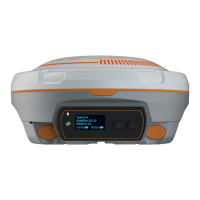
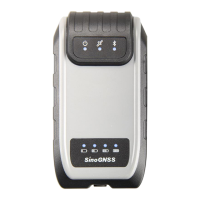
The M900 is a multi-purpose GNSS receiver designed for a wide range of applications, integrating high-performance GNSS OEM Board inside. It functions as a centimeter-level positioning and high-accuracy heading device. The M900 is an economical choice for challenging guidance and positioning applications, including fleet management, marine, UGV, and related unmanned control systems.
Function Description
The M900 GNSS receiver provides a comprehensive set of features for precise positioning and navigation. It supports 1226 GNSS tracking channels, working with all running constellations. The device incorporates advanced QUANTUM™ technology for enhanced performance. It supports INS+GNSS navigation and dual antennas for positioning and heading. An LED status indicator provides quick visual feedback on the device's operational status. The M900 features a compact and rugged housing with flexible interfaces for external devices, integrated Ethernet and 4G modem to guarantee stable internet communication, and LAN and WiFi support for webpage configuration.
The M900 can be configured as a Base station or a Rover. As a Base station, it can be set up to transmit correction data. As a Rover, it can receive correction data from a Base station or CORS network to achieve high-accuracy positioning. The device supports various data transfer methods, including serial ports (RS232, COM1, COM2), internet support (TCP and Ntrip protocol), and Lemo port. It can also record raw data for post-processing.
Important Technical Specifications
Usage Features
-
Front Panel: The front panel of the M900 features various connectors and indicators:
- Setting button: To change settings.
- OLED screen: Displays receiver status, including satellites number, position information, IP address, firmware information, and more.
- Com1 Port of Main Board (RS232 port and USB): Controls the mainboard and requests data from this port.
- Com2 Port of Main Board (RS232 port and CAN): Controls the mainboard and requests data from this port.
- LAN port
- SIM Slot: For installing the SIM card.
- Page down button
- Radio port: Connects to radio antenna.
- GNSS Antenna Connector 1: Connects to the master GNSS antenna.
- GNSS Antenna Connector 2: Connects to the slave GNSS antenna.
- GPRS antenna connector: Connects to 4G GPRS antenna.
-
Web Browser Configuration: The M900 has an advanced built-in web server, allowing access to the web setting page and configurations via LAN or WiFi. This section describes how to change receiver settings through a web browser.
- Login: Access the web page by entering the default WiFi name and IP address (12345678) in the browser. The default username and password are admin.
- Checking Receiver Status: View system information, status, position info, or satellite info to check corresponding receiver statuses, including: System information, SN, Firmware Version, Web Version, etc.; Status: Datalink, Disk Capacity, WiFi status, etc.; Position Info: GNSS constellation system tracked, etc.; Satellite Info: SV, type, elevation, etc.
- Receiver Configuration: Configure basic settings of your receiver.
- Satellite Tracking: Select smooth pseudorange, set the mask angle, and select the satellite systems based on surveying requirements.
- Work Mode: Choose between Base station and Rover modes. In Base mode, configure base setup only when you stop the base mode.
- Antenna Setup: Enter marker name and antenna height, select antenna type and measurement method.
- 4G Network: Set up 4G function by inserting a SIM card. Input your SIM card APN, username, and password, then click Start button.
- WiFi and Bluetooth: Activate WiFi or Bluetooth function to customize the name, and check the name and status in the screen.
- Ethernet Config: Set IP address, subnet mask, default gateway, and DNS.
- Inertial Navigation: Configure the inertial navigation system, which is used in a rover station. It provides 8 installation methods.
- DDNS: Dynamic DNS is a method of automatically updating a name server in the Domain Name System. M900 has built-in Dynamic DNS capabilities.
- Natapp and Ngrok: Network Address Translation (NAT) is the process where a network device, usually a firewall, assigns a public address to a computer (or group of computers) inside a private network. Ngrok exposes local servers behind NATs and firewalls to the public internet over secure tunnels. After registering the Ngrok or Natapp account, you can set it up in M900.
- User Management: Change the password of the account.
-
Receiver Management:
- Data Transfer: Transfer raw data from the M900 receiver to your office computer via internet or serial ports. Serial ports support RS232 (com1 and com2, Lemo port) protocol; the internet support TCP and Ntrip protocol.
- Serial Port Config: Configure baud rate, data flow, and click Enter.
- TCP/IP Config: Dataflow can be transferred via the internet by using TCP Server or TCP clients. TCP Server: Any user can receive the data through TCP Clients protocol. TCP Clients: Send data to the specified IP address and port.
- Ntrip Server: Configure the receiver as a Base mode, also select correction data format as RTCM3.2 (recommended).
- Ntrip Client: The M900 supports Ntrip Client to acquire correction data from CORS through Ntrip Client protocol.
- Radio: M900 has internal radio model, the frequency range is 410-470Mhz and spacing is 12.5Khz, users can configure the radio settings in radio of Data Transfer.
- Data Record: Set the storage mode for surveying data. Internal Memory: 8GB, could record for 2 months while using 1 Hz sample frequency. Show record name, status, data format, record mode and operation in table, click Setup button to configure the data record settings.
- Data Download: Download internal data files through a web server or USB drive. Select data name, file type (CNB \Rinex3.02\Rinex2.10) and date. Then click Get Data, you will see data files meet the demand. Click Download icon to download the data file you need, or click Delete icon to delete this file.
-
Firmware Update: Update the system firmware, board firmware, front panel firmware and radio firmware. Select system, board or front panel upgrade according to your demand, then click Browse to select the latest firmware version. Click Install, a progress bar shows 0 to 100% and status will be “Not allowed to do other operations during the upgrade”. When completing firmware update, the receiver will restart automatically.
-
Programmatic Interface: This section describes a method of controlling M900 receiver through programmatic commands. It provides a more machine friendly method for users to check and configure receivers, such as rover, NMEA data output.
- Check Version Information: Check version information about the board.
- Check Port Information: Check logcomfiga // Information of the port.
- Change the serial port baud rate: Change com1 9600 // Change the baud rate of com1 to 9600.
- Check System Information: Check log sysconfiga //All the configuration of the system can be viewed by this command.
- Check the Output data Information: Check log loglista//View the output data information about all the ports.
- Lockout/unlockout satellite system: Commands to lockout/unlockout BeiDou, GPS, Glonass, and all GNSS systems.
- NMEA data output: The serial port is for COM1, you can output any NMEA data through COM1.
- Raw data output: Commands to output raw data for GPS, Glonass, BeiDou, Galileo, and range.
Maintenance Features
-
Safety Information:
- Install the M900 receiver in a location that minimizes vibration and moisture.
- Avoid falling to ground, or colliding with other items.
- Do not rotate 7-pin Lemo port.
- Do not cover the radio, keep a sound ventilation environment.
- To reduce radiation, please keep above 2 meters away from the radio station.
- Take lighting protection measures when installing antennas.
-
Environmental Requirements:
- Operating temperature: -40°C to +75°C.
- Out of corrosive fluids and gases.
-
Power Supply: The M900 GNSS receiver has no built-in battery, which only can work with an extra power supply. The proper voltage range is from 5VDC to 27VDC. Power supply is connected through 7-pin Lemo to RS232 Cable.
-
Mounting the Antenna: Choosing the optimal location for the GNSS antenna is critical to the performance quality of your M900 receiver. It is necessary to mount the antenna to the optimal position in a proper way.
- If the application is mobile / kinematic, place the antenna on a flat surface along the centerline of the vehicle.
- Choose an area with open view to the sky and far from metallic objects.
- Avoid areas with high vibration, excessive heat, electrical interference or strong magnetic fields.
- Away from other radio frequency and electronic devices.
- The M900 receiver is linked with two antennas, primary antenna is connected to Master, and secondary antenna is connected to the Slave. AT340 antenna is recommended, if use other kinds of antenna please check the specifications with the ComNav support team. Please install antennas in the proper position based on your requirement.
- To mount the stable antennas, there are various mounting types you can choose, including magnetic mount, pole mount and rail mount.
-
Data Record Maintenance:
- Internal Memory: 8GB, could record for 2 months while using 1 Hz sample frequency.
- Show record name, status, data format, record mode and operation in table, click Setup button to configure the data record settings.
- CAUTION - Please be careful to click the Format Disk button. It will empty all your data files in M900.
- Name: Support only number or letter.
- Sample Interval: Choose sample frequency, support 0.05\0.1\0.2\0.5\1\2\5\15\30\60s.
- File Split: Choose file split, support every 15 minutes or 1\2\4\24 hours to save a file. If you select 24 as file split, it will create two data files when it occurs to 24 o’clock (UTC Time). One is from start time to 24 o’clock, another is from 0 o’clock to end time.
- Data Format: Support CNB (\Rinex3.02) Rinex2.10(excluding BeiDou).
- Loop: When storage is full, Yes means delete earliest data and store continually, No means stop recording.
- Storage Space: Separate storage space in internal memory.
- Record mode: Support manually and automatically recording mode.

 Need help?
 General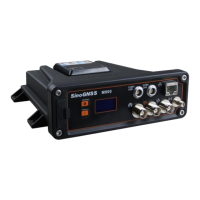

 To Next Page