with similar coordinates really easy.
Duplicate: this button creates a new waypoint with the same coordinates of the selected one
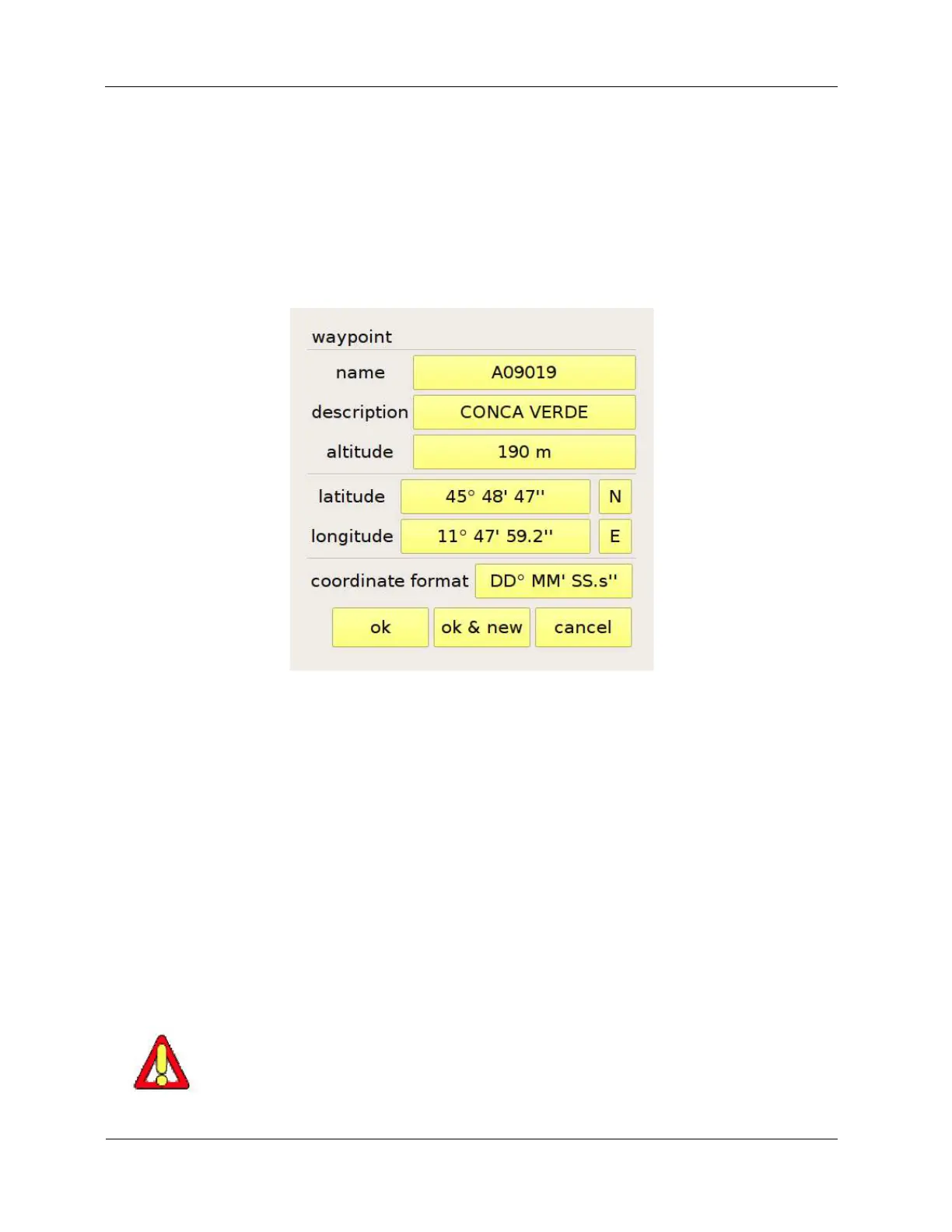
and opens the waypoint editing window (Figure 12).
New: creates a new waypoint and opens the waypoint editing window (Figure 12).
Delete: removes the selected waypoint from the list.
Figure 12: waypoint editing page
You can import waypoints from CompeGPS, Ozi Explorer and GPSdump files (with .wpt extension)
placed in the “waypoints” folder of the USB memory.
The “waypoint menu” button gives you access to the following commands (Figure 13):
Open file: you will be shown a list of all the waypoint files available in the “waypoints” folder of the
USB memory (Figure 14). To import the waypoint from a file, select it and press “ok”. If you do not
need a file any more, you can delete it by pressing “delete file”.
Save file: saves all the waypoint shown in the list in a file (CompeGPS format).
Delete all: removes all the waypoints from the list.
Note: this command does not delete the files from which the waypoints were loaded.
You will be able to load them again later when you need them. This allows you to
have at the touch of your finger only the waypoints that you really need, while
keeping the rest in the USB memory.


 To Next Page