Taking Pictures
— 17 —
N: normal
F: fine
Setting the Image Quality and Size
How to set Image Size
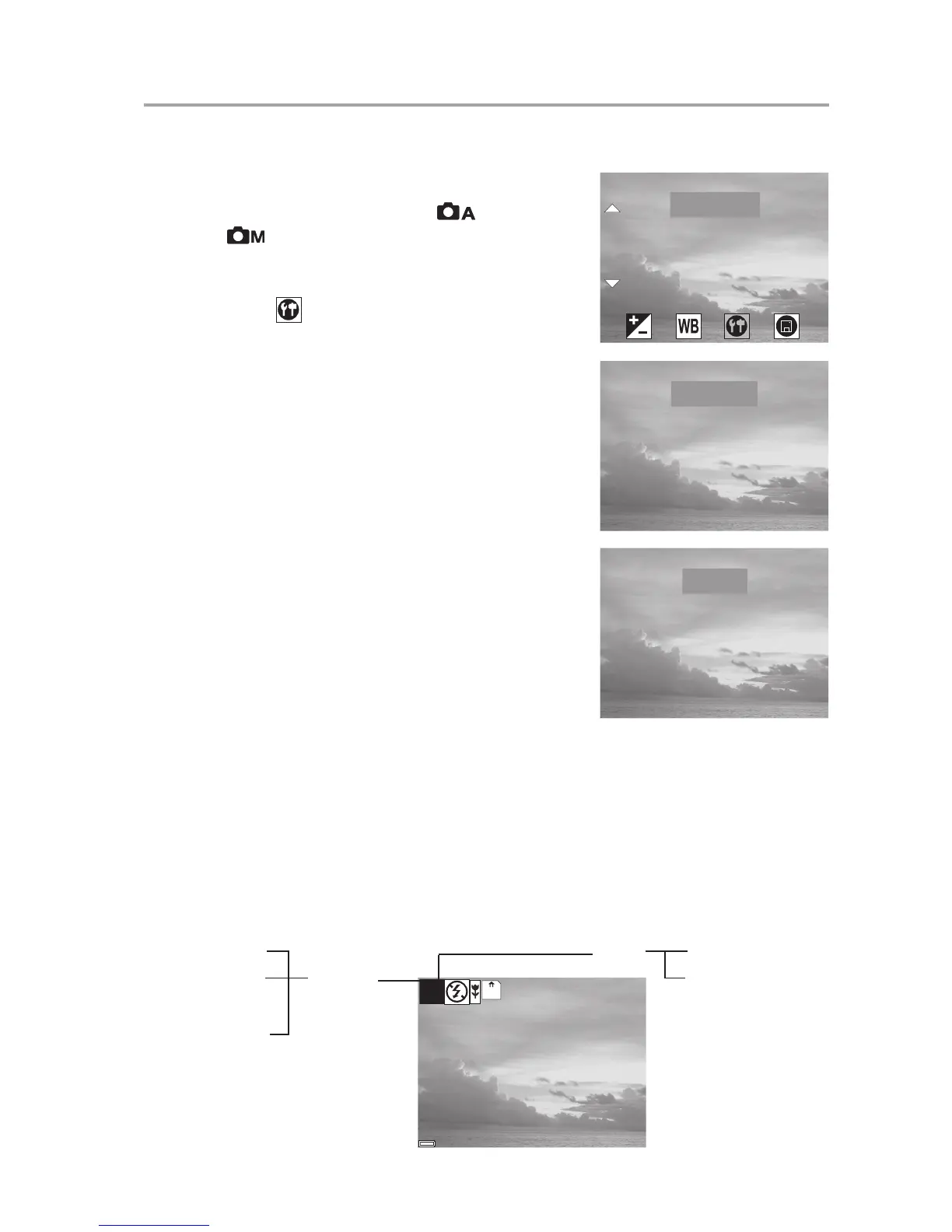
1 Turn the Mode dial to Auto or Manual
mode.
2 Press MENU.
3 Press the Right button until the SETTINGS
icon ( ) is highlighted.
4 Press the Up or Down button to select the
IMAGE SIZE item.
5 Press the SET button to enter the IMAGE
SIZE submenu.
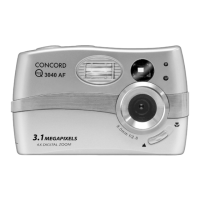
6 Press the Up or Down button to select the
desired image size:
• 2560 x 1920 (L - large)
• 2048 x 1536 (M - medium)
• 1024 x 768 (S - small)
7. Press the SET button to save the setting.
8. Press the MENU button to exit the menu.
How to set Image Quality
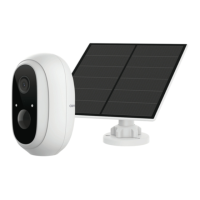
1. In the SETTING menu, press the Up or Down
button to select the QUALITY item.
2. Press the SET button to enter its submenu.
3. Press the Up or Down button to select the desired image quality.
• NORMAL
• FINE
4. Press the SET button to save the setting.
5. Press the MENU button to exit the menu.
The image size and quality are displayed in the LCD.
IMAGE SIZEIMAGE SIZE
SETTINGSETTING
QUALITYQUALITY
SELF TIMERSELF TIMER
LANGUAGELANGUAGE
2560 x 19202560 x 1920
IMAGE SIZEIMAGE SIZE
2048 x 15362048 x 1536
1024 x 7681024 x 768
NORMALNORMAL
FINEFINE
QUALITYQUALITY
3838
07/24/200207/24/2002
MN
Quality
Image size
L: large ( 2560 x
1920 resolution)
M: medium ( 2048 x
1536 resolution)
S: small ( 1024 x
768 resolution)


 To Next Page