18 19
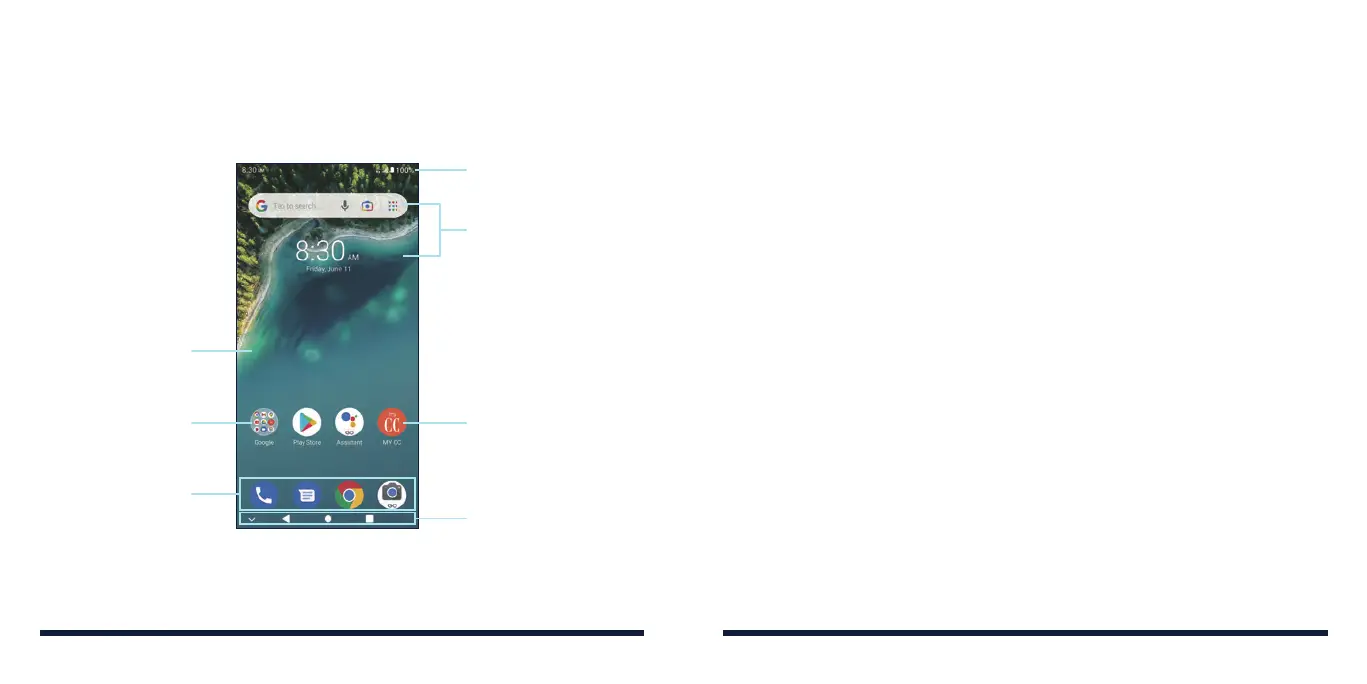
GETTING TO KNOW THE HOME SCREEN
The home screen is the starting point for your phone's applications, functions,
and menus. You can customize your home screen by adding shortcuts,
folders, widgets, and more.
Status & Notifications
Widgets
Shortcut
Wallpaper
Folder
Primary Shortcuts
Navigation Bar
GETTING STARTED
Extended Home Screen Panels
Your home screen is extendable, providing more space for shortcuts, widgets,
and more. Add a few extended home screen panels and you can swipe left or
right on the home screen to switch between them. You can also remove some
panels.
To add a new home screen panel:
Press and hold a shortcut, a folder, or a widget and drag it to the right edge of
the home screen. A new panel is created automatically and you can release
the item on the new panel.
To delete a home screen panel:
Remove all shortcuts, folders, and widgets from a panel (see
Knowing the
Basics – Managing Shortcuts and Widgets – Removing Shortcuts or Widgets
)
and the panel is deleted automatically.
GETTING STARTED



 To Next Page