10 11
GETTING STARTED
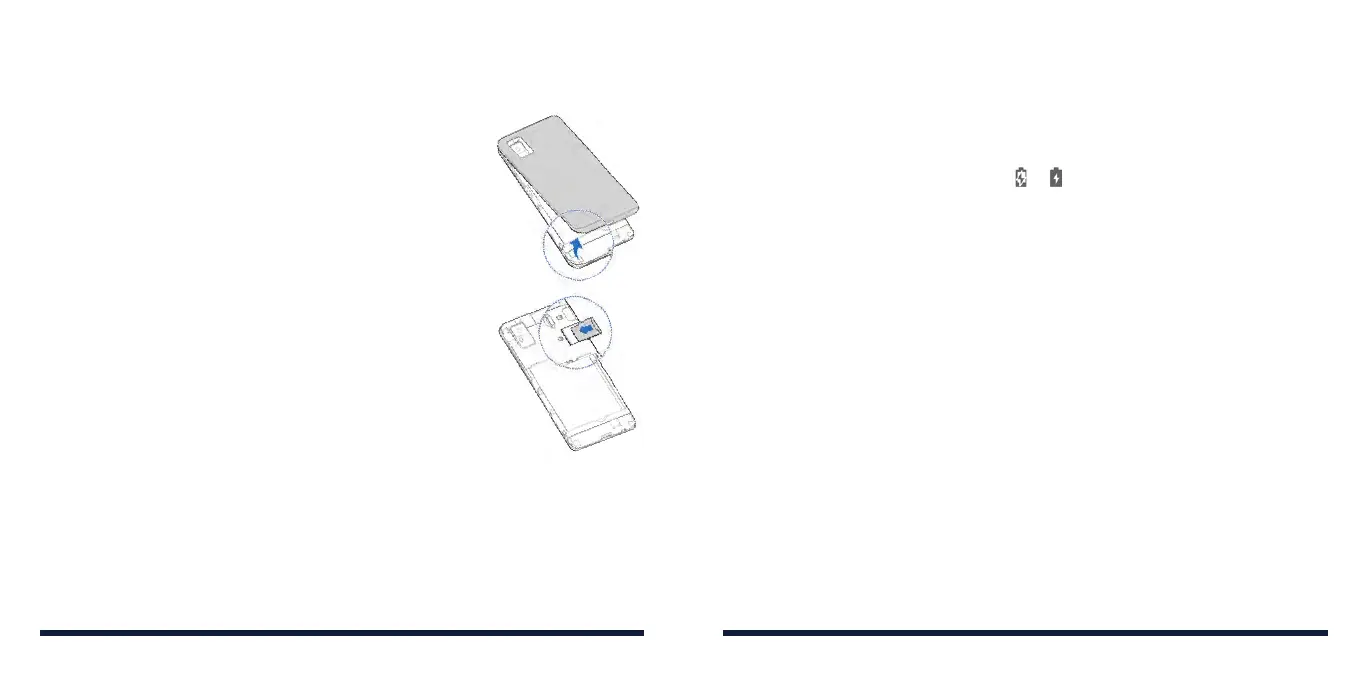
INSTALLING A microSDXC™ CARD
The microSDXC card can be installed and removed
while the phone is turned on. Unmount the microSDXC
card before removing it.
1. Place your finger in the slot at the lower left of the back
cover to lift and remove the cover.
2. Hold your microSDXC card with the metal contacts facing
down and slide it into the microSDXC card slot.
NOTE: Some applications may require
a microSDXC card to store certain data on
it and to work properly. Therefore, it is recommended
that you keep a microSDXC card installed and not
remove or replace it unnecessarily.
3. Press the cover gently back into place until you hear a
click.
CHARGING THE BATTERY
Your phone’s battery should have enough power for the phone to turn on and
find a signal. You should fully charge the battery as soon as possible.
If the battery is low, there will be a pop-up message on the screen. As you
charge your phone, the screen will show the exact battery level on the
status bar.
WARNING! Use only ZTE-approved chargers and USB Type-C cables. The
use of unapproved accessories could damage your device or cause the
battery to explode.
1. Connect the adapter to the charging jack.
2. Connect the charger to a standard AC power outlet. If the phone is on,
you’ll see a charging icon, such as or , appear in the status bar.
3. Disconnect the charger when the battery is fully charged.
NOTE: If the battery is extremely low, you may be unable to power on the
phone even when it is being charged. In this case, try again after charging
the phone for at least 20 minutes. Contact customer service if you still cannot
power on the phone after prolonged charging.
EXTENDING THE BATTERY LIFE
Active applications, screen brightness levels,
Bluetooth
and Wi-Fi usage, and
location functionality can drain your battery. You can follow the helpful tips
below to conserve your battery power:
• Reduce the screen backlight time.
• Lower the screen brightness.
• Turn auto sync and
Bluetooth
off when not in use.
• Disable the location feature when it is not needed. Most applications using
this function will periodically query the GPS satellites or the networks for
your current location; each query drains your battery.
• Use the battery saver feature.
GETTING STARTED



 To Next Page