Scanning 22
With WIDEsystem you can:
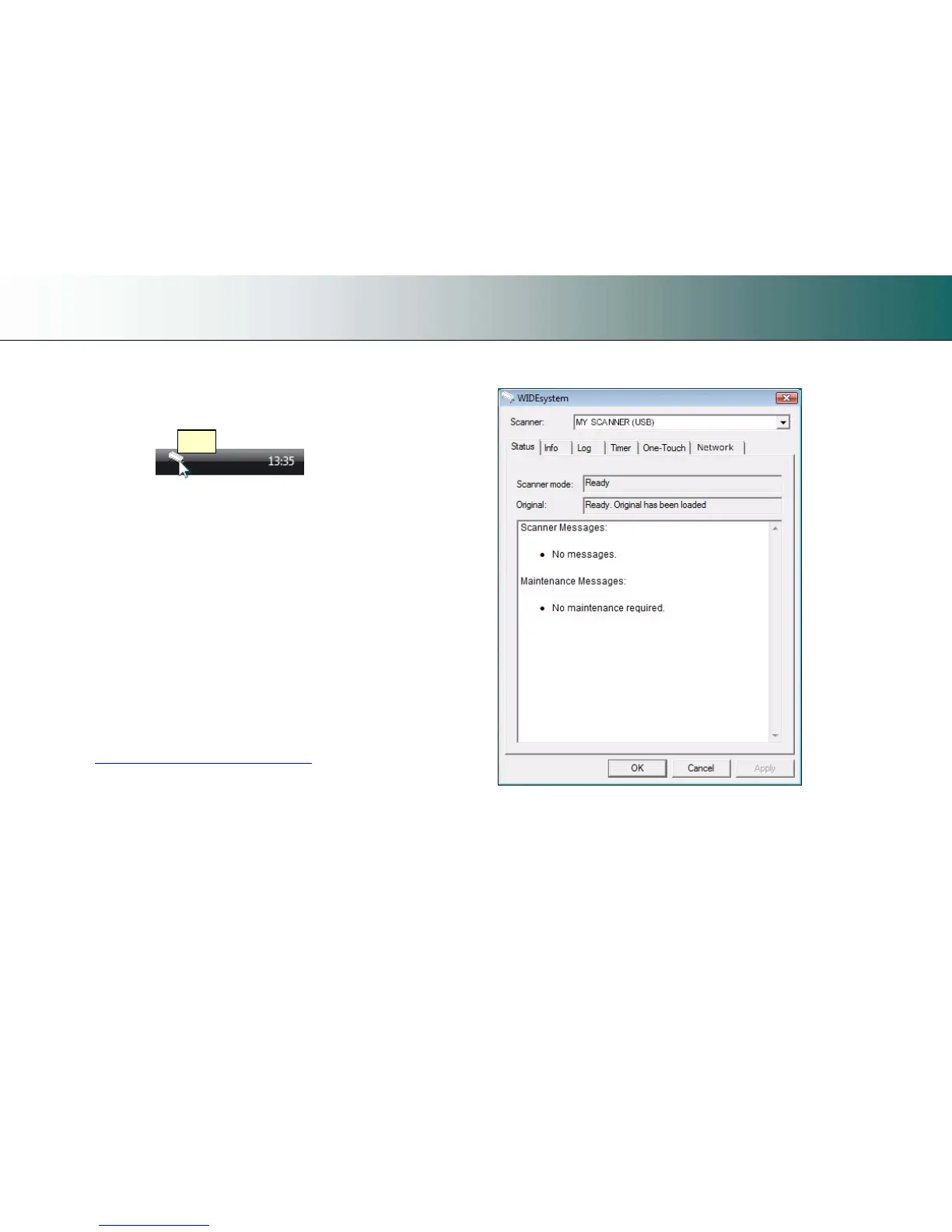
• View the scanner’s status. Move the mouse over the scanner icon on
the system tray. Status messages include whether or not the scanner is
detected, connection and runtime errors and readiness for scanning.
Ready
Scanner status message on Windows system tray
• View Error messages and logs. Runtime errors are reported
immediately on your screen. You can also open the Status tab and
Log tab for viewing error messages.
• View information about the scanner device in relation to firmware
and hardware revisions. Open the Info tab.
• Install new firmware – You download new firmware to a folder on your
machine. Then right click on the scanner icon, select Advanced
Options > Update Scanner Firmware to install it on your scanner.
• Initiate a scan of the system’s hardware bus for re-establishing the
interface. Right click on the scanner icon, select Advanced Options >
Rescan Hardware Bus.
• Assign/reassign applications to the scanner’s one-touch-scan
buttons, or disable the one-touch-scan buttons altogether. Open the
One-Touch tab to make settings.
• Set up your scanner so it can be shared by other PC’s on the
network. Open the Scan to Net tab to make settings. See also
Installation - Share the scanner on the LAN.
• Set up your scan software so it can access shared scanners on
the network. Open the Scan to Net tab to make settings.
• Launch the scanner maintenance program. Right click on the
scanner icon, select Launch Scanner Maintenance.
• Launch the WIDEsystem on-line help. To find instructions on trouble
shooting and using WIDEsystem with your scanner. Open
WIDEsystem and press the F1 key.
WIDEsystem program control interface













 To Next Page