Preparing a VFC400-WiFi for first use VFC400-WiFi User Guide 15
Finalizing the configuration
Click Configure to upload the configuration data to the VFC400-WiFi.
If selected, the LogTag
®
Online Connection Wizard will now start.
When the configuration is complete, unplug the VFC400-WiFi from the USB socket and replace the protective
cap.
If you wish to configure more VFC400-WiFi units with the same configuration, insert the next loggers into the
USB socket, wait until they are ready for configuration and click Repeat Configure. Alternatively you can use the
Profile function to configure multiple units with the same settings.
You can upload the configuration to a VFC400-WiFi logger as often as required.
LogTag
®
Online Connection Wizard
If you have selected Start the Control Solutions Online Connection Wizard during the configuration of the
VFC400-WiFi, the wizard will now start.
The LogTag
®
Online Connection Wizard is a separate program that
l registers the VFC400-WiFi against your account
l enables you to create an account with Control Solutions Online (or sign in if you already have an account)
l allows configuration of wireless and network parameters of your VFC400-WiFi
You can find detailed information about the LogTag
®
Online Connection Wizard in its online help at
http://www.vfcdataloggers.com/lto/.
The LogTag
®
Online Connection Wizard starts after the logger has been configured for other parameters such
as logging and alarms. When the wizard runs, the wireless and network parameters you enter are used to
check that the VFC400-WiFi can establish a connection with your wireless network and the LogTag
®
Online
cloud server. The VFC400-WiFi's display will update during these connection checks.
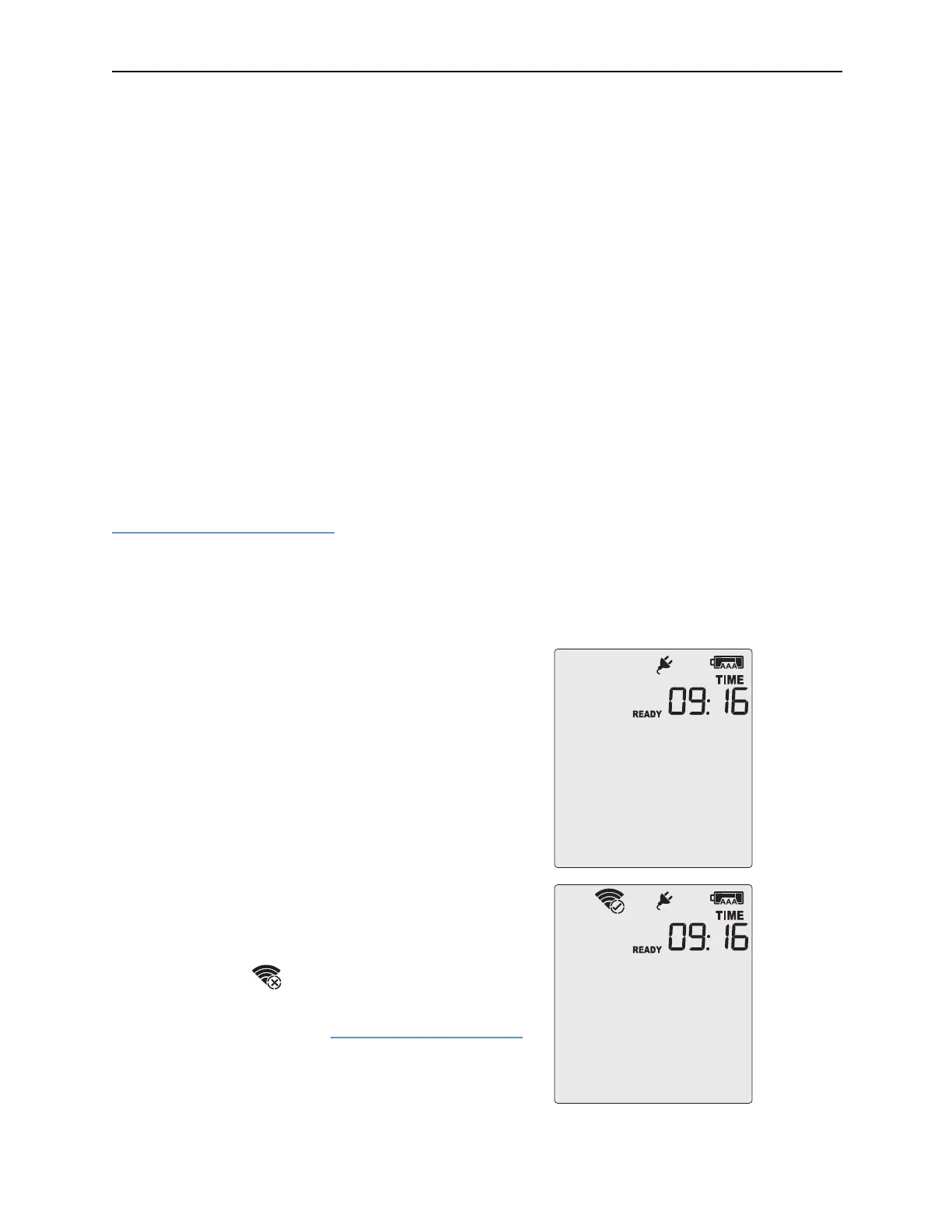
Initially, the display shows the logger is ready to be started.
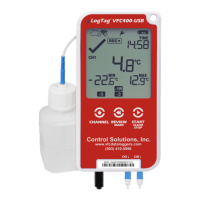
When the Wizard displays Testing Connection, please wait,
first, the wireless connection is tested. If the connection is
successful, the screen on the right shows.
If the wireless connection does not succeed, the "No wireless
connection" symbol (
) is shown instead, and the test
aborts.
Please refer to the section about
Troubleshooting (on page22)
for reasons why the wireless connection can fail.


 To Next Page