X-600M Users Manual Configuration and Setup
built-in logic functions and dashboards and progress to scripts and custom web pages as needed.
The configuration and setup consists of the following basic steps:
Step 1. Configure the network parameters.
Begin by setting the IP address and making the associated network settings. These settings are
made under the Network tab. The goal is to get the X-600M accessible on your network. Test
your settings by accessing the X-600M with your web browser.
Step 2. Add new devices.
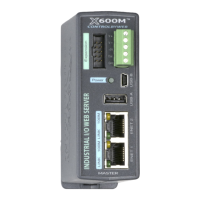
The X-600M has no built-in relays or inputs. Instead, it functions as a powerful master controller
for other ControlByWeb modules. The X-600M can control up to 128 ControlByWeb devices.
These devices can be physically located anywhere in the world with internet access. In addition,
the X-600M has a ribbon cable expansion bus connector which allows a family of add-on
modules to be connected directly to the X-600M. Expansion modules are available with relay,
digital input, thermocouple and other industrial inputs and outputs. Before these devices can be
controlled or accessed they must be entered into the X-600M's database. This is done with the
Devices tab. For modules on the IP network you either automatically scan for devices on the
same subnet or manually enter the IP address. With expansion modules you either automatically
scan for devices or manually enter the serial number of the module. Normally you enter a user
friendly name and description for each device. For example you might name a WebRelay-Quad
“PanelBoardA” with a description of “Warehouse Lights”. When complete, the Devices menu tab
will show a list of all the devices (modules) you wish to monitor or control.
Step 3. Add I/O (Inputs & Outputs).
Devices have inputs and outputs. Before the inputs and outputs can be monitored or controlled
they must be entered into the X-600M's database. This is done with the I/O tab. You add I/O
objects to the I/O list one by one. To add an I/O, click on the I/O tab in the left hand menu to see
a list of all available I/O types based on the devices that have already been configured in step 2.
Select the I/O type to add and click Add New I/O to add an instance of that I/O. A popup window
will then appear where the I/O can be specified and a name and description can be assigned to
the I/O. Normally you enter a user friendly name and description for each I/O object. For
example you might name one relay of a WebRelay-Quad “circuitA1” with a description of
“Loading Dock Lights”. When complete, the I/O menu tab will show a list of all the I/O objects
you wish to monitor or control.
Step 4. Add Conditional Events
Conditional Events occur when certain criteria are met, such as a temperature reaching a certain
value. The conditions which generate an event can be both simple and complex. If you are
simply monitoring inputs and controlling outputs with a web page you can skip this step.
Step 5. Add Actions
Conditional Events in turn trigger Actions. An Action can include sending an Email, turning a
relay on or off, or initiating a data log. Of importance an Event can trigger more than one Action.
For example, a Conditional Event could occur when the temperature exceeds a certain value,
the Event could trigger two Actions. One Action could turn a relay on to illuminate an alarm light
and a second Action could send an Email alert. The scheme of keeping Events and Actions
separate and distinct allows for complex conditions and reporting needed by many real world
applications. If you are simply monitoring inputs and controlling outputs with a web page you can
skip this step.
Step 5. Create/Edit a Dashboard
A dashboard is a web page that users can access to view and control I/O. You customize
dashboards by placing widgets, panels and components. The widgets and panels can be
customized and labeled. For example, a widget might be labeled “Upper floor”. Within a widget
Xytronix Research & Design, Inc. Page 25


 To Next Page