22
5. Coredy App Control
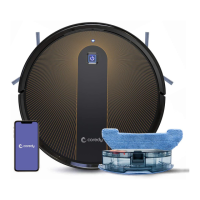
Follow the instructions in the App to set up the Wi-Fi
connection.
4. Reset the Wi-Fi Connection
When switching to a new router or your Wi-Fi password
changes, you will need to reset Coredy Robot FL022's
Wi-Fi connection. Press and hold the on Robot for 3
seconds to reset the Wi-Fi connection. You can follow the
Wi-Fi instructions in the Coredy Robot App to set up the
Wi-Fi connection.
- After connecting successfully, you can control Robot via
the App.
- With the App, you can select a cleaning mode, set the
time, schedule a cleaning, receive notifications and access
additional features.
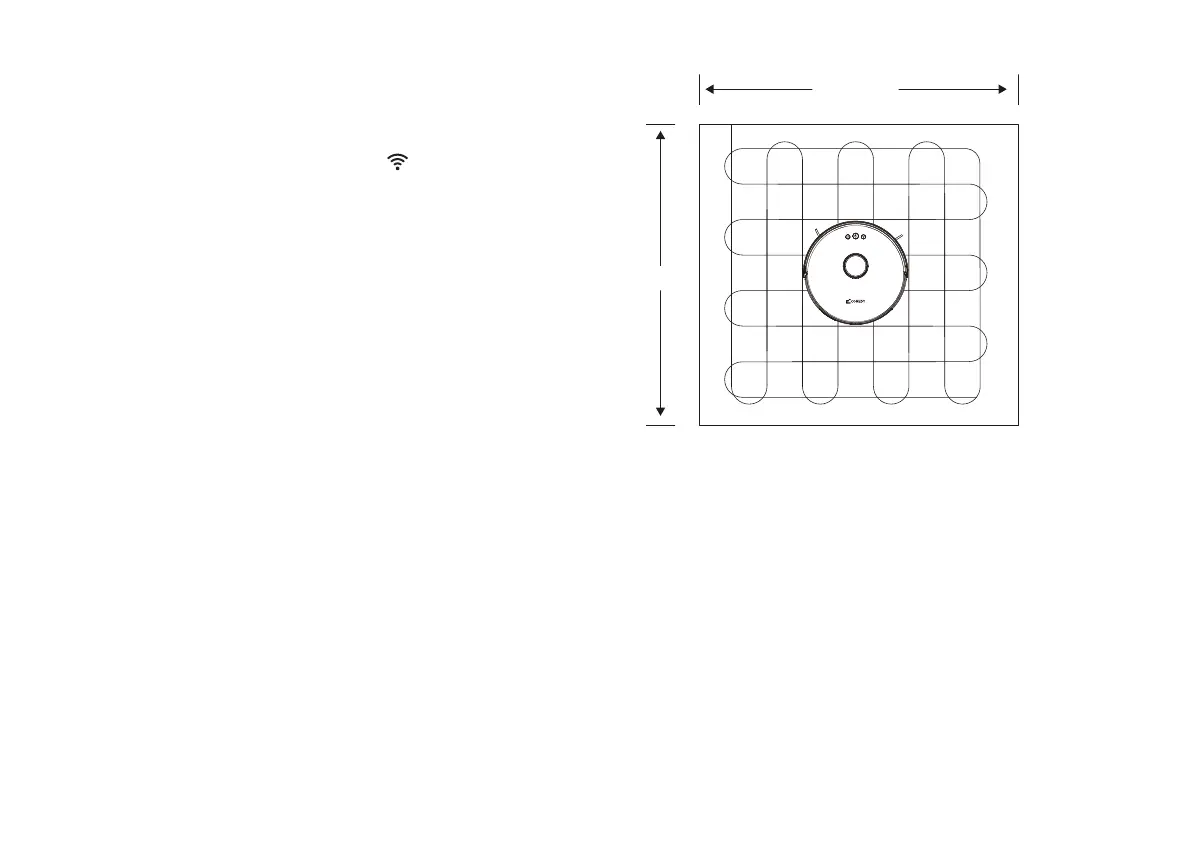
You can use the App to specify a target point on the map.
Coredy Robot FL022 will automatically plan the route and
move to the specified point. If you specify a target point
on the App when the Robot is in standby or pause state,
Coredy Robot FL022 will clean the 1.6m x 1.6m square
zone centered on this point. After cleaning, Coredy Robot
FL022 will automatically return to the starting point and
stop working.
PIN N GO
You can use the App to select one or more zones for
cleaning. Coredy Robot FL022 will clean one or more rooms
based on the zone that you has selected on the App map.
Selected zone cleaning
Note:
If you activate PIN N GO when the Robot is in a paused
state, the current cleaning task will be stopped.
Note:
Before using this function, you need to enable the Map Save
Mode for the Robot which you can set at Room Manage on
the App.
After cleaning starts, the Robot may move to a place beyond
the selected zone. Make sure that you have cleared the
obstacles on the ground around the selected zone, which
cannot be used for safety isolation.
5.2ft/1.6m
5.2ft/1.6m


 To Next Page