14
COWON A2
Running Files
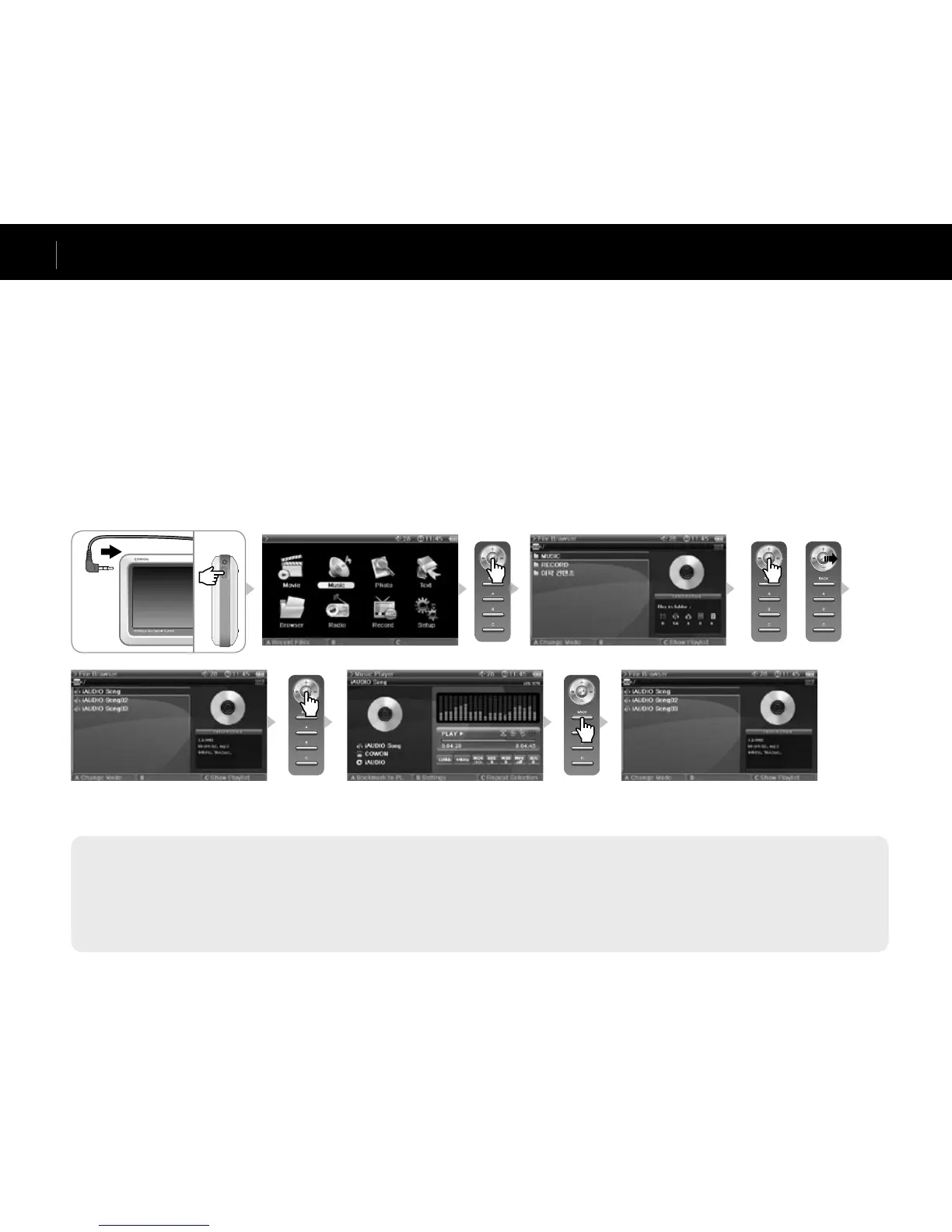
1. Connect the earphones to A2. (No need to connect the earphones if you want to listen through the speakers.)
2. Press and hold the power switch to turn on the player.
3. To play a file, press the lever in either Movie, Music, Photo or Text mode.
4. Use the lever to move the cursor to + or – and press the lever to open a folder that contains the file to be played.
5. Press the lever on a desired file and the file will start to play.
6. Adjust the volume, toggle through the file playlist or scan through files by joggling the lever during playback.
7. When the lever is pressed during playback, the file will pause. To restart playback, press the lever again.
8. Shortly press the “BACK” button during playback and the File Browser will appear. Press the “BACK” button again to go to the Mode Selection screen.
9. Press and hold the power switch to turn off the player.
- Only the list of files that are playable per mode is displayed for each Movie, Music, Photo, Text mode. Files are played in the same method for each mode.
- Press and hold “BACK” button anytime during playback to pause.
- Speaker is turned on only when the Speaker setting in Setup – Sound – General is set to Auto-Off or On.
- To view subtitles while playing video, Subtitle setting must be set to On. FYR, file names (excluding extension) of subtitle and the video file must be the same , and both files
must be located in the same folder.
- Video file formats that are not supported can be viewed using the conversion feature of JetAudio VX.
or
Basic Features
Ex.) Play a music file.


 To Next Page