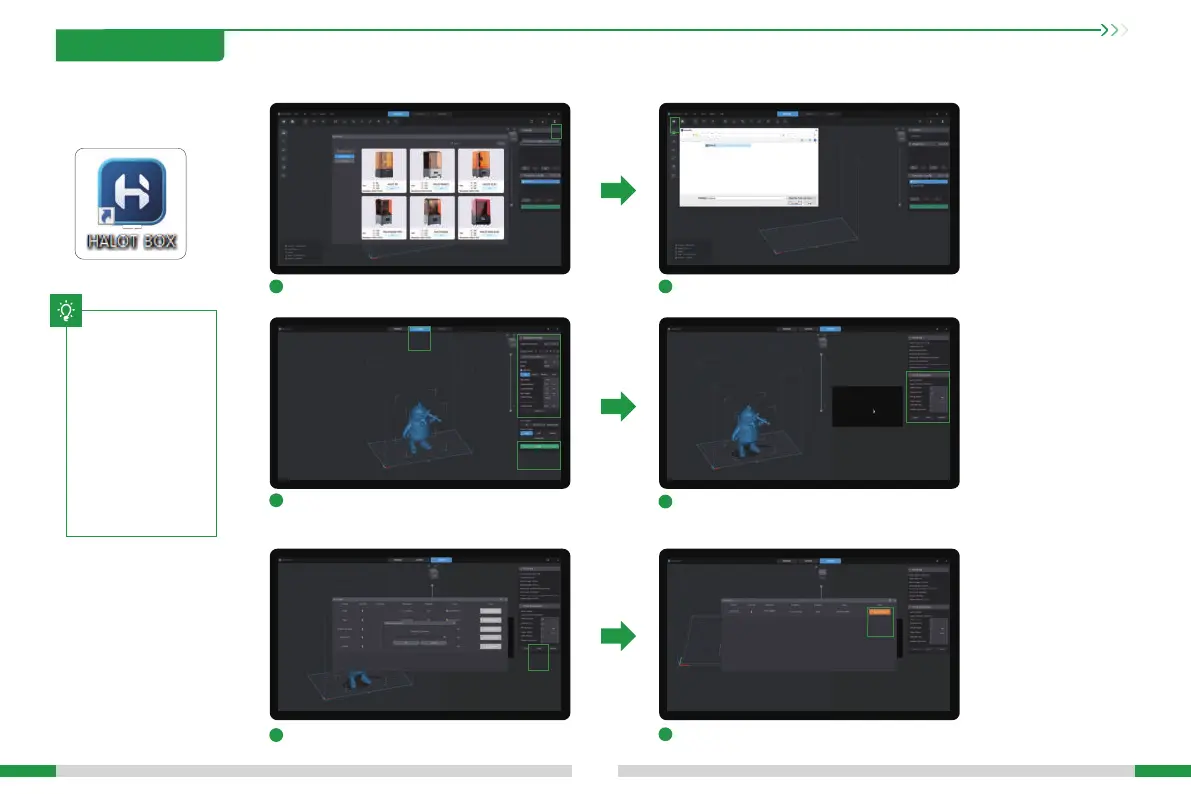
After the slicing is completed, the printing parameters
can be set according to the model requirements;
1
3
5
2
4
6
11. WIFI Print
14
1. Slicer
Open the HALOT BOX software, click the icon ① in the
upper right corner to add the printer;
Click to print ①, enter the password and then click to
sta transmission.
Once the transmission is over, select the le on the
machine to sta printing①。
1、Before wireless printing, make sure the HALOT BOX is connected to the same local area network as the printer.
2、Enter password before transfering the le, Be consistent with the password set on the printer.
(Click “Print Settings → HALOT BOX → Password”)
①
Click the icon ① in the upper left corner to open the
model le;
If a suppo needs to be added to the model, click the
icon ① above and set the corresponding parameters ②.
Then click "Slice" ③ to sta slicing;
①
②
③
①
①
The current
inteace is for
reference only.
Due to the
continuous
upgrading of
functions, it shall
be subject to the
latest software/-
rmware UI
published on the
ocial website.
T
①
Open
Cancels



 To Next Page