Installing Software in Windows 95/98 3-3
Testing the Installation
After you have set up your modem, run the following test to ensure
that your card has been properly installed. To test your modem:
1. Click the Start button on the taskbar, point to Settings and then
click Control Panel.
The Control Panel window appears.
2. Double-click the Modems icon.
The Modems Properties dialog box appears.
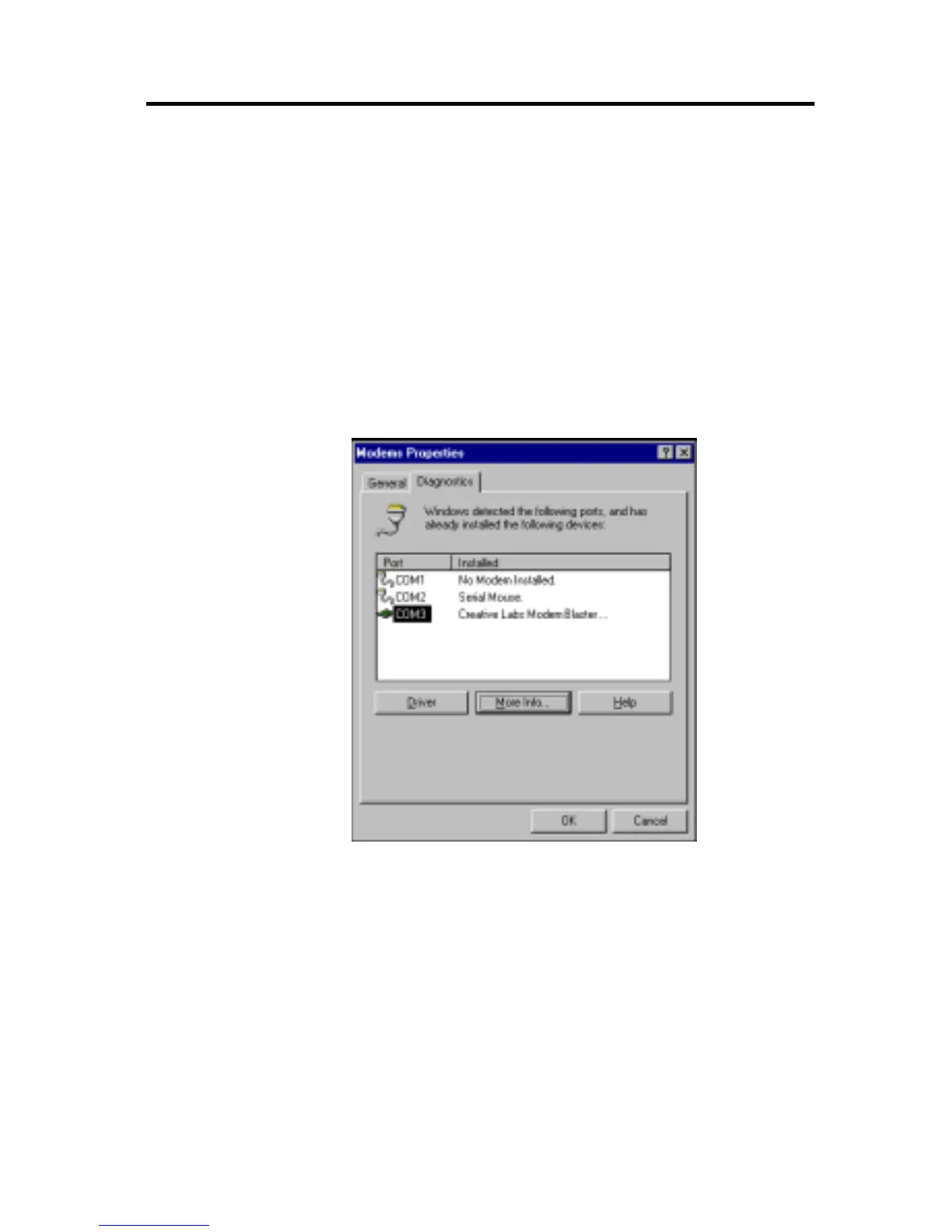
3. Click the Diagnostics tabbed page.
The dialog box similar to Figure 3-3 appears.
4. Select the COM port that has been assigned to your modem.
5. Click the More Info button to display the response status of
your modem.
If your modem is not responding, it may be due to a conflict
between the modem and another peripheral device. To resolve
the conflict, you must change the settings of your modem
(see the “Resolving Hardware Conflicts” section on page B-4).




 To Next Page