Adjusting widget size
.ti esaeler neht dna neercs emoh eht no tegdiw a dloh dna sserP .1
eziser ot eniltuo eht garD .tegdiw eht dnuora sraeppa eniltuo nA .2
the WIDGETS.
Note: Not all widgets can be resized.
Organizing with folders
You can create folders on the home screen and add several shortcuts to
a folder. You can move or remove folders the same way as moving or
removing shortcuts.
Creating a folder
neercs emoh a no noci na dloh dna sserP and drag it over another icon and
release it. A new folder will be created and the icon is put into the folder.
Renaming a folder
.snoci eht deyalpsid si eman redlof ehT .ti nepo ot redlof a paT .1
2. Tap the folder name and enter a new name.
3. Tap .
Adding more icons to a folder
.noci redlof a otno ti gard neht dna noci na dloh dna sserP .1
2. Release the icon and it will be put into the folder.
Removing icons from a folder
.ti nepo ot redlof a paT .1
below
2. Press and hold the icon you want to remove and then drag it to a new
location and release the icon to the current home screen or drag it to
X Remove to remove it altogether.
Google keyboard
The Google keyboard provides a layout similar to a desktop computer
keyboard. When screen auto-rotation is enabled, turn the phone
sideways and the keyboard will change from portrait to landscape.
The landscape keyboard is not supported in all applications.
>
Entering text
You can enter text using the on-screen keyboard. Some apps open it
automatically. In others, you open it by tapping where you want to type. You
can press the Back key to hide the on-screen keyboard. You can also enter
text by speaking with the Google voice typing feature.
Enabling or disabling input methods
eht sserP .1 Home key > > > Languages & input > Virtual keyboards
.
.meht elbasid ro elbane ot sdohtem tupni eht ediseb sehctiws eht edilS .2
Note: Some default input methods may not be disabled.
Manage keyboards
Rearranging the primary shortcuts
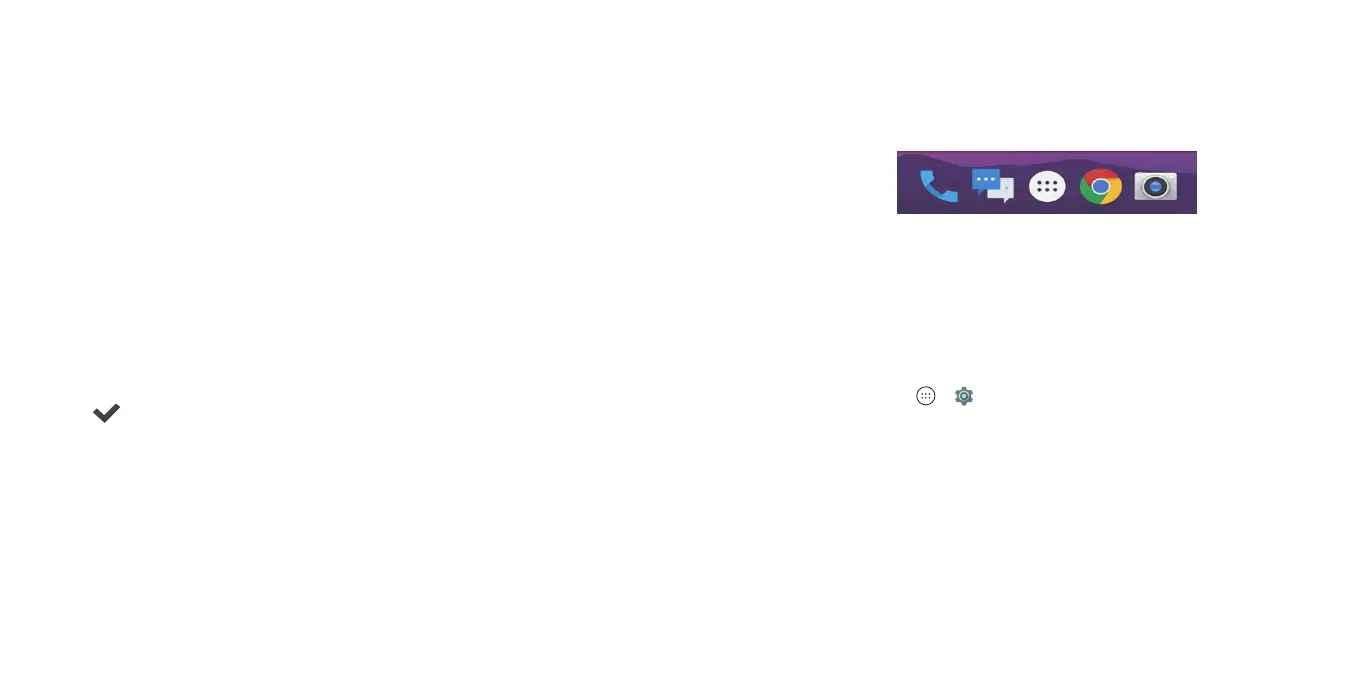
The home screen includes a customizable primary shortcuts area at the
bottom of all home screens. You can keep up to four items in addition to Apps
in the primary shortcuts area. Drag shortcuts or folders in or out of the area to
rearrange the area.
24 25



 To Next Page