- Step 3: Test the Connection
Cummins INLINE™ 7 Data Link Adapter Installation and Setup Manual 45
4 Use the button in the Protocol box to select the appropriate protocol (e.g.,
J1939, CAN, ISO 15765, J1708).
—The Proto
c
ol box lists only the protocols supported by the device selected
in the Device box.
5 Press t
he Start Test bu
tton.
The Communi
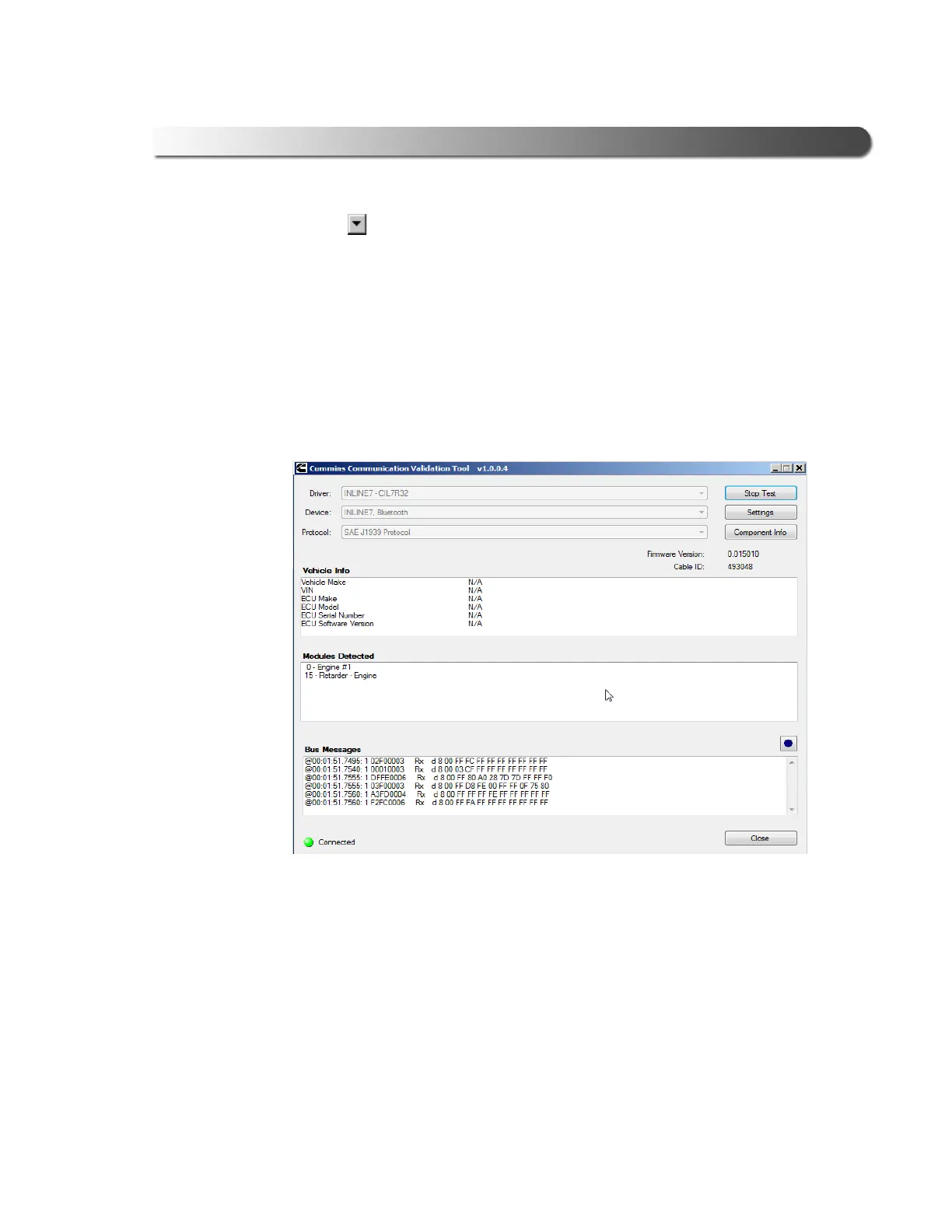
cation Validation Tool screen is refreshed and the Connec-
tion Indicator button (located in the bottom left corner of the display)
chang
es from Not Connected (red) to Connected (green).
Figure 3.22 Communication Validation Tool: Status Connected
The Vehicle Info window displays information about the vehicle to which
you are connected (depending on the protocol selected).
The Modules Detected window in the middle portion of
the screen displays
a list of all systems seen on the bus. It is used for J1708 and J1939 only. For
all other protocols this window will be unavailable (i.e., NOT USED).
The Bus
Messages window at the bottom of the screen displays data
re
ceived from the vehicle bus.



 To Next Page