Joule 3.0 User Guide page 70
Chapter 9: History
Total History
Totals History reports allows for comparisons of the totals achieved in a selected time frame to
the averages achieved in that same time frame.
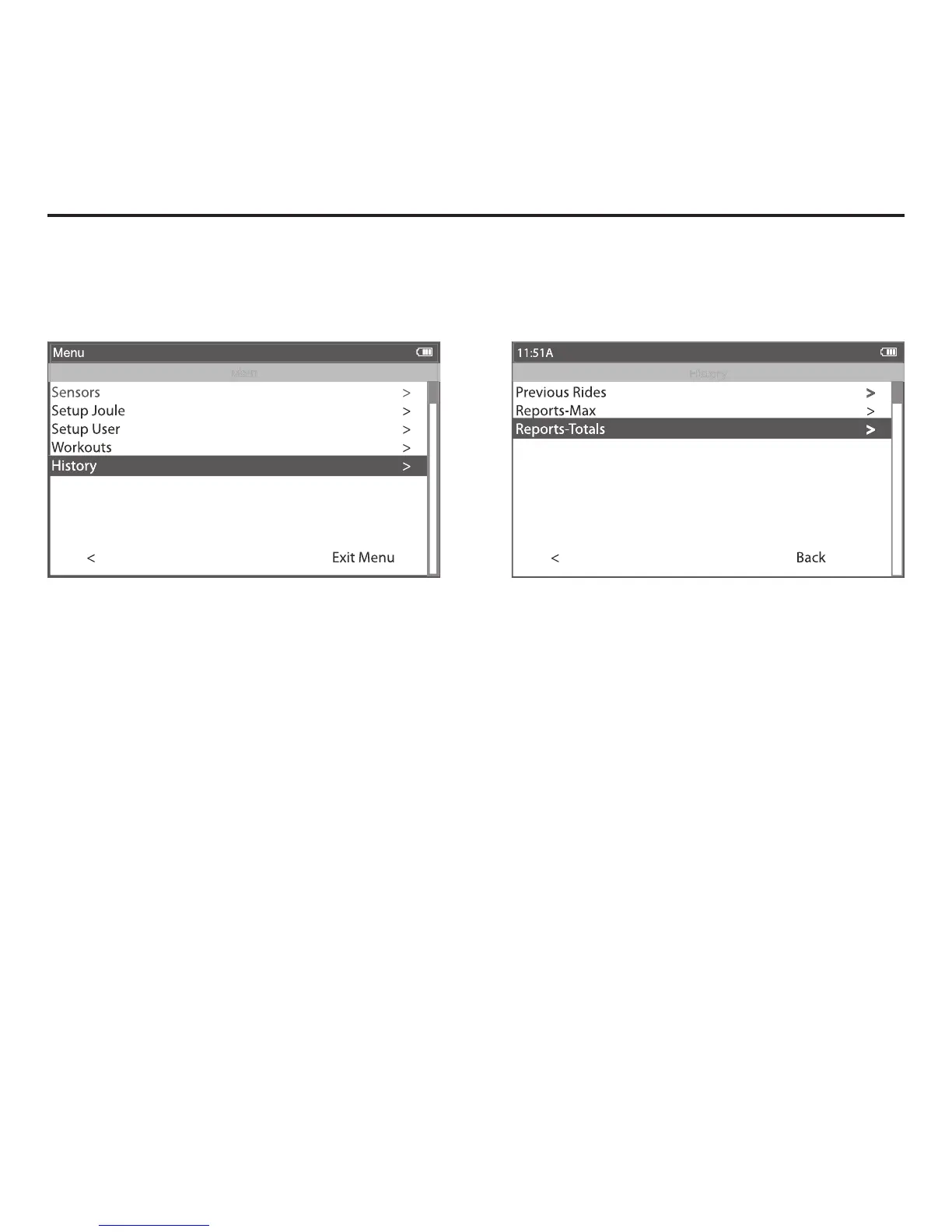
1. Press and release [MODE] until Menu mode is displayed.
2. Press [JOYSTICK] up/down to highlight History.
3. Press [JOYSTICK] in and release to select History.
4. Press [JOYSTICK] in and release to select Reports – Totals. Note: Reports are now shown with 3 columns; the
fi rst column is the metric label, the second column is the total value achieved for a given metric over the se-
lected time frame and the 3rd column is the average of all rides completed over the selected date range.
5. Press [JOYSTICK] in and release to change the selected data range from 2 weeks, 4 weeks, 8 weeks, 6 months
and 12 months.
6. Press [JOYSTICK] left/right to change reports and exit History reports.
Note: Total view is the total values achieved for each report metric over the average on two week, four week, etc.


 To Next Page