Updating Software
To keep the Touch 7 up to date with the latest software refer to https://downloads.czone.net/. It is
recommended to update the entire CZone system when updating the Touch 7 to ensure the system
operates correctly. The Touch 7 can be updated via the USB port, see process below:
4.2.1 Checking Current Software Version
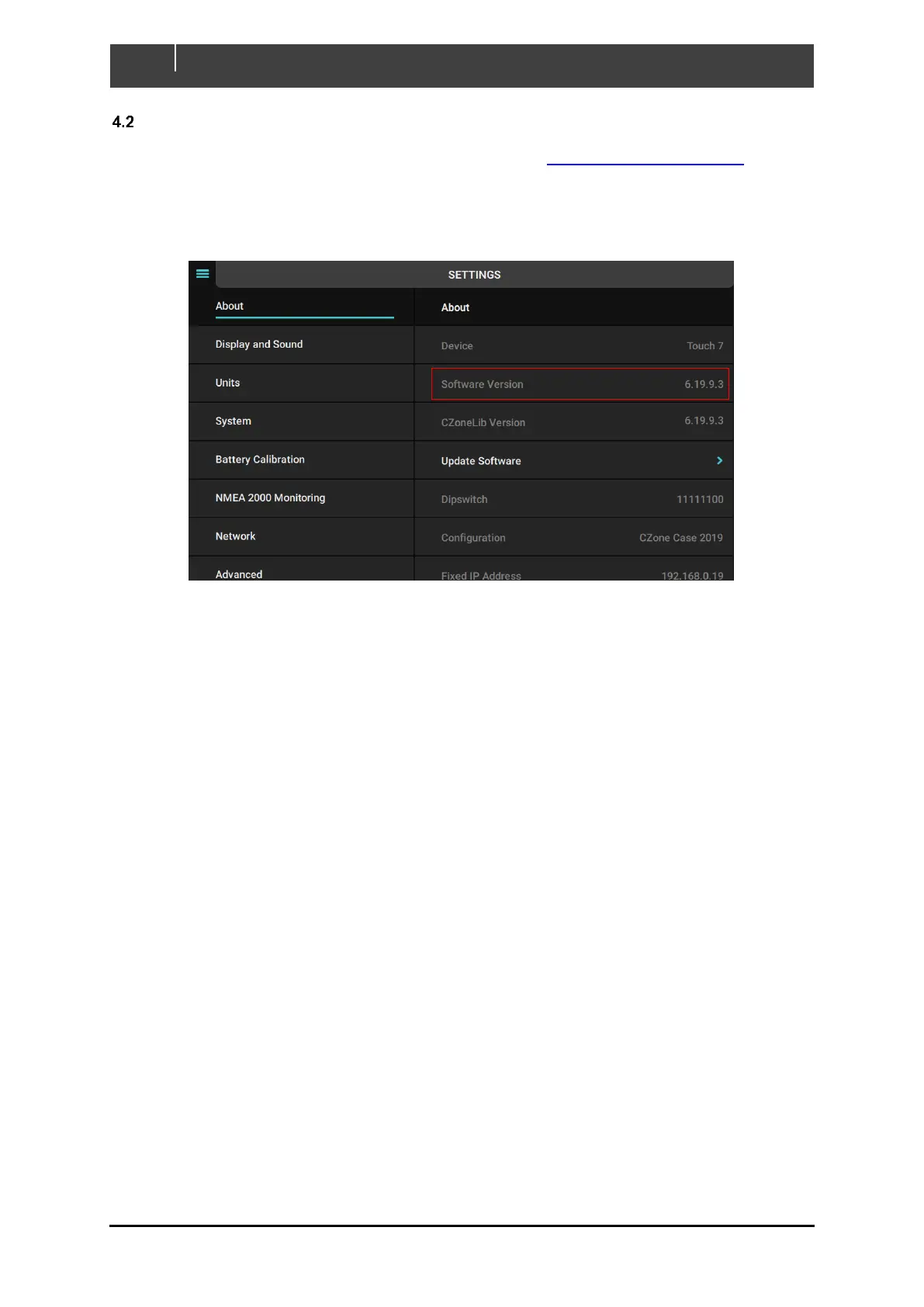
To check the current software version on the Touch 7, go to Settings > About.
The current software version is listed at the top of the page. To install a newer version, follow the
below steps
4.2.2 Updating Software via USB Flash Drive
1. Copy the Touch 7 firmware file (extension .swu, previously downloaded from the CZone
portal) on the root directory of a USB Flash Drive.
2. Insert the USB Flash Drive un the USB Port of the Touch 7.
3. Press the ‘Update Software’ button on the Settings > About page and press ‘Yes’ when
prompted.
4. The display will start installing the new software, this process may take a few minutes.
5. When complete the display will boot up to the main screen. Go to Settings > About to confirm
the new Software Version.


 To Next Page