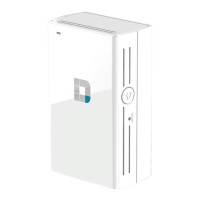
7D-Link DCH-M225 User Manual
Section 1 - Product Overview
Hardware Overview
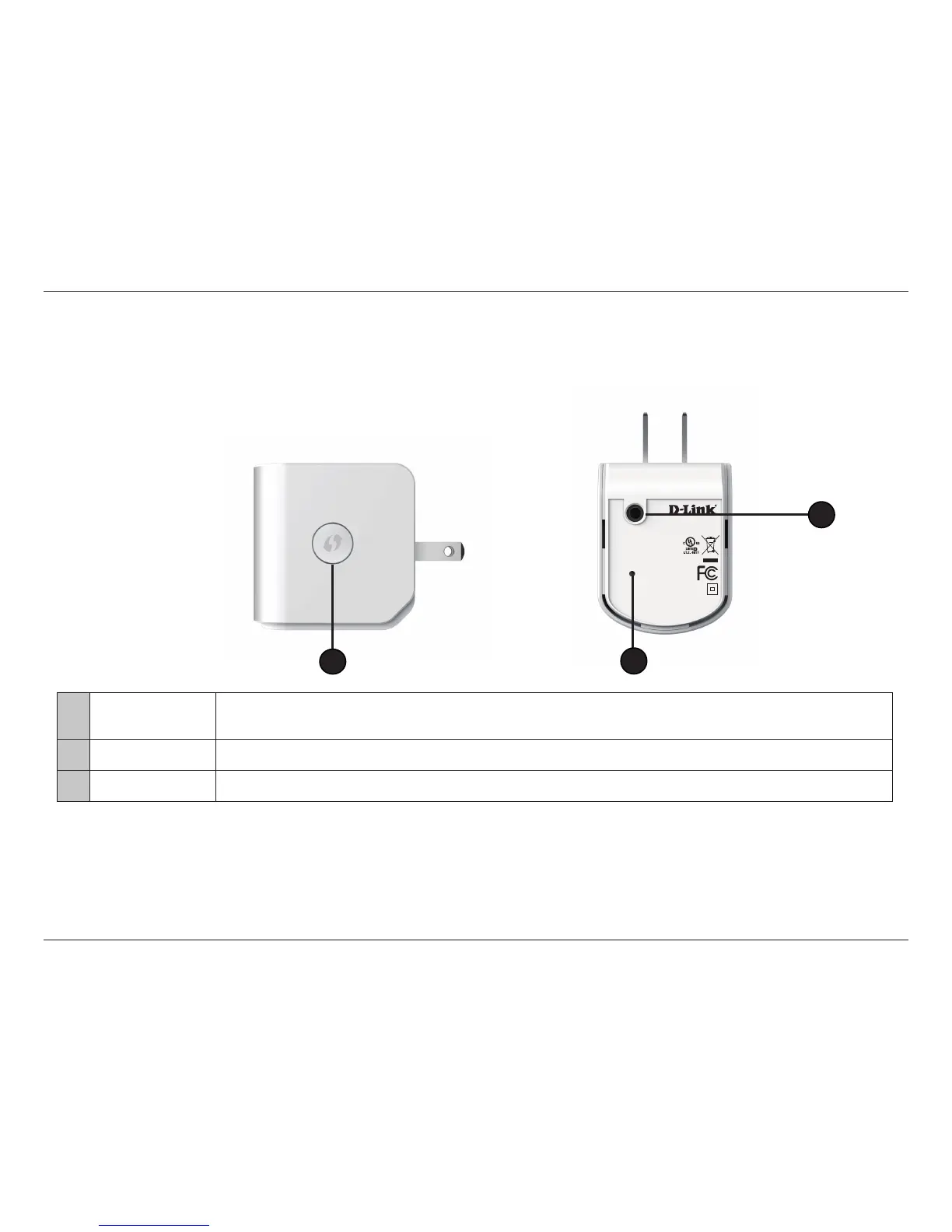
Side and Bottom/WPS and Reset
1 WPS Button
Press the WPS (Wi-Fi Protected Setup) button for a minimum of one second to automatically connect with Wi-Fi clients. The LED on the
front of the device turns solid green, when the DCH-M225 has successfully connected.
2 Audio Line Out Connect an external speaker to the audio line out jack*.
3 Reset Button Press and hold the reset button for six seconds to reset the DCS-M225 to the factory default settings.
1
Input: 100-240VAC, 50-60Hz, 0.3A
FCC ID:KA2CHM225A1
IC: 4216A-CHM225A1
Model: DCH-M225A1
CAN ICES-3 (B)/NMB-3(B)
P/N: BCHM225LNA...A1
S/N:RZEP1YMXXXXXX
H/W Ver.: A1 F/W Ver.:1.00
DCH-M225
+Wi-Fi Name(SSID):dlink-XXXX
Wi-Fi Password:XXXXXXXXXX
3
2
For Apple Airplay:
a. Open iTunes (or the Airplay music app* on your iOS device)
b. Click the Airplay icon.
c. Select the DCH-M225 from the destination list.
d. Click Play and the music will stream to the extender.
*You may use an Airplay®, iTunes, or any DLNA-enabled device that is connected to your extended network to play music to the speakers you connect to the DCH-M225.
For DLNA:
a. Download and install a DLNA music app.
b. Verify that DLNA is enabled on your device. Refer to “Audio Renderer” on page 26.
c. Within the app, select the DCH-M225 from the Play to or the destination list.
d. Click Play and the music will stream to the extender.


 To Next Page