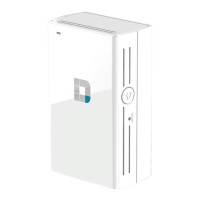
17D-Link DCH-M225 User Manual
Section 2 - Product Setup
Web-based Conguration Utility
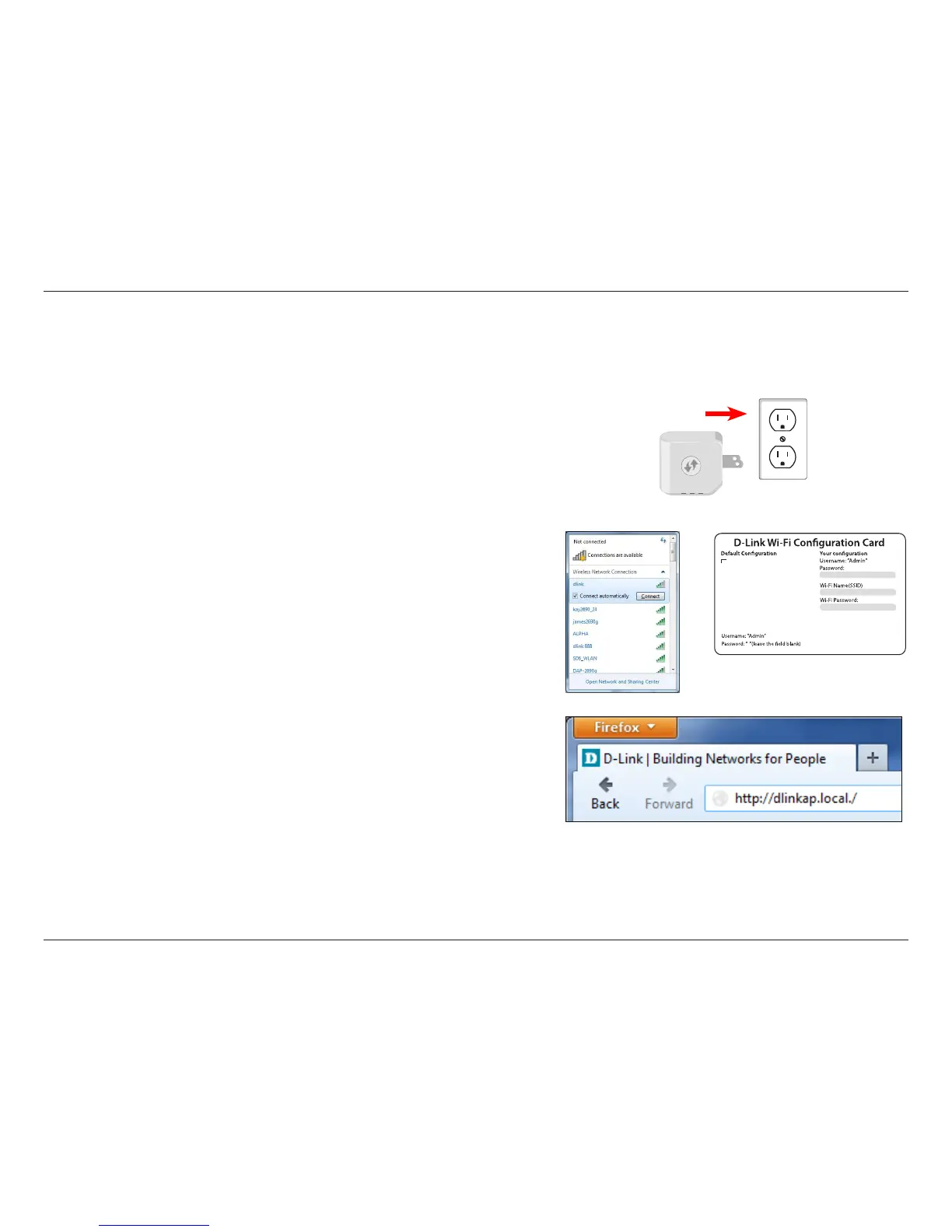
1. Plug the DCH-M225 into an available outlet near your router. You
can move it to a more suitable location after conguration.
2. Open the wireless utility on your wireless device or computer.
Select the Wi-Fi Network Name and enter the Wi-Fi Password
from your Wi-Fi Conguration Card.
Wi-Fi Name(SSID):
dlink-2c19
Wi-Fi Password:
gccnu80856
Web browser link:
http://dlinkap2c19.local.
3. Then open a web-browser (e.g., Internet Explorer, Chrome, Firefox,
or Safari) and enter http://dlinkap.local./. Or, you can enter the
default IP address of the DCH-M225, which is 192.168.0.50*.
* Once the DCH-M225 connects to your router using the default IP address, it will be assigned a new IP address based on your router/network’s DHCP settings. You
will need to log in to your router and view the DHCP table to see what IP address was assigned to the DCH-M225. The MAC address is printed on the label on the
DCH-M225.
If you have multiple DCH-M225 devices on the network, you can
access the web-based conguration utility using the following:
http://dlinkapxxxx.local./, where xxxx is the last four digits of
the DCH-M225’s MAC address.
Use the web-based conguration utility to launch the Setup Wizard and/or to change wireless and network settings.


 To Next Page