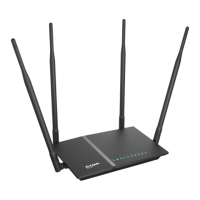
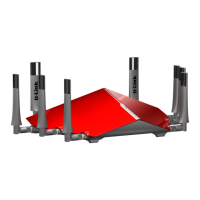
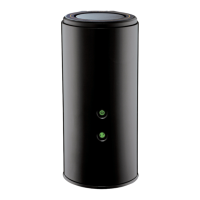
DIR-882 AC2600 Wave 2 MU-MIMO Wi-Fi Gigabit Router with
3G/LTE Support and 2 USB Ports
User Manual
Configuring via Web-based Interface
To specify URL addresses to which the selected filtering mode will be applied, in the Addresses
section, click the ADD button ( ). In the opened window, you can specify the following
parameters:
Parameter Description
URL address
A URL address, a part of URL address, or a keyword.
Match with template
Select a value from the drop-down list.
• Full: The request address should exactly match the value
specified in the field above.
• Begin: The request address should begin with the value
specified in the field above.
• End: The request address should end with the value
specified in the field above.
• Partly: The request address should contain the value
specified in the field above in any part of it.
Click the SAVE button.
To remove a URL address from the list, select the checkbox located to the left of the relevant
address in the table and click the DELETE button ( ). Also you can remove an address in the
editing window.
To define devices to which the specified restrictions will be applied, select a needed value from the
Client filtering drop-down list.
• Devices from list: When this value is selected, the router applies restrictions only to the
devices specified in the Clients section;
• All but devices from list: When this value is selected, the router does not apply
restrictions to the devices specified in the Clients section, but applies restrictions to other
devices.
To add a client to the list, in the Clients section, click the ADD button ( ). In the opened
window, in the MAC address field, enter the MAC address of the device from the LAN. You can
enter the MAC address of a device connected to the router’s LAN at the moment. To do this, select
the relevant device from the drop-down list (the field will be filled in automatically) and click the
SAVE button.
To remove a client from the list, select the checkbox located to the left of the relevant rule of the
table and click the DELETE button ( ). Also you can remove a client in the editing window.
After completing configuration of the URL filter, click the APPLY button.
To set a schedule for the URL filter, click the Set schedule button ( ). In the opened window,
you can create a new schedule (see the Schedule section, page 272) or use the existing one. Existing
schedules are displayed in the Interval of execution drop-down list in the simplified mode.
Page 259 of 303


 To Next Page