IV. Instructions before Use
48 Dakewe (Shenzhen) Medical Equipment Co., Ltd.
www.dakewemedical.com
(8) Update
1. Software Update
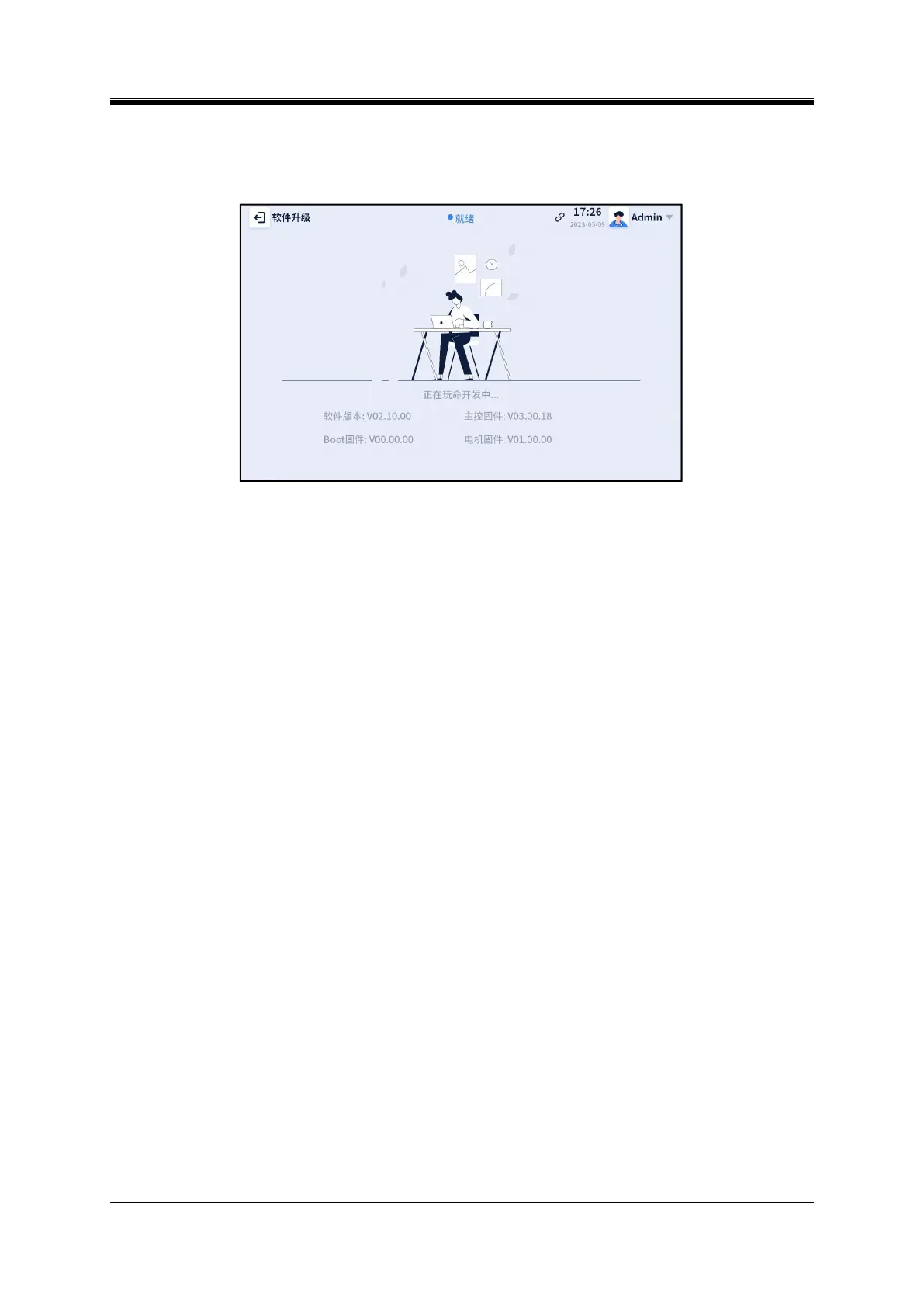
Figure 4- 59 Update - With no USB drive inserted
To update the software, the user needs to perform the following steps:
Step 1: Prepare a USB drive (with a remaining storage capacity of greater than 1 GB) and copy the
software update package to the “sureprint” folder on the USB drive. The following is an example of a
software update package. Where,
Slide Printer PC Setup_~_English.exe file is the Chinese installation package “~” of the PC;
Slide Printer Setup_~_English.exe file is the Chinese installation package “~” of the instrument;
Step 2: Insert the USB drive into the USB port on the back of the instrument and click “Update” on
the right of the “Software Version” for detection. If there is no “sureprint” folder in the USB drive or
no software update package for the instrument in the “sureprint” folder, a message saying “Can't find the
installation package. Please check the appointed path in the USB drive!” will appear (as shown in Figure
4-59). If the detection is successful, a message saying that the detection is complete and manual
confirmation is required will appear (as shown in Figure 4-60). After the confirmation, the installation
starts;


 To Next Page