IV. Instructions before Use
24 Dakewe (Shenzhen) Medical Equipment Co., Ltd.
www.dakewemedical.com
(3) Homepage
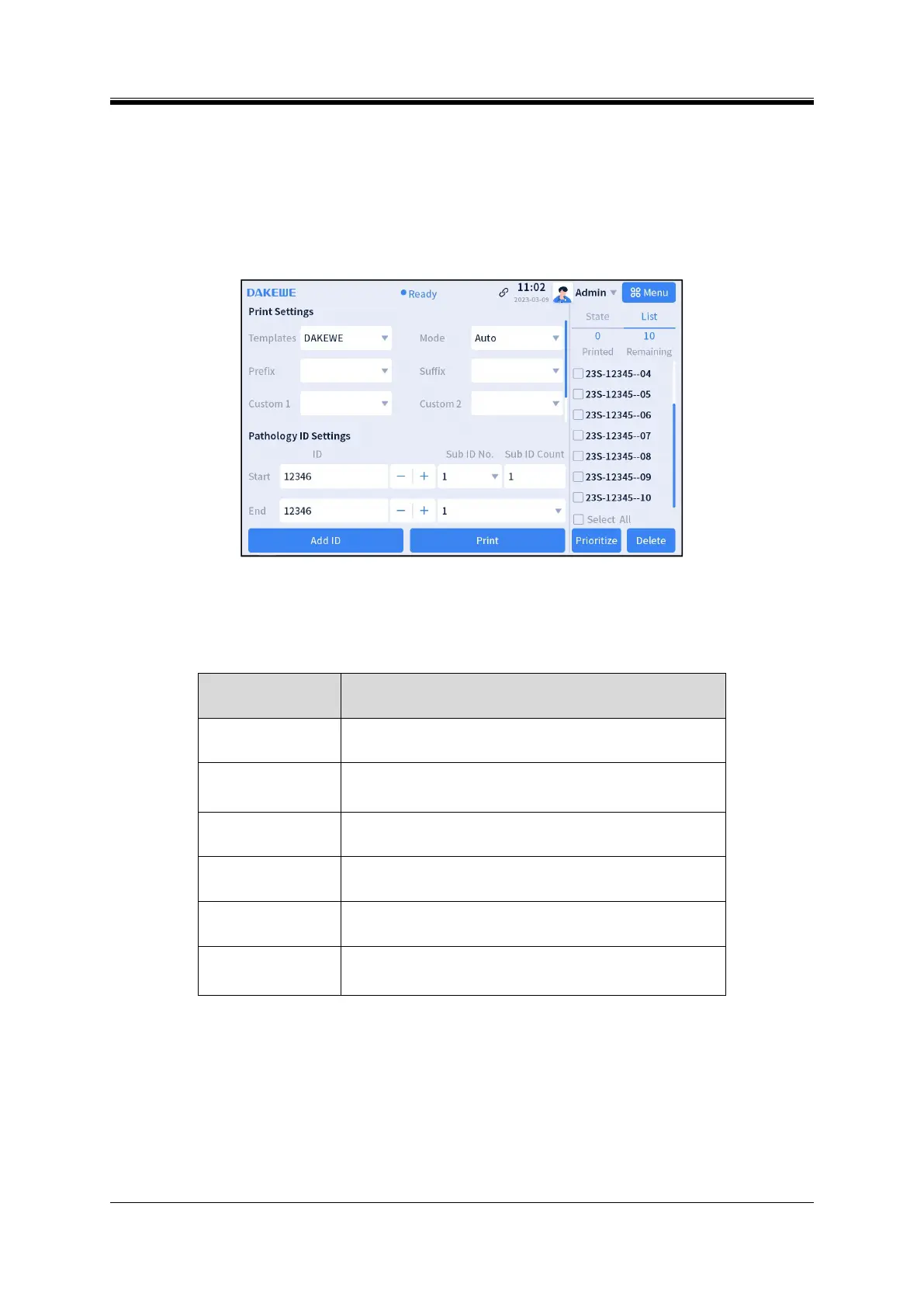
Two display modes are designed on the homepage of the software, and each mode primarily consists
of five parts (Figure 4-18): Status Bar, Print Settings, Pathology ID Setting, Hopper Status Bar/Print Jobs
List, and Buttons.
Figure 4- 18 Homepage - List
1. Status Bar
It is located at the top of the homepage and mainly displays the following information:
Table4- 3 Status bar components
DAKEWE logo (displayed on the left)
It is located in the middle of the status bar. There are eight print
statuses: Ready, Printing, Stopping, Resetting, Abnormal, Sleep,
Processing, and Disconnected
To the right of date and time. If the connection is successful, the
icon is blue; otherwise, it is red
The date and time are displayed to the right of connection status
icon
Text “User” is displayed if no account has been logged in;,or the
user name is displayed
The user can click the inverted triangle icon on the right of the
user name to switch accounts, restart and shut down the
instrument


 To Next Page