V. Computer Software
50 Dakewe (Shenzhen) Medical Equipment Co., Ltd.
www.dakewemedical.com
V. Computer Software
(1) Software Running Requirements
Make sure that there is enough space on the hard drive for installation. The installation of the
computer software requires at least 500 M space available on the hard drive. However, the remaining space
on the drive should preferably be greater than 1 GB for the smooth operation of the program.
Operating systems compatible with the software:
Windows 7, Windows 10 and Linux.
Operating systems incompatible with the software: Windows XP.
(2) Network Interface Connection
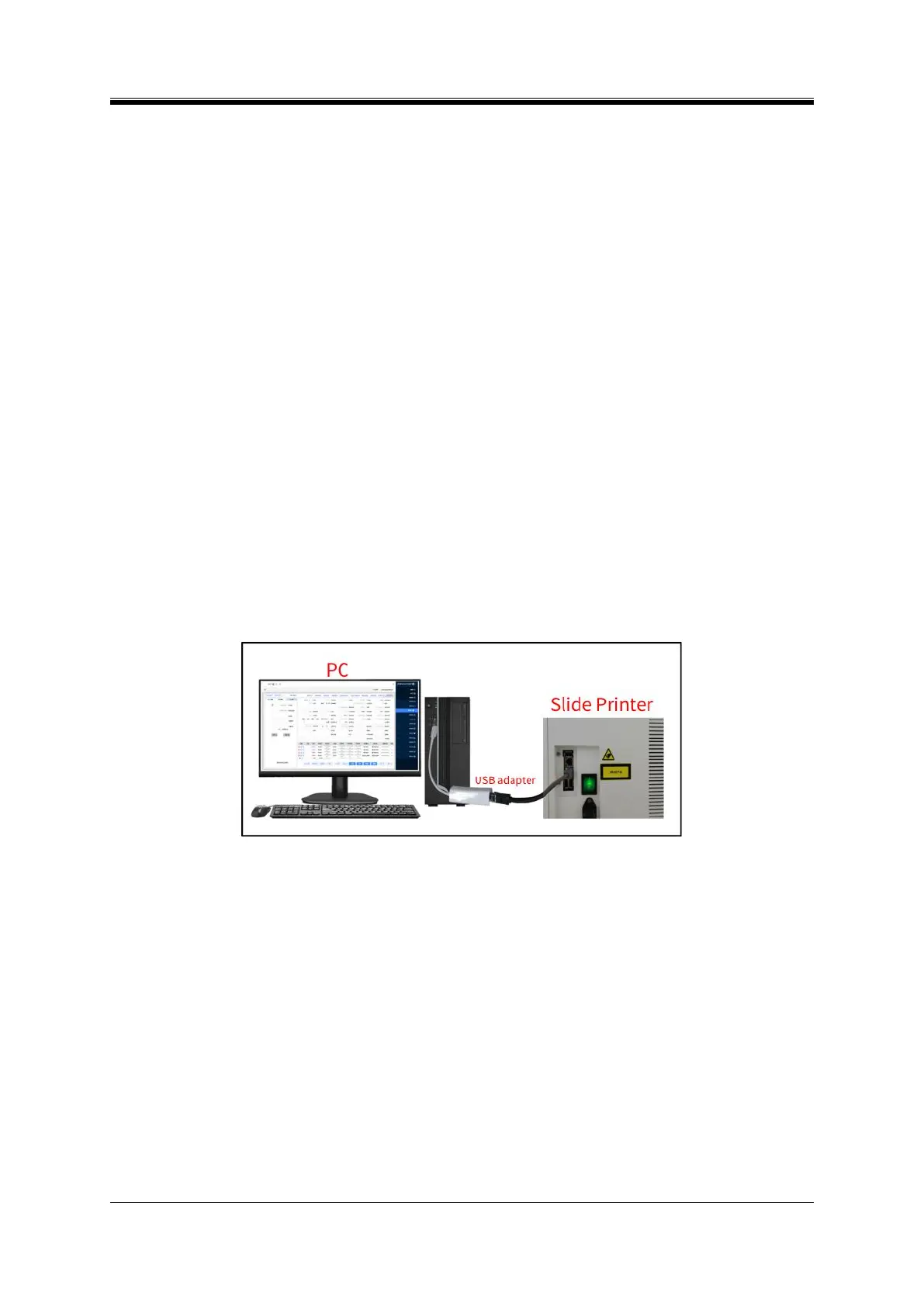
Insert one end of the network cable into the top Ethernet port of the device, and connect the other end
to the USB adapter to the host computer (Figure 5-1). When the indicator of the Ethernet port of the device
turns solid yellow, it means that the network is connected.
Figure 5- 1 Network Cable Connection
(3) IP Address Settings
After the network is connected, it is necessary to set the IP address of the device and the computer for
data communication.
1. Setting the IP address on the device
Set the device IP address in the properties window of Internet Protocol Version 4 (TCP/Ipv4):
Step 1: Click the network icon ① in the taskbar of the device, and select "Network and Internet
Settings" ② (Figure 5-2);


 To Next Page