V. Computer Software
Dakewe (Shenzhen) Medical Equipment Co., Ltd. 51
www.dakewemedical.com
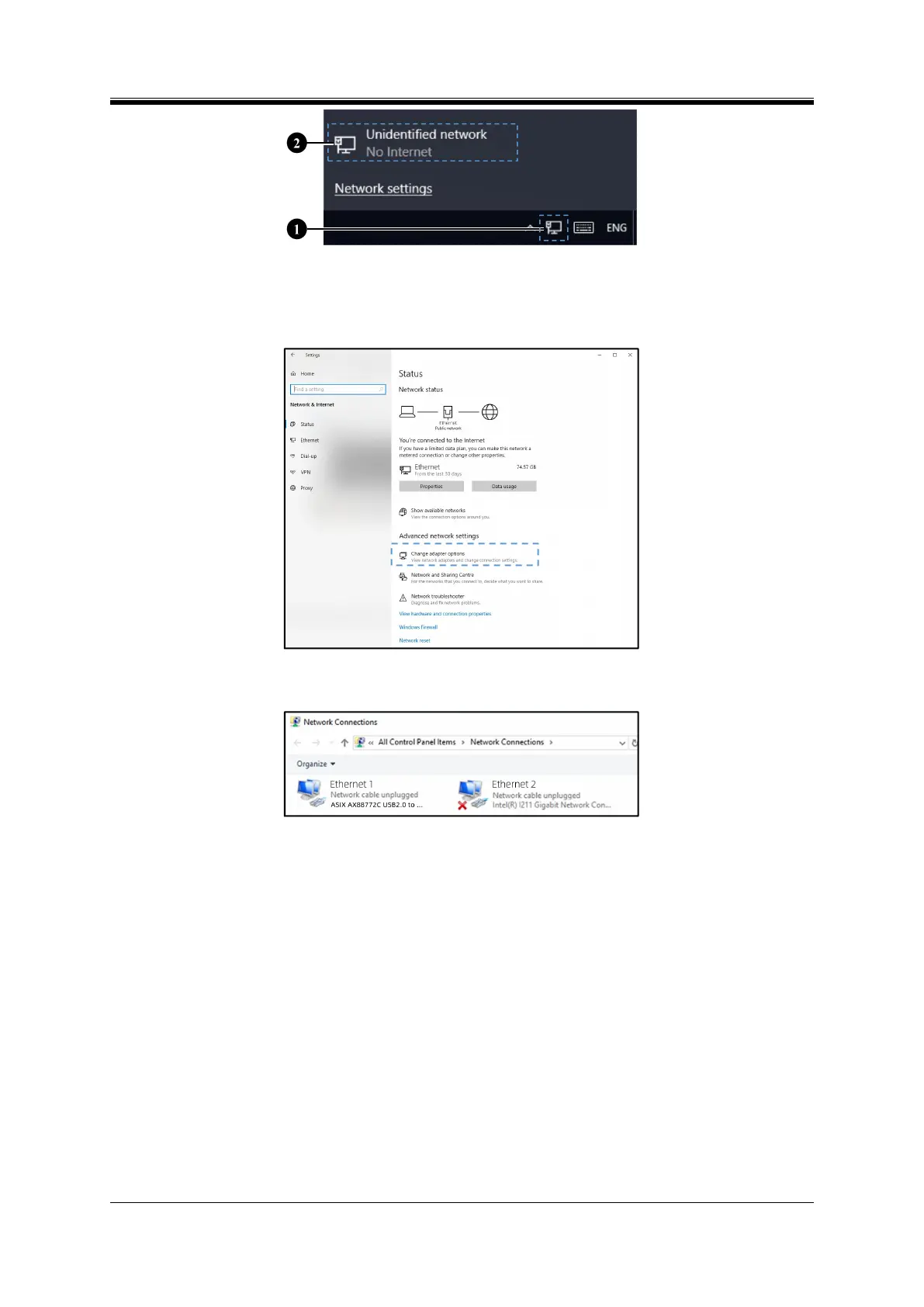
Figure 5- 2 Network and Internet Settings
Step 2: In the "Network Status" window (Figure 5-3), select "Change Adapter Options" in the
advanced network settings;
Figure 5- 3 Network Status
Step 3: Select the connected network in the "Network Connection" window (Figure 5-4);
Figure 5- 4 Network Connection
Step 4: Select "Properties" by right-clicking on the selected network icon (or double-click the network
icon), open the "Ethernet Properties" window (Figure 5-5), select "Internet Protocol Version 4 (TCP/Ipv4)",
and then click the "Properties" button;
Step 5: In the "Internet Protocol Version 4 (TCP/Ipv4) Properties" window (Figure 5-6), select "Use
the following IP address";
Step 6: Enter the IP address data in the corresponding input box, such as:
IP address: 192.168.113.19
Subnet mask: 255.255.255.0
Default gateway: 192.168.113.1


 To Next Page