VII. Abnormalities and Troubleshooting
Dakewe (Shenzhen) Medical Equipment Co., Ltd. 69
www.dakewemedical.com
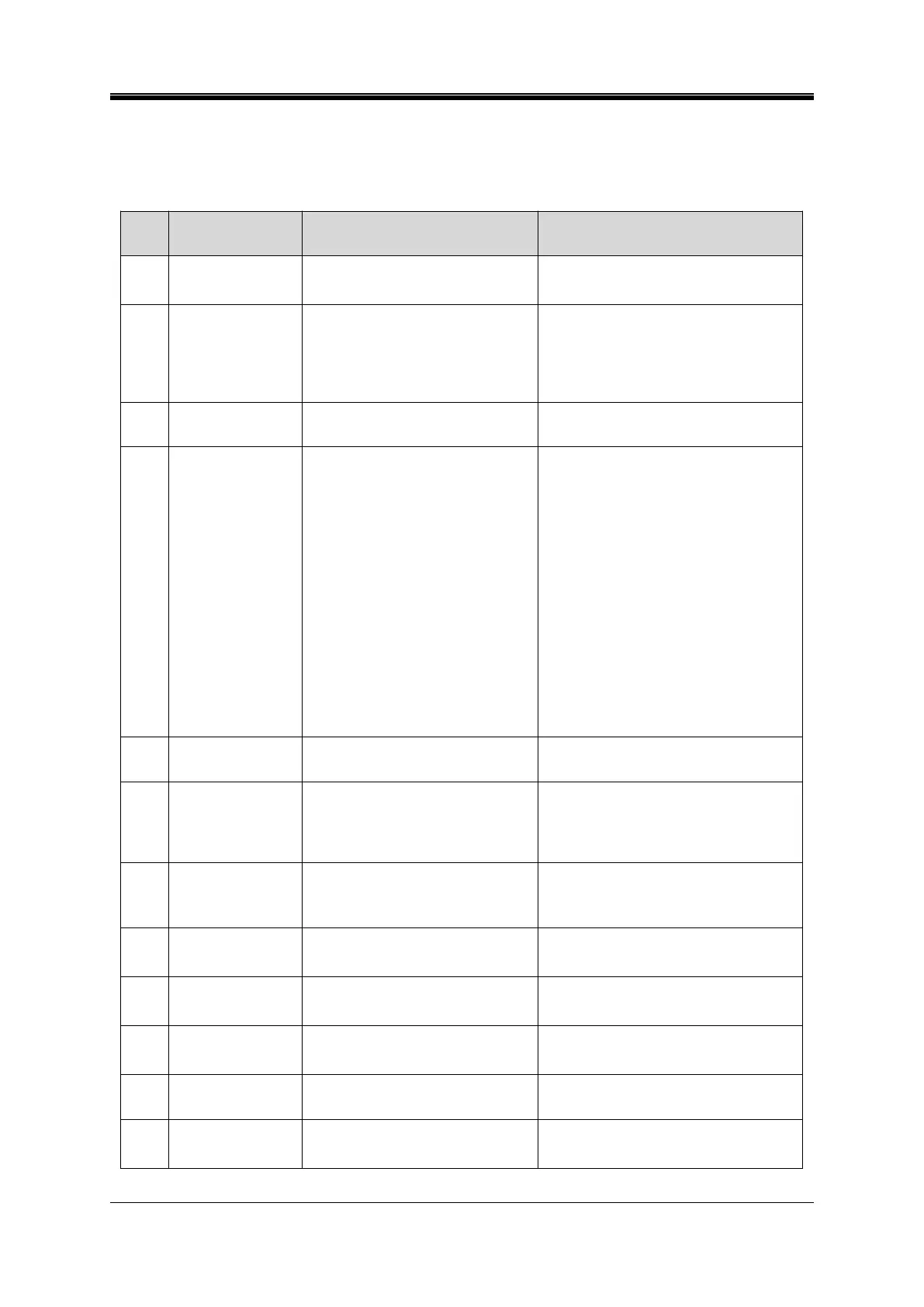
(3) List of Common Abnormalities
Table 7- 2 List of common abnormalities
Slides occasionally
fail to slide down
smoothly
Shake the slide
Dry the slide prior to printing
Change the type of slide used
No prompt displays
when the slide does
not slide down
smoothly
The detection function of the
on-demand output is not turned on
The non-slide parameter threshold for
the on-demand output is set
unreasonably; The sensor of the
on-demand output is abnormal
Enable the detection function of the
on-demand output; Reset the no-slide
parameter threshold for the on-demand
output; Troubleshoot the sensor of the
on-demand output
The slide is stuck in the output hopper
Take out the stuck slide from the output
hopper
The input hopper is not properly
inserted
Too many slides in the input hopper
The height difference of the two sides
the piles of the slides is greater than
1.5 mm
Slide sticking
Broken edge of slide
Irregularly shaped slide
Damaged paint surface of slide
The slide is placed upside down
Bevelled slides are used
Debris between slides
Debris on the print platform
Debris on the input hopper holder
Check whether the input hopper is properly
inserted; Reduce slides in the input hopper
to below the mark; Reduce slides until
printing properly; Check whether the slides
in the input hoppers are adhere to each
other; Check whether the edge of slides is
broken; Check whether the slides are
regular; Check whether the paint surface of
slide is damaged; Check whether the slides
in the input hopper are placed upside down
Change the type of slide used
Check whether there is glass debris between
the slides in the input hoppers
Check whether there is glass debris on the
print platform; Check whether there is glass
debris on the input hopper holder
Disable the on-demand mode and auto
mode
Stop immediately
during print
Open the maintenance door
Training and presentation
The preset options
in the drop-down
box in the main
interface are
abnormal
The separator entered is the Chinese
comma
Enter the English comma in the preset
option box for presetting
Click the button when the drop-down
box appears
It takes time to load and display the
button-associated content
Click in the blank space, and click the
button after the drop-down box disappears
Wait for complete content loading
Instrument software
disconnection
It takes too long to load the template
Open the PC software and restart the
instrument; Wait for complete template
loading; Delete or adjust the template
Instrument does not
work when online
The network cable is loose or the IP
address is changed
The network interface card is damaged
Restart slide printer
Check the instrument IP
Replace the network interface card
Foreign matters such as smoke or dust
adhere to the laser lens
Filter expired
Clean the laser lens
Replace the filter
Training and presentation
Fail to startup the
instrument
Turn on the instrument within a short
time after turning off the main power
supply
Turn on the instrument 1 min after turning
off the main power supply


 To Next Page