V. Computer Software
Dakewe (Shenzhen) Medical Equipment Co., Ltd. 55
www.dakewemedical.com
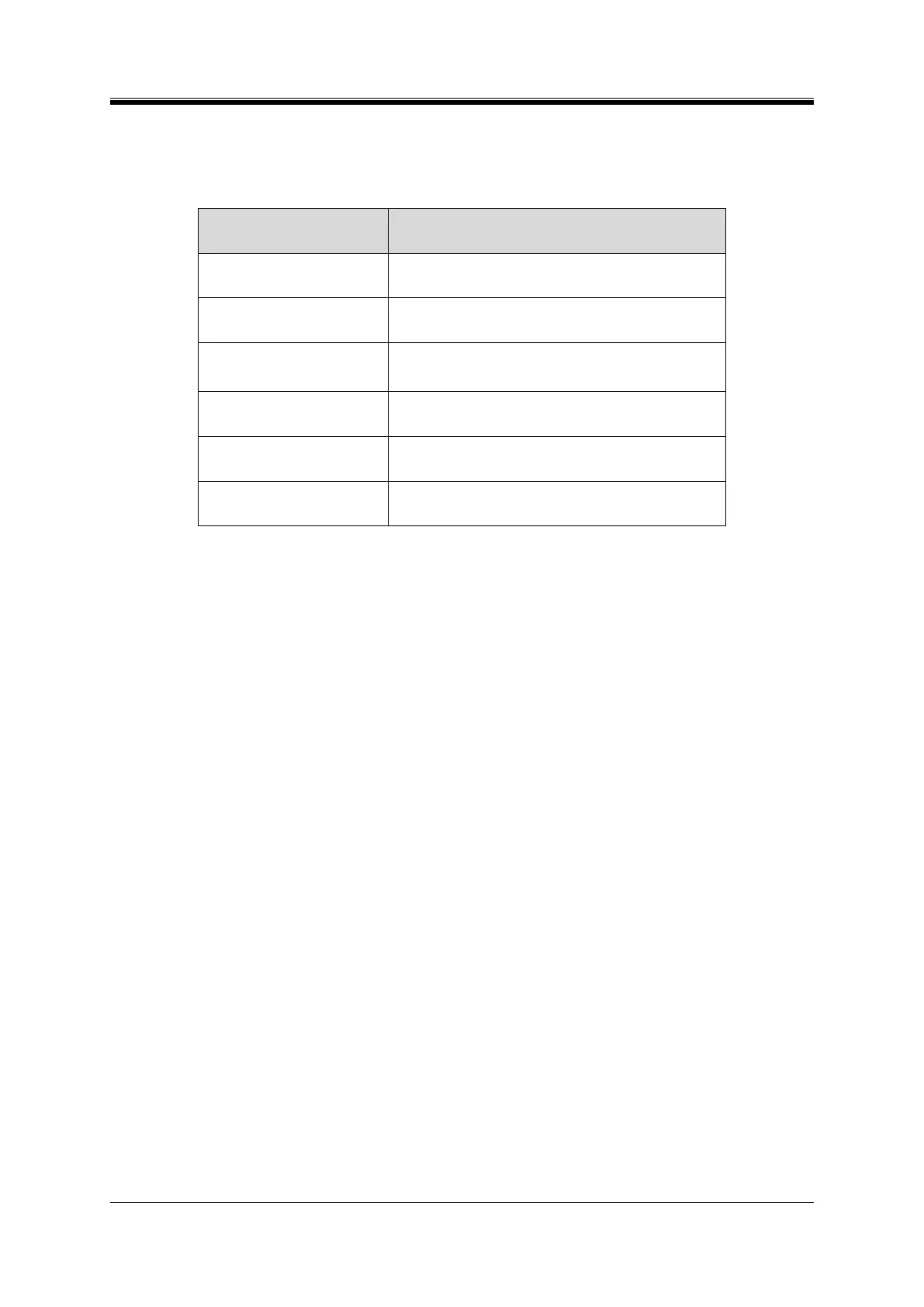
1. Top Status Bar
It is located at the top of the homepage and mainly displays the following information:
Table 5- 1 Top status bar components
DAKEWE logo (displayed on the far left)
Side menu bar minimize icon
After clicking, the side menu bar only displays the
interface icon, but does not display the interface name
It is located at the middle of the status bar. There are
eight print statuses: Ready, Printing, Stopping, Resetting,
Abnormal, Sleep, Processing, and Disconnected
It is blue for normal connections and gray for abnormal
connections
Click “□” to display the software in a full screen and
click “-”to minimize the software
Click “×” or “Exit” to exit from the software
2. Side Menu Bar
The side menu bar, which is shrinkable, is used to switch sub-interfaces.
3. Print Settings
The content of the “Print Settings” on the homepage of the PC software changes synchronously with
that of the instrument software, and their operation modes are the same. For details, see section 4.5
Homepage - print settings.
4. Pathology ID Settings
It is used to input ID, Section, Sub ID NO. and Sub ID Count, supporting single or batch addition of IDs.
5. Hopper Status
It displays the remaining slides in Hopper A and B, the stored slides in the batch output, the preview
of the ID that is currently printed, and the total amount of IDs printed today. The remaining slides in hopper
B and batch output capacity are not available on S100. Yellow input hopper indicator implies that the
hopper will be empty soon. Yellow output hopper indicator implies that the output hopper is about to be
fully loaded. Red input hopper indicator implies that the output hopper is fully loaded.
6. Template Preview
It shows the preview of the ID currently printed.


 To Next Page