DataLocker DL3 User Guide
3. On your computer, find the DataLocker DL3 icon under This PC and double click.
4. The device client will launch and you will have access to your files by clicking Files.
Locking The Device
To lock your SafeConsole registered device:
1. With the client open on your computer, click the Actions button in the top left corner.
2. Click Lock and Exit.
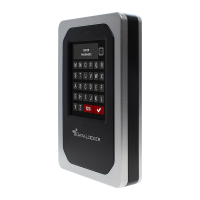
Your files have now been secured and the drive will be ejected from the computer. Your DL3
screen with either show the
Connect
button to reconnect your device or will show a message
stating it is safe to remove your device from the computer.
Password Reset
The password reset function of SafeConsole is a useful tool to provide users a way to reset a lost or
forgotten password without losing the data on the drive.
Note:
Remote Password Reset must be turned on within SafeConsole for this option to be available
on the DL3.
1.
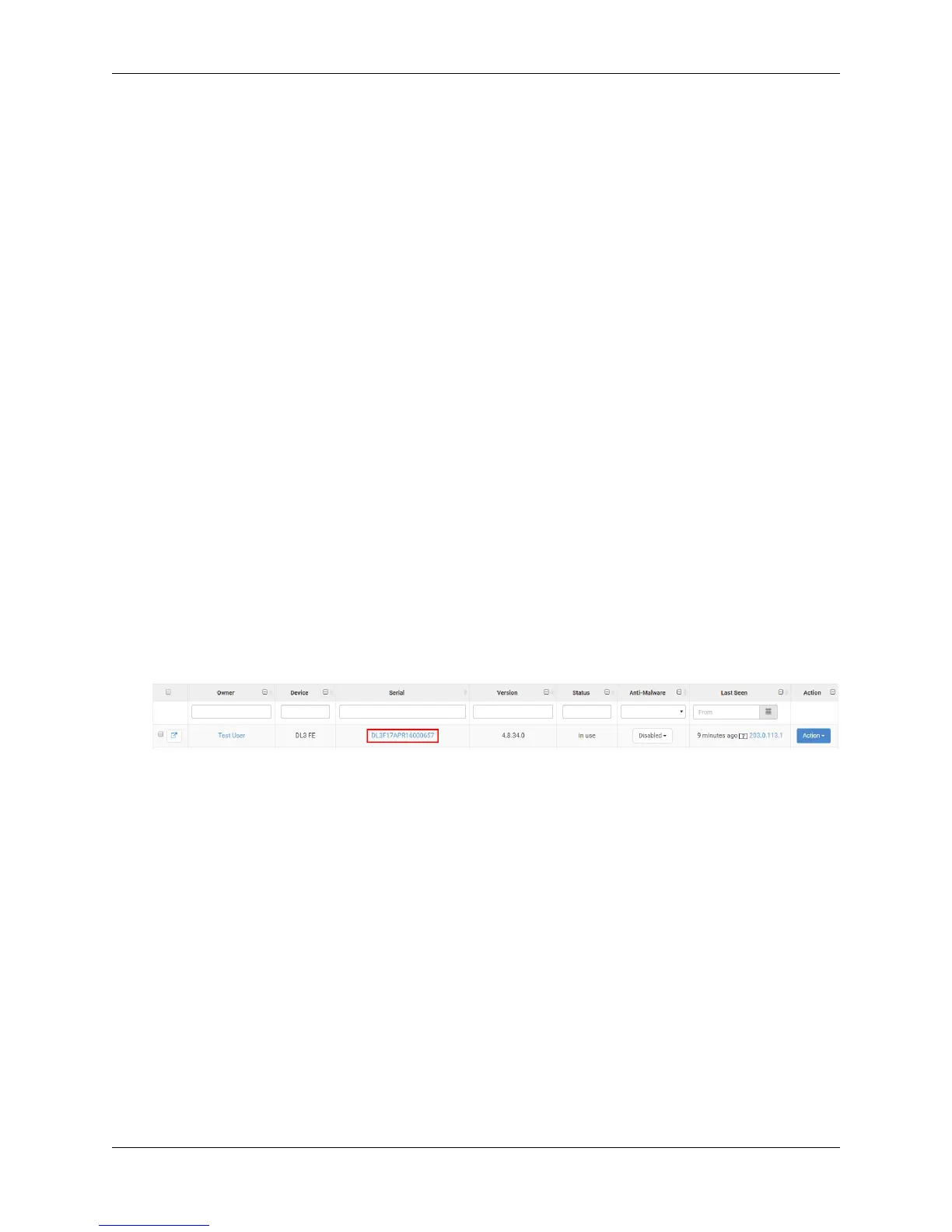
Log into the SafeConsole user interface and navigate to the correct device on the Devices
page. You may need to ask the user for the serial number of the drive to ensure you select the
correct device in SafeConsole.
•
To find the correct serial number, the user should go to
Help
in the upper left corner and
then About.
2. Click the serial number of the correct device.
© 2018 DataLocker Inc. All rights reserved. 21


 To Next Page