DataLocker DL3 User Guide
Disabling SafeConsole
To Disable SafeConsole Before Device Registration
Follow these steps to disable SafeConsole only if you have not registered your device with SafeCon-
sole previously.
1.
Navigate to the Setup menu as an administrator. For more information, see Accessing The
Setup Menu.
2. Select the SafeConsole option.
3. Choose Disable.
4. Return to the Connection menu and select Connect.
5. Your device will appear as DataLocker in the Hard Drives and Devices section, under This PC.
To Disable SafeConsole After Device Registration
Follow these steps to disable SafeConsole if you have previously registered or are currently registered
to a SafeConsole server. Disabling SafeConsole on a DL3 that has already been registered with
SafeConsole will require contact with DataLocker technical support because the device is now
tied to the SafeConsole server.
Note:
Technical support agents are only able to assist system administrators. If you are not the
system administrator of your device, please contact your system administrator for assistance.
You can reach support by calling (913) 310-9088 or emailing support@datalocker.com.
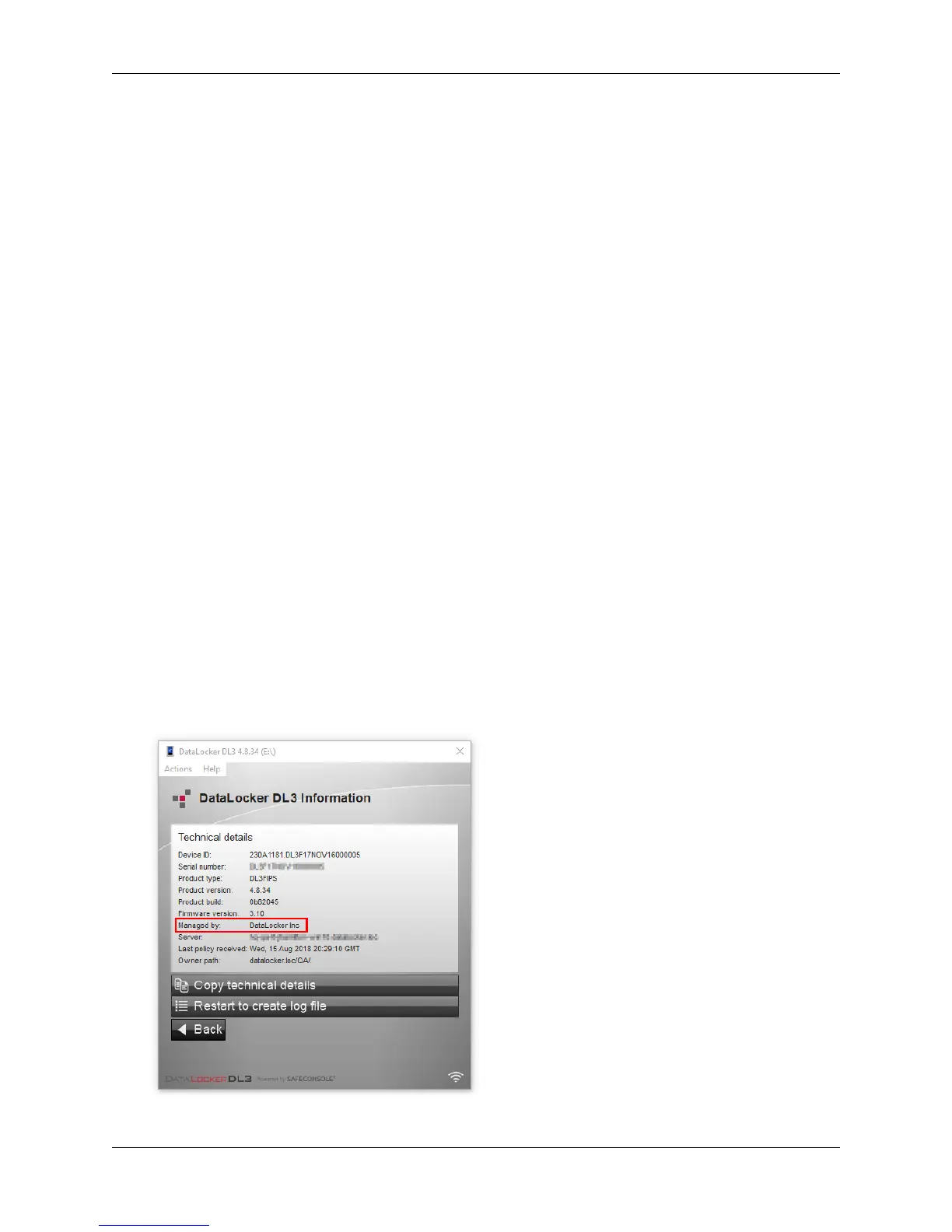
You will need the company name when contacting support. To find this:
1. Log in and launch client.
2. Click Help in the upper left corner and then click About.
3. The company name will be in the Managed by section.
© 2018 DataLocker Inc. All rights reserved. 23


 To Next Page