DL4 FE Encrypted External Hard Drive - v1.49/6.5.0 - User Guide
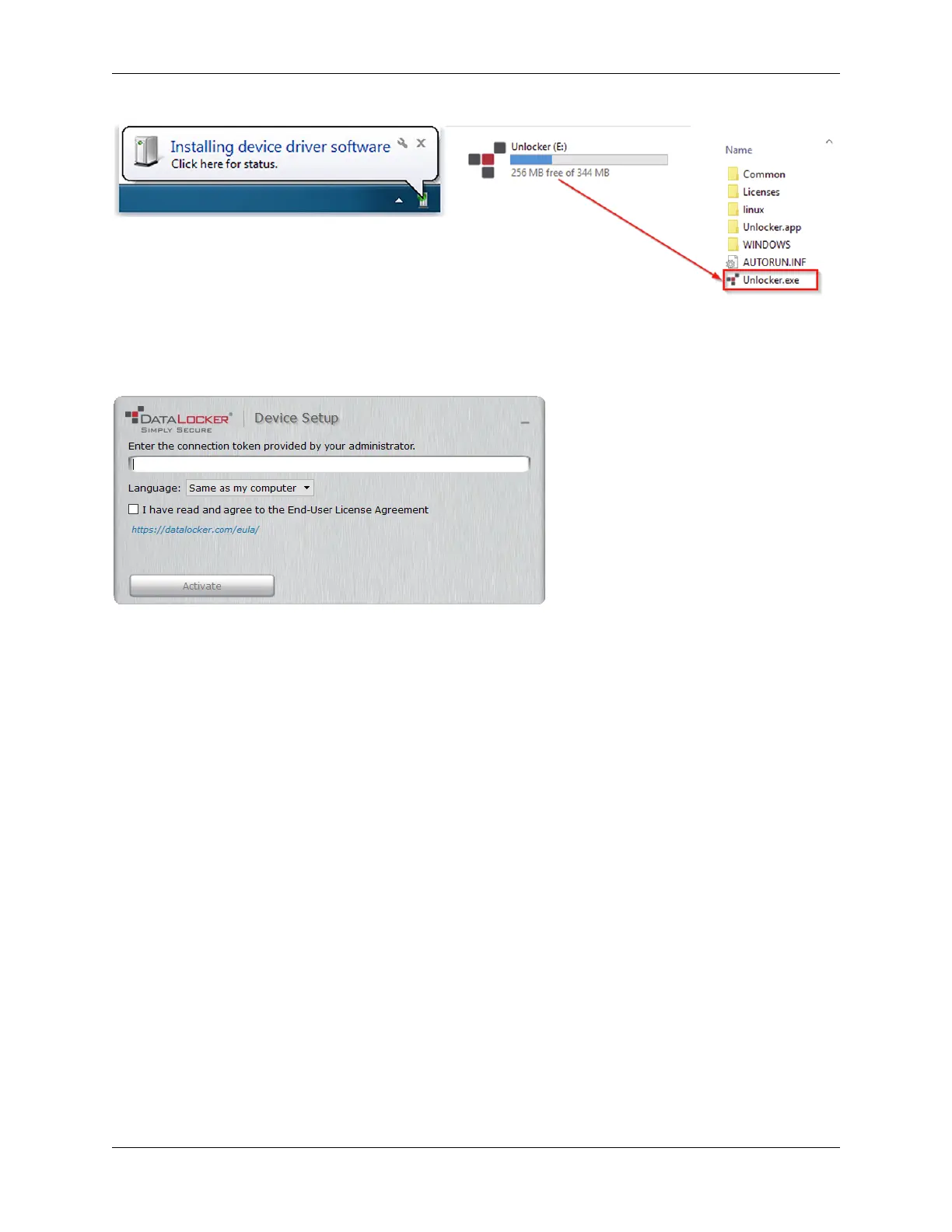
3. Upon launch, the “Device Setup” page should appear.
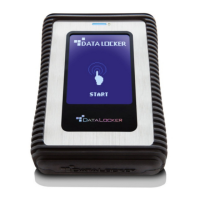
4. Enter the SafeConsole Connection Token provided by your SafeConsole administrator and
confirm the EULA. Click Activate.
5. Your device will connect to the SafeConsole server.
6. Optionally Enabled Policies - These policies may or may not be enabled by your SafeConsole
administrator. They will appear during device registration if they have been enabled.
• Confirm Ownership of the device: Enter the Windows username and password that is associ-
ated with the login credentials of the computer the device is plugged into.
• Custom Device Information: Required information about you or your device. The required
fields will vary.
• Unique User Token: This token is directly associated with the end user’s account and will be
provided by the SafeConsole administrator usually via email.
• Administrator Registration Approval: The SafeConsole administrator may require their ap-
proval to proceed with device registration.
7. Select your desired file system from the “Format” prompt. Click Continue. See Selecting the
Correct File System.
8. After formatting, your device will show the “Control Panel”. See Using a SafeConsole Man-
aged Device for more information.
NOTE: The “Unlocker” client will generate a Password Recovery Code after your next device un-
lock. It is recommended that your device be disconnected and reconnected to ensure your DL4
Password Recovery Code is saved to the SafeConsole.
© 2021 DataLocker Inc. All rights reserved. 31


 To Next Page