EasyManua.ls Logo

Datalogic Matrix 320 - User Manual

Datalogic Matrix 320
2 pages
Print Icon
To Next Page IconTo Next Page
Loading...
Support Through the Website
Datalogic provides several services as well as technical support through its website.
Log on to www.datalogic.com.
For quick access, from the home page click on the search icon , and type in the name of the product you’re looking
for. This allows you access to download Data Sheets, Manuals, Soware & Utilities, and Drawings.
Hover over the Support & Service menu for access to Services and Technical Support.
MATRIX 320™ ACCESSORIES
QUICK START GUIDE
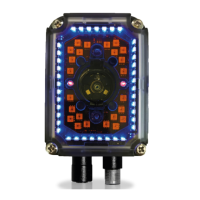
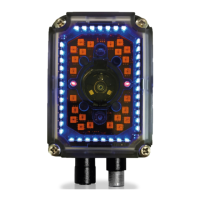
72 LED Illuminator Covers
©2021 Datalogic S.p.A. and/or its affiliates
• All rights reserved • Without limiting the rights under copyright, no part of this documentation may be reproduced,
stored in or introduced into a retrieval system, or transmitted in any form or by any means, or for any purpose,
without the express written permission of Datalogic S.p.A. and/or its affiliates • Datalogic and the Datalogic logo
are registered trademarks of Datalogic S.p.A. in many countries, including the U.S. and the E.U.
www.datalogic.com
821012060 (Rev. A) November 2021
Please read the
instructions
contained herein
carefully to
prevent damage to
the reader and its
components.

Please read the
instructions
contained herein
carefully to
prevent damage to
the reader and its
components.
Please read the
instructions
contained herein
carefully to
prevent damage to
the reader and its
components.
Please read the
instructions
contained herein
carefully to
prevent damage to
the reader and its
components.

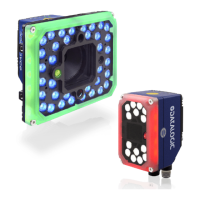
Other manuals for Datalogic Matrix 320

Questions and Answers

  • J
    Joshua ElliottAug 29, 2025
    Why is no image displayed in DL.CODE when the trigger LED is blinking in Phase Mode on Datalogic Industrial Equipment?
    • J
      James EvansAug 29, 2025
      If the "TRIGGER" LED is correctly blinking in Phase Mode but no image is displayed in the DL.CODE window for your Datalogic Industrial Equipment, determine if the Phase frequency is lower than the maximum frame rate.
  • W
    wortizAug 28, 2025
    What to do if the trigger LED is not blinking in Continuous Mode on Datalogic Industrial Equipment?
    • A
      Amanda DawsonAug 28, 2025
      If the "TRIGGER" LED is not blinking in Continuous Mode on your Datalogic Industrial Equipment, verify the correct software configuration settings.
  • T
    Tracy GarrettAug 27, 2025
    What to do if the trigger LED is blinking but no result is transmitted by Datalogic Industrial Equipment?
    • M
      Melanie CaldwellAug 27, 2025
      If the "TRIGGER" LED is correctly blinking on your Datalogic Industrial Equipment but no result is transmitted at the end of the reading phase collection, check the Code Collection parameters on the Reading Phase step and the Data Formatting parameters on the Data Formatting step.
  • S
    Sabrina MorrisonAug 26, 2025
    What to do if the power LED is not lit on Datalogic Industrial Equipment?
    • D
      Daniel EllisAug 26, 2025
      If the "POWER" LED is not lit on your Datalogic Industrial Equipment, check the following: Is the power connected? If you're using a power adapter (like PG6000), is it connected to the wall outlet? If using rail power, does the rail have power? If using a CBX, does it have power (check the switch and LED)? Determine whether you're using the M12 17-pin connector or the CBX spring clamp connectors. Measure the voltage either at pin 1 and pin 2 (for the 17-pin connector) or at the spring clamp Vdc and GND (for CBX).
  • J
    John BrownAug 25, 2025
    What to do if Datalogic Industrial Equipment always transmits the No Read Message?
    • K
      kgrossAug 26, 2025
      To address the issue of the Datalogic Industrial Equipment reader always transmitting the No Read Message, follow these steps: Run the Rapid Configuration procedure. Position the reader as described in "Mounting And Positioning Matrix 320". Through DL.CODE, tune the Acquisition Delay on Trigger if the moving code is out of the reader's field of view. Set the Continuous Operating Mode if no external trigger source is available. Tune the Image Settings to improve the code image quality. Check the parameter settings in the Advanced Setup step for 2D Codes, 1D Codes, and Postal Codes. View the full resolution code image to check the printing or marking quality.
  • E
    Elizabeth CarterAug 25, 2025
    What to do if data transferred to the host from Datalogic Industrial Equipment is incorrect?
    • L
      Laurie RodriguezAug 25, 2025
      To resolve issues with incorrect, corrupted, or incomplete data being transferred to the host from your Datalogic Industrial Equipment, ensure that the host serial port settings match the reader's settings. In DL.CODE, check the Header and Terminator String parameters in the Data Formatting step. Also, review the various Message Field parameter settings in the Data Formatting step.

Summary

72 LED Illuminator Covers

Cover Replacement Procedure

Step-by-step guide for replacing the illuminator cover, including safety precautions.

Datalogic Matrix 320 Specifications

General IconGeneral
ProtectionIP65
Storage Temperature-20°C to 70°C
Reading Distance50 mm to 1, 200 mm
ConnectivityUSB, RS-232
Power Supply5V DC
Operating Temperature0°C to 50°C
Scanning Distance50 mm to 1, 200 mm
InterfaceRS-232, Ethernet
Supported Barcodes1D, 2D
Humidity5% to 95% (non-condensing)
Drop Specification1.5 m
LightingLED
Audible FeedbackBeeper
Visual FeedbackLED
Technology2D Imager

Related product manuals