. . . . . . . . . . . . . . . . . . . .
DPP-250 User Manual Page 10
Status & Operating Modes
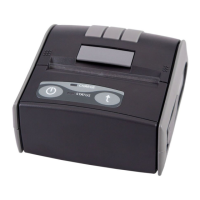
The DPP-250 uses LEDs to indicate various conditions of operation.
This may be charging, active or online, battery low conditions. The
following explains these conditions and LED indication.
LED Function
ERR
1. It lights in green – the printer power is on.
2. It lights in red – end of the paper or paper out. After the
loading a new paper roll, LED turns green.
3. It flashes green/red – the printer thermal head is
overheating. The printer stops printing. When the printer head
temperature returns to normal the ERR LED lights green and
the printer continues to print.
4. It flashes green – low battery.
5. When switching ON the printer, while the LF button is
pressed, red and green lights are rotated after every beep (up
to the fifth).
6. In the long pressing the button it flashes green/red after a
beep. After releasing the ON/OFF button it lights green.
BATT
1. When the adapter is switched ON only one of the BATT LED
diodes is lighting green, depending on the battery status (from
left to right - low battery to fully charged battery).
For details see Section "Charging the Battery".
2. When the adapter is switched ON the BATT LED diodes are
lighting as shown on the illustration in Section "Charging the
Battery", up to full battery charging.
3. When reading a Magnetic Card, the BATT LED are lighting
simultaneously in both directions – from the middle outwards to
the left and right.
BT 1. It lights blue when PAIRING.
Table 4



 To Next Page