15DayClocks
4.3.1 Selecting a time zone
You can change time zone if the DayClock is being used outside the Central
European Time (CET) zone. Take the following steps to select another time zone:
1. Press Time under Time format.
2. Select the time zone in which the DayClock is located.
4.3.2 Modifying text colour
Take the following steps to set the clock colours:
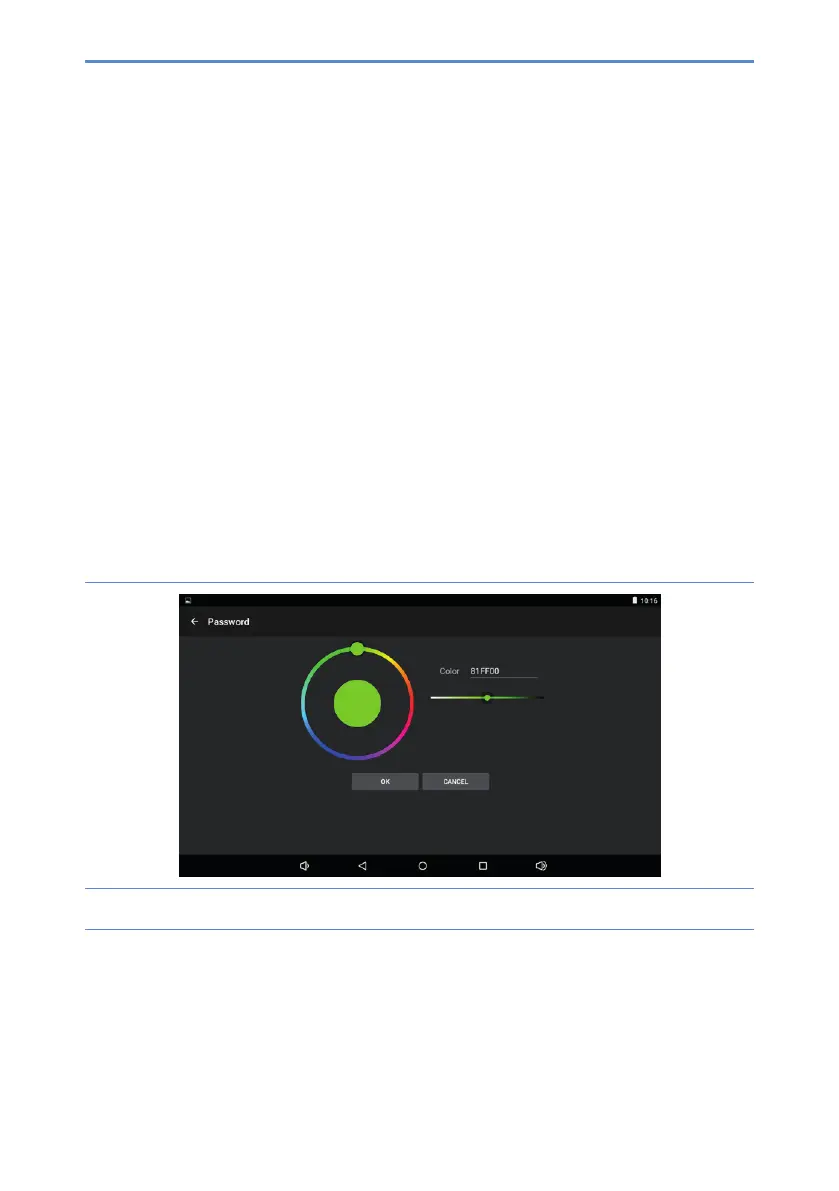
1. Press Select color next to Text color to set the text colour.
Thecolourselectionmenuwillappear(gure8).
Figure 8: Settings menu (Clock – color selection)
2. Use the round colour disc or the linear colour bar when selecting a colour.
The standard text colour is white (FFFFFF).
3. Press OK to select a colour.



 To Next Page