25DayClocks
You can add an activity once you have installed the app and logged in:
1. Press Planning in the menu bar at the bottom of the screen to go to the
Activities menu.
2. Press the + symbol and then the top Default symbol to create a new activity.
3. Add a description under Activityandcongurethefollowingsettings:
• Start time and date
• End time and date
• Repeat (optional)
• Background colour (optional)
• Add voice/sound (optional)
• Add photo (optional)
4. Press Save to store the activity.
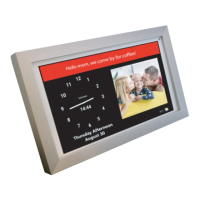
Your message will be sent to the DayClock within 1 minute and will be shown
totheuseronthedateandtimeyouselected(gure17).
Tip
Drag an activity to the left to delete it.
6.2 Checking the display
You can view the screen of the DayClock on your smartphone. This means, for
example, you can check whether the DayClock is connected to WiFi:
1. Press Today in the menu bar at the bottom of the screen.
2. Press Show. You will now see the current screen of the DayClock.


 To Next Page