23DayClocks
5 Perform updates
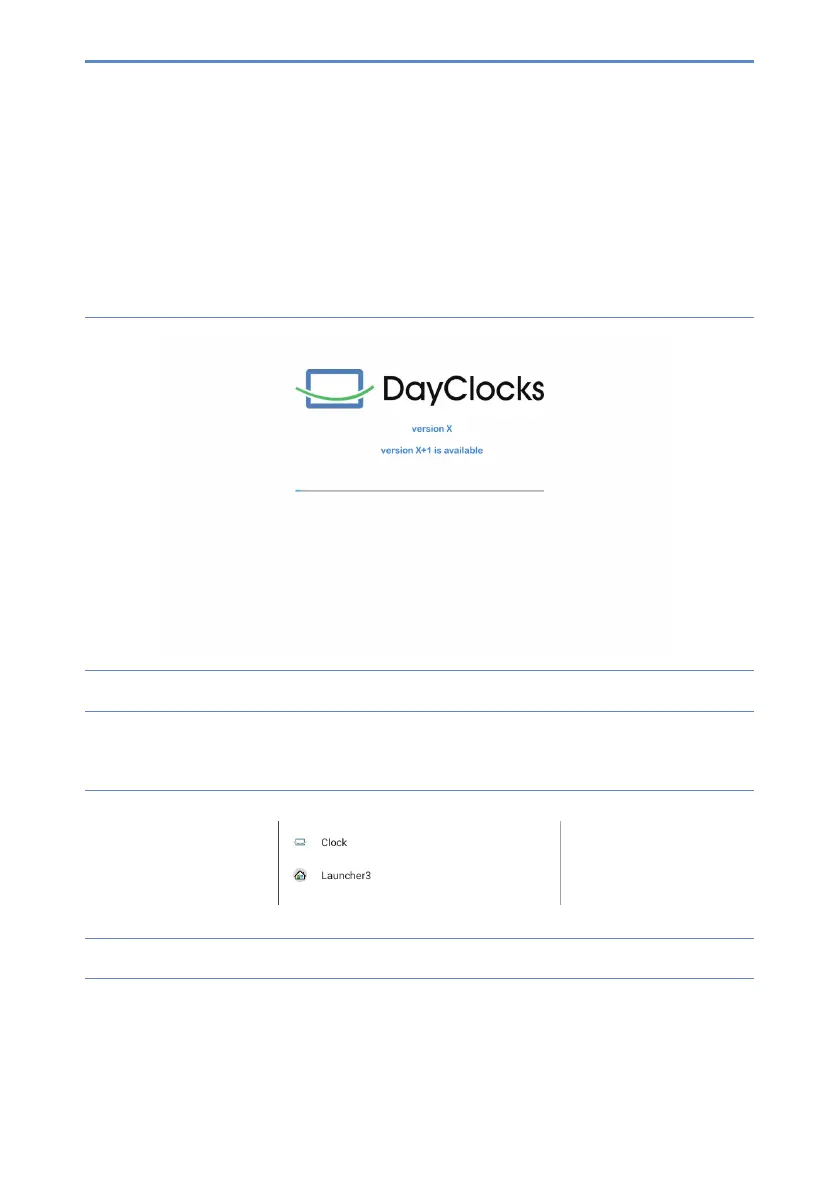
To update your DayClock is very simple. You restart the DayClock and when an
updateisavailable,youwillreceivethefollowingmessage(gure15):
Figure 15: Start screen software update
The update will now be installed and you will see it at the bottom of the screen
(gure16):
Figure 16: Screen update installed
Now select Clock and Always.
In case you don’t see this dialog, swipe from the bottom up to show the navigation
bar and click O. The clock will now be visible again.


 To Next Page