21DayClocks
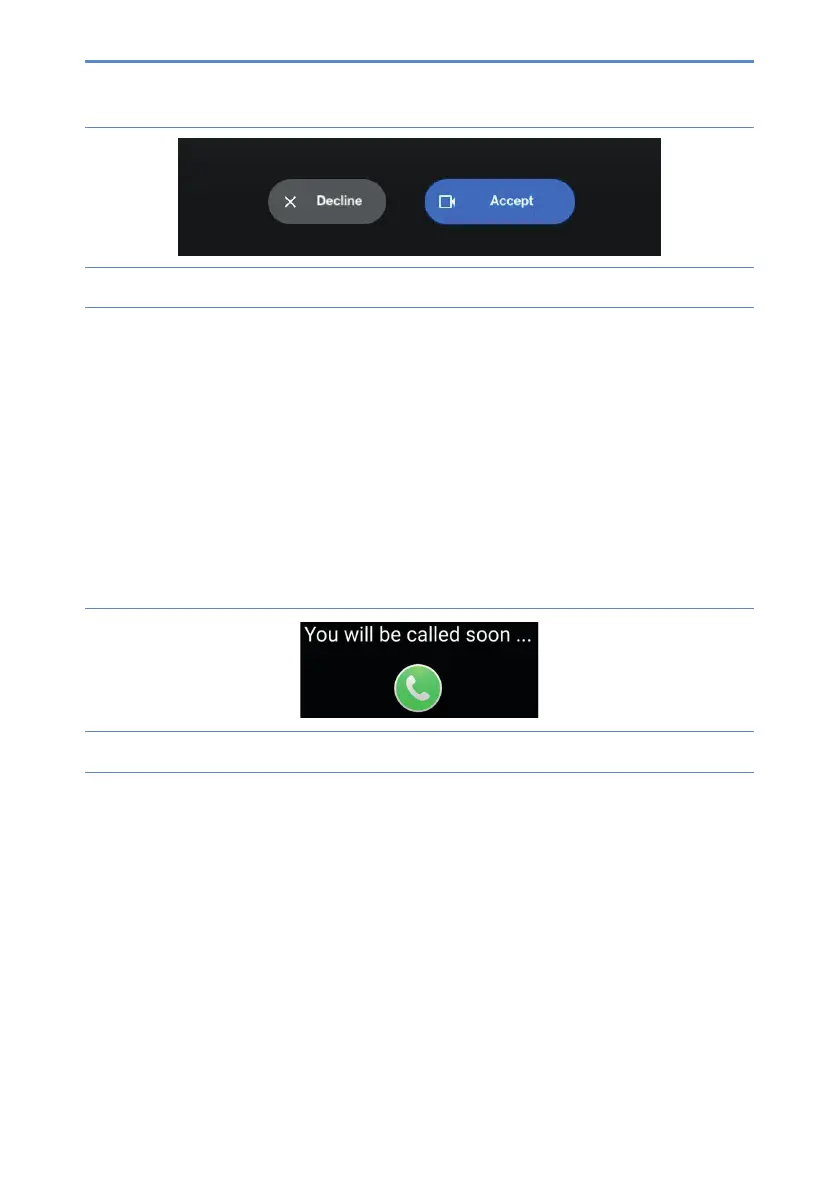
Figure 12: Screen: video call accepting
6. The administrator ends the video call in the Duo app.
7. The administrator then presses the red button at “Google Duo” in the
DayClock app and the user automatically returns to the clock display.
Video calling via the DayClocks Dashboard
1. Select “Today”.
2. Then select the “video calling” button in the “Google Duo” section. The user
nowseesontheDayClock“Youwillbecalledsoon…”(gure13).
Figure 13: You will be called in a minute
3. The administrator then starts the Duo app.
4. Start the video call.
When the user has their own phone number, you can search in Duo by phone
number, otherwise by the user’s created Gmail account.
5. Now let the user accept the conversation via the blue video button.
(gure14).


 To Next Page