Power button with optional fingerprint reader
Removing the power button with fingerprint reader
CAUTION: The information in this section is intended for authorized service technicians only.
Prerequisites
1. Follow the procedure in Before working inside your computer.
NOTE: Ensure that your computer is in Service Mode. For more information, see step 7 in Before working inside your
computer.
2. Remove the base cover.
3. Remove the I/O board.
4. .
About this task
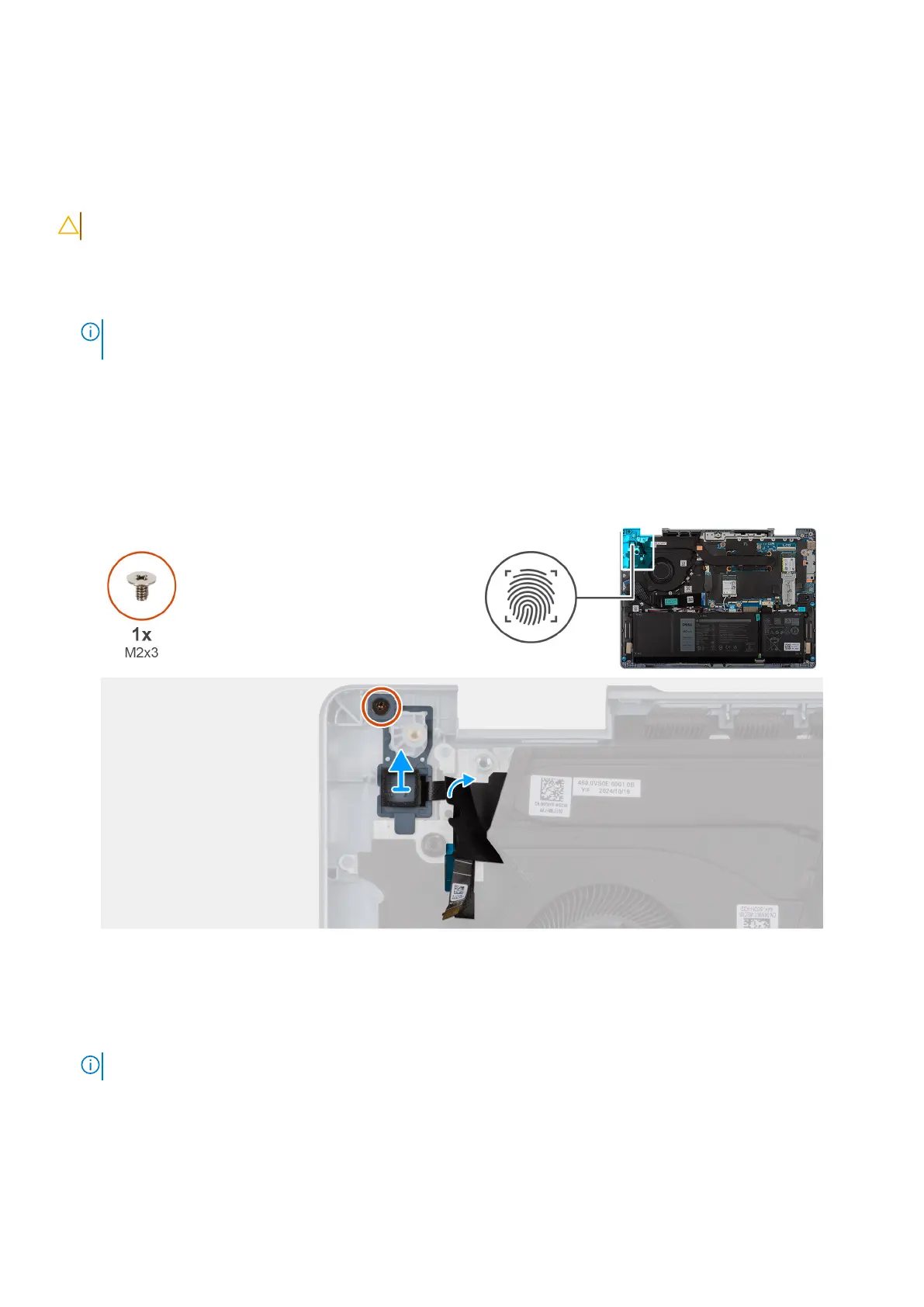
The following image indicates the location of the power button with fingerprint reader and provides a visual representation of
the removal procedure.
Figure 50. Removing the power button with fingerprint reader
Steps
1. Remove the screw (M2x3) that secures the power button with fingerprint reader to the palm-rest and keyboard assembly.
2. Peel back the tape that secures the fingerprint-reader cable to the palm-rest and keyboard assembly.
NOTE: This step is only applicable for computers that are shipped with the power button with fingerprint reader.
3. Lift the power button with fingerprint reader off the palm-rest and keyboard assembly.
Removing and installing Field Replaceable Units (FRUs)
73







 To Next Page