Back to Contents Page
Operator Panel
Using the Operator Panel Buttons
Printing a Panel Settings Page
Using the Operator Panel Buttons
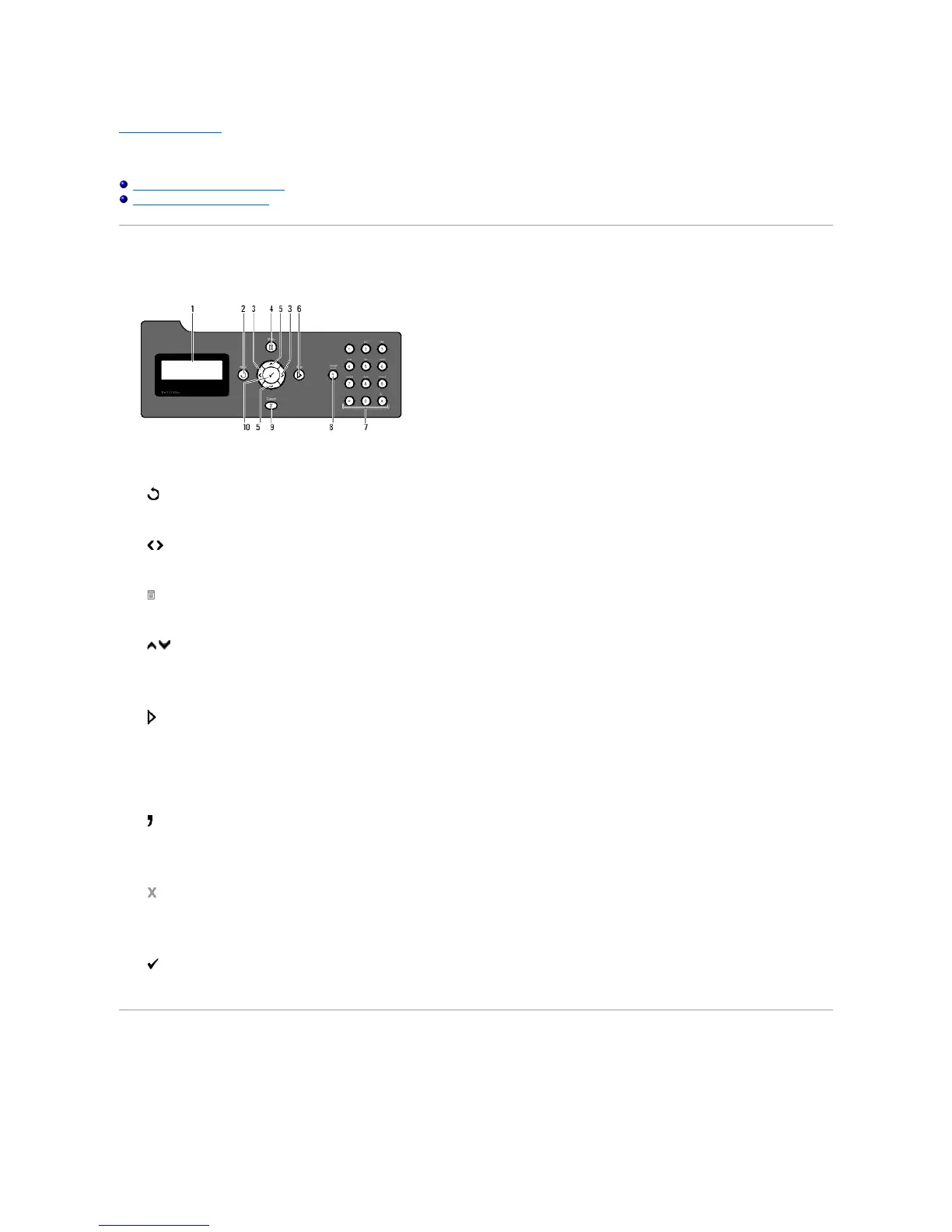
The operator panel has a 4-line by 20-character liquid crystal display (LCD), control buttons, and number pad, which allow you to control your printer.
1. LCD Panel
2. (Back) button
l Returns to the previous screen.
3. buttons
l In the Menu mode, selects submenus or values.
4. (Menu) button
l Enters the operation menu from the top menu, and returns to the top menu from any menu level.
5. buttons
l In the Menu mode, scrolls through menus or items.
l To enter numbers or passwords, press these buttons.
6. (Start) button
l Starts copying, scanning, or faxing.
7. Number pad
l Enters the characters and numbers, for example, for the Phone Book, and passwords.
8. (Redial/Pause) button
l Enters a pause.
l Redial the last telephone number you called.
9. (Cancel) button
l In the Menu mode, returns to the standby mode without saving any settings.
l Cancels the current working job (copy/scan/fax/print) by choosing the available listed job.
10. (Check) button
l Selects the currently displayed menu or item, or confirms the entry of values.
Printing a Panel Settings Page
The panel settings page shows current settings for the operator panel menus.














 To Next Page