Back to Contents Page
Connecting Your Printer
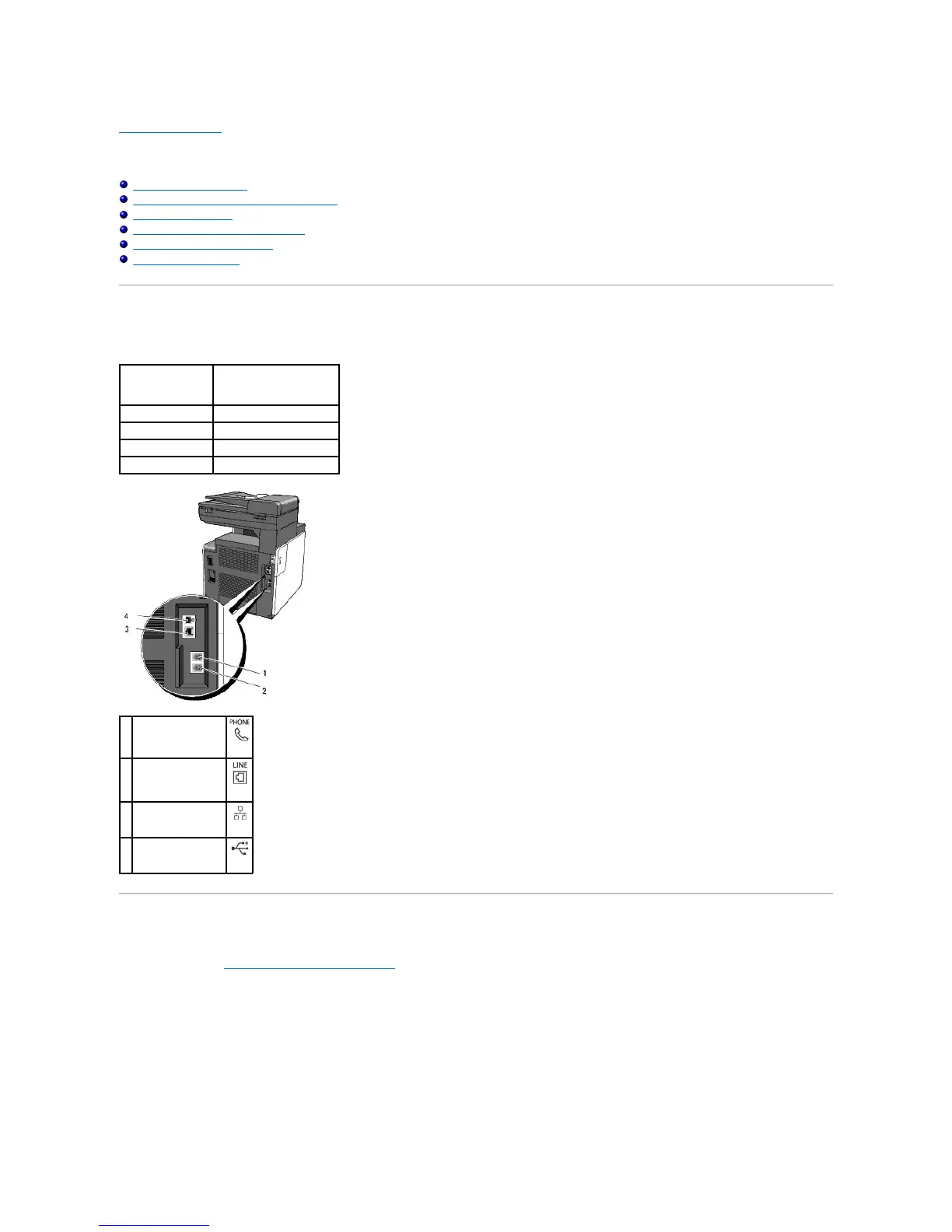
Choosing the Right Cable
Connecting the Printer Directly to a Computer
Turning On the Printer
Connecting the Printer to the Network
Connecting the Telephone Line
Using the RESET Button
Choosing the Right Cable
YourDell™2135cnColorLaserMultifunctionPrinterinterconnectioncablemustmeetthefollowingrequirements:
Connecting the Printer Directly to a Computer
A local printer is a printer which is directly attached to your computer using a USB cable. If your printer is attached to a network instead of your computer, skip
this section and go to "Connecting the Printer to the Network".
Microsoft
®
Windows
®
2000, Windows XP, Windows XP 64-bit Edition, Windows Server
®
2003, Windows Server 2003 Enterprise x64 Edition, Windows Server
2008, Windows Server 2008 Enterprise x64 Edition, Windows Vista
®
, and Windows Vista 64-bit Edition support USB connections.
See your computer operating system documentation to see if your system supports USB.
To attach the printer to a computer:
1. Ensure that the printer, computer, and any other attached devices are turned off and unplugged.
2. Connect the printer to the computer using a USB cable.














 To Next Page