Make sure you loaded the paper correctly.
For more information, see Loading Paper.
Use only paper recommended for your printer.
For more information, see Print Media Guidelines.
Use a smaller amount of paper when printing multiple pages.
For more information, see Print Media Guidelines.
Make sure the paper is not wrinkled, torn, or damaged.
Check for a paper jam.
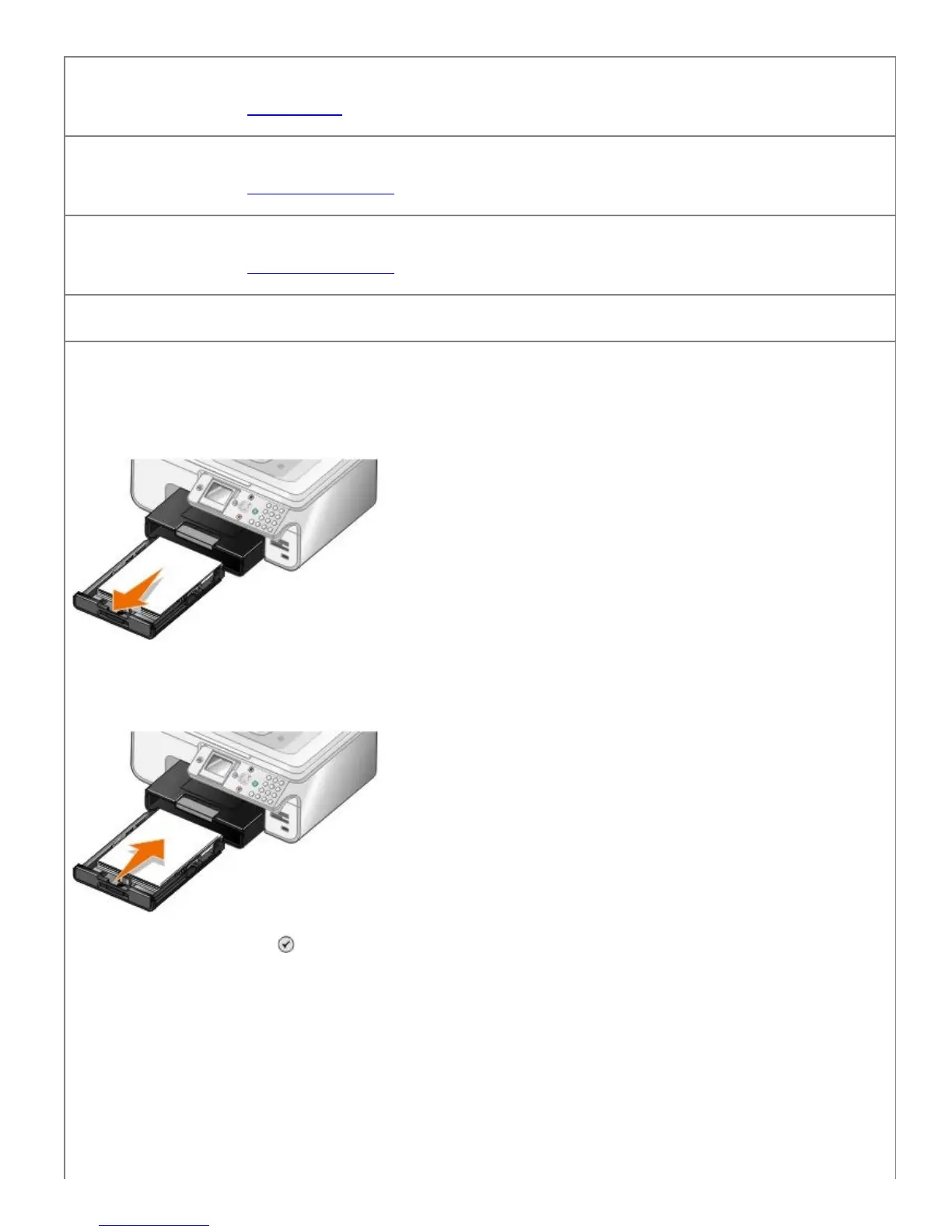
If the paper jam is near the paper input tray:
1. Remove the paper tray.
2. Pull firmly on the paper to remove it.
3. Replace the paper tray.
4. Press the Select button
.
5. Resend your print job to print any missing pages.
If the paper jam is not visible:
1. Turn off the printer.
2. Lift the printer unit.


 To Next Page