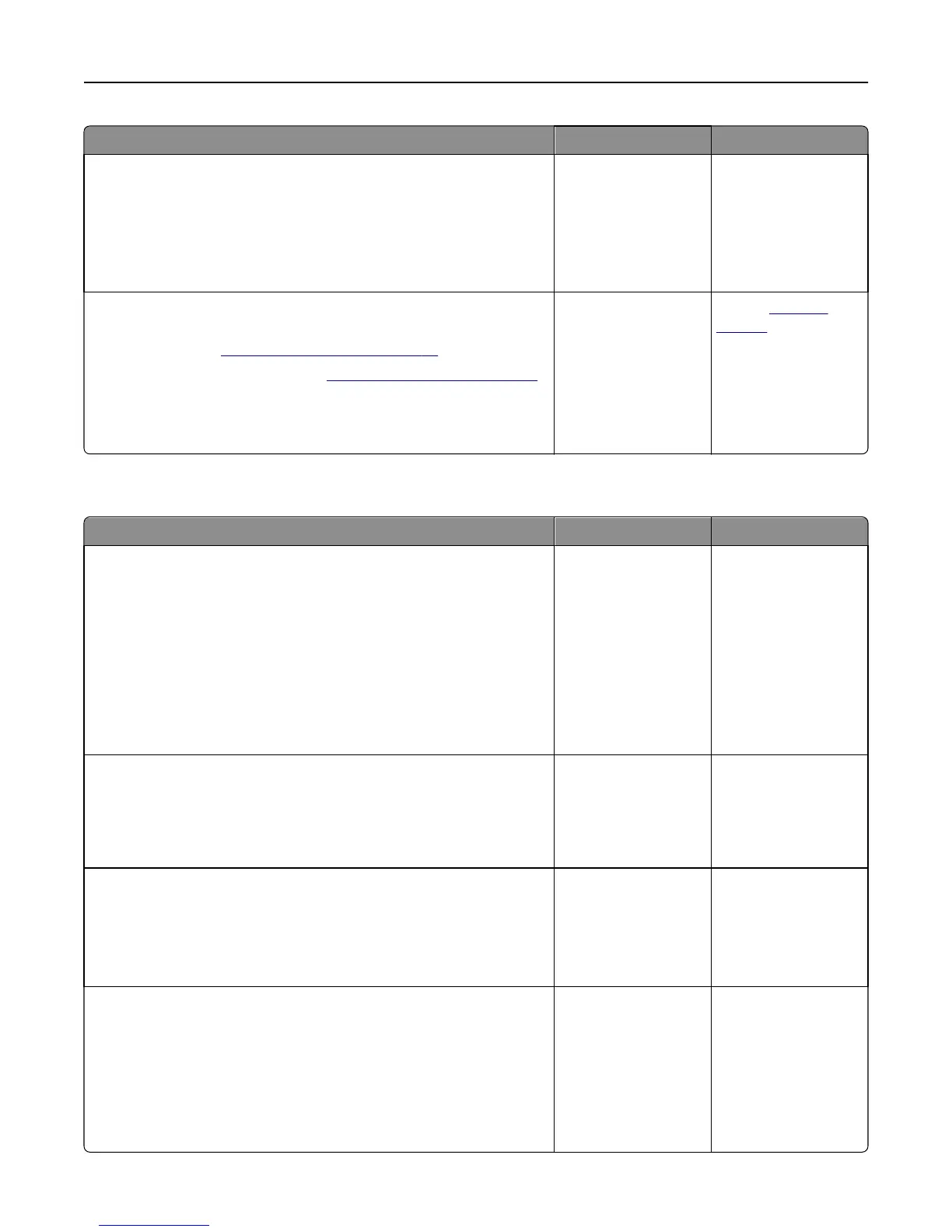
Action Yes No
Step 5
a Turn off the printer, then wait for about 10 seconds, and then turn the
printer back on.
b Resend the print job.
Do the jobs print?
The problem is solved. Go to step 6.
Step 6
a Remove, and then reinstall the printer software. For more
information, see
“Installing the printer” on page 20.
Note: For more information, visit
www.dell.com/support/printers.
b Resend the print job.
Do the jobs print?
The problem is solved. Contact
technical
support.
Print job takes longer than expected
Action Yes No
Step 1
Change the environmental settings of the printer.
a From the printer control panel, navigate to:
Settings > General Settings
b Select Eco‑Mode or Quiet Mode, and then select Off.
Note: Disabling Eco-Mode or Quiet Mode may increase the
consumption of energy or supplies, or both.
Did the job print?
The problem is solved. Go to step 2.
Step 2
Reduce the number and size of fonts, the number and complexity of
images, and the number of pages in the print job, and then resend the job
Did the job print?
The problem is solved. Go to step 3.
Step 3
a Remove held jobs stored in the printer memory.
b Resend the print job.
Did the job print?
The problem is solved. Go to step 4.
Step 4
a Disable the Page Protect feature.
From the printer control panel, navigate to:
Settings > General Settings > Print Recovery > Page Protect > Off
b Resend the print job.
Did the job print?
The problem is solved. Go to step 5.
Troubleshooting 133












 To Next Page