Action Yes No
Step 4
Replace the imaging unit, and then resend the print job.
Do shadow images still appear on prints?
Contact
technical
support.
The problem is solved.
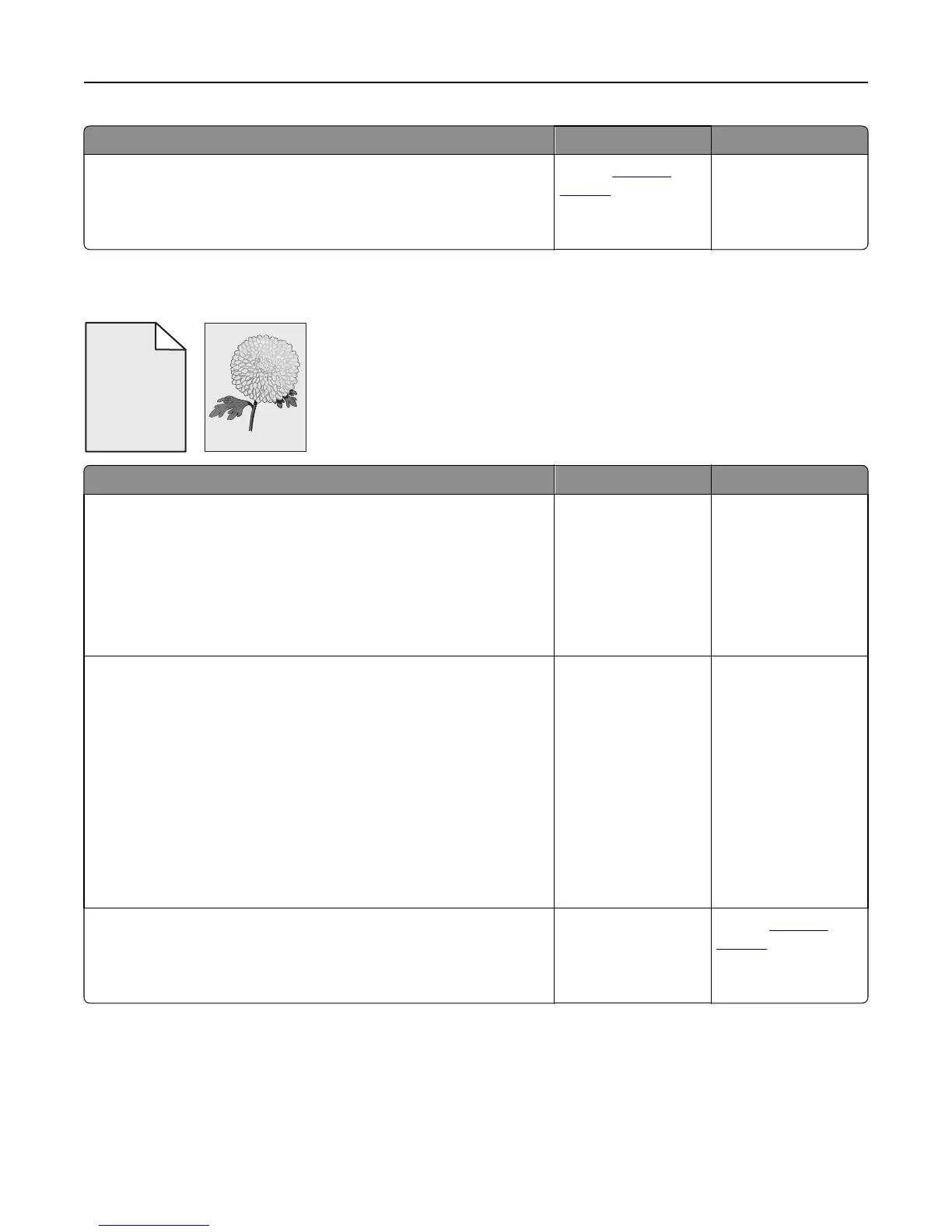
Gray background on prints
ABCDE
ABCDE
ABCDE
Leading edge
Trailing edge
Action Yes No
Step 1
a From the Quality Menu on the printer control panel, decrease the
toner darkness.
Note: 8 is the factory default setting.
b Resend the print job.
Did the gray background disappear from the prints?
The problem is solved. Go to step 2.
Step 2
Reinstall the imaging unit and the toner cartridge.
a Remove the toner cartridge.
b Remove the imaging unit.
Warning—Potential Damage: Do not expose the imaging unit to
direct light for more than 10 minutes. Extended exposure to light
can cause print quality problems.
c Install the imaging unit, and then the cartridge.
d Resend the print job.
Did the gray background disappear from the prints?
The problem is solved. Go to step 3.
Step 3
Replace the imaging unit, and then resend the print job.
Did the gray background disappear from the prints?
The problem is solved. Contact
technical
support.
Troubleshooting 139












 To Next Page