NOTE: To achieve dual-channel support when installing two memory modules of the same capacity, install the memory
modules in DIMM 1 and 2 or DIMM 3 and 4.
4. Place the computer in an upright position.
Next steps
1. Install the left-side cover.
2. Follow the procedure in After working inside your computer.
Solid-state drive
Removing the 2230 solid-state drive
Prerequisites
1. Follow the procedure in Before working inside your computer.
2. Remove the left-side cover.
About this task
NOTE: Depending on the configuration ordered, your computer may have up to two M.2 2230/2280 solid-state drives
installed in the two M.2 solid-state drive slots on the system board.
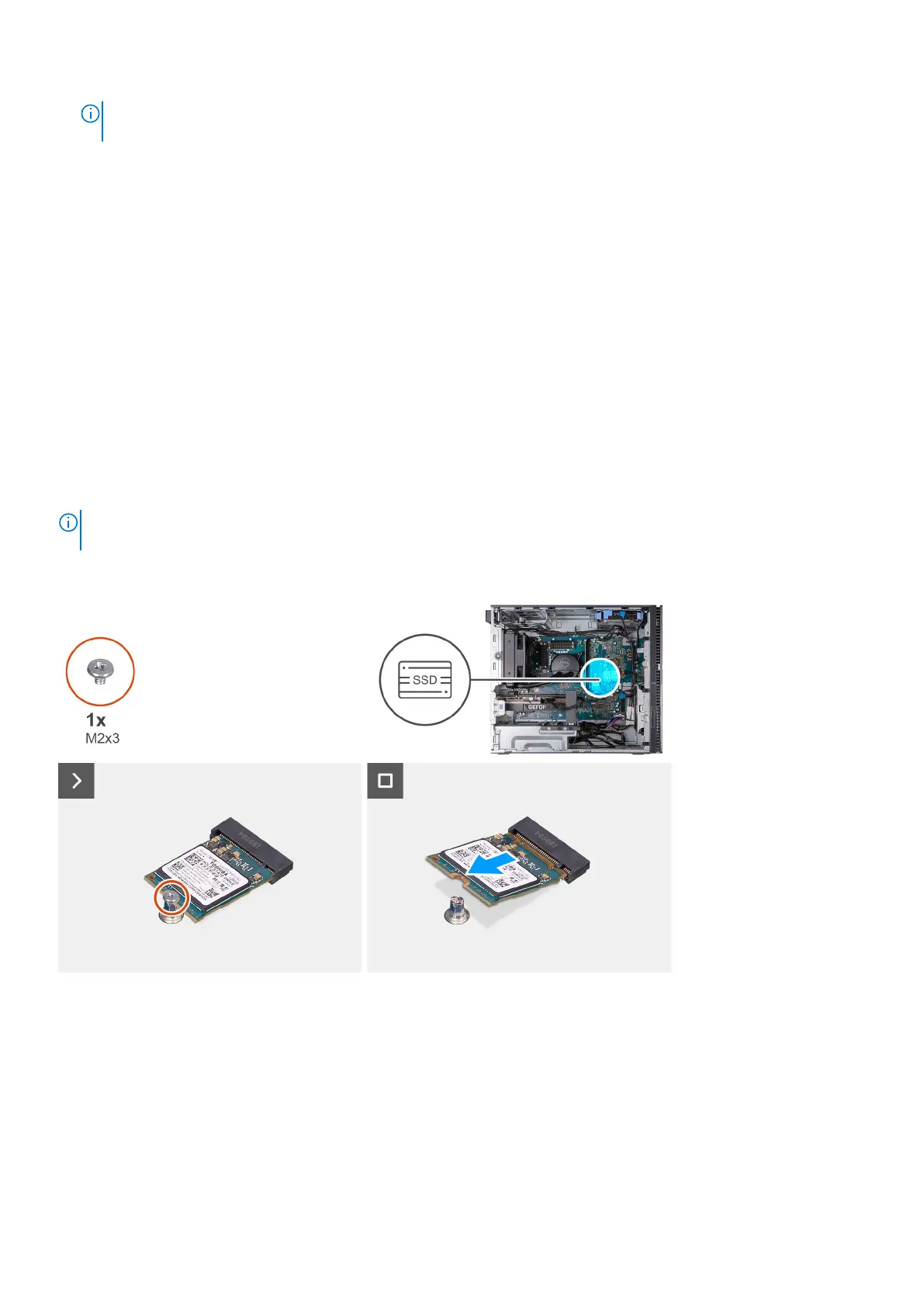
The following image(s) indicate the location of the 2230 solid-state drive and provides a visual representation of the removal
procedure.
Steps
1. Place the computer on its side with the left side facing up.
2. Remove the screw (M2x3) that secures the 2230 solid-state drive to the system board.
3. Slide and lift the 2230 solid-state drive from the M.2 card slot on the system board.
28
Removing and installing components



 To Next Page