26 Setting up the monitor
Connecting your monitor
WARNING: Before you begin any of the procedures in this section, follow the Safety instructions.
WARNING: For your safety, be sure that the grounded power outlet you plug the power cord into easily accessible to
operator and located as close to the equipment as possible.
To disconnect power from the equipment, unplug the power cord from the power outlet by grasping the plug firmly.
Never pull on the cord.
WARNING: A certified power supply cord has to be used with this equipment. The relevant national installation and/
or equipment regulations shall be considered. A certified power supply cord not lighter than ordinary polyvinyl chloride
flexible cord according to IEC 60227 (designation H05VV-F 3G 0.75 mm² or H05VVH2-F2 3G 0.75 mm²) shall be used. An
alternative flexible cord is synthetic rubber.
NOTE: Do not connect all cables to the computer at the same time. It is recommended to route the cables through the cable-
management slot before you connect them to the monitor.
NOTE: Dell monitors are designed to work optimally with Dell-supplied inbox cables. Dell does not guarantee the video quality and
performance if non-Dell cables are used.
To connect your monitor to the computer:
1. Turn off your computer and disconnect the power cable.
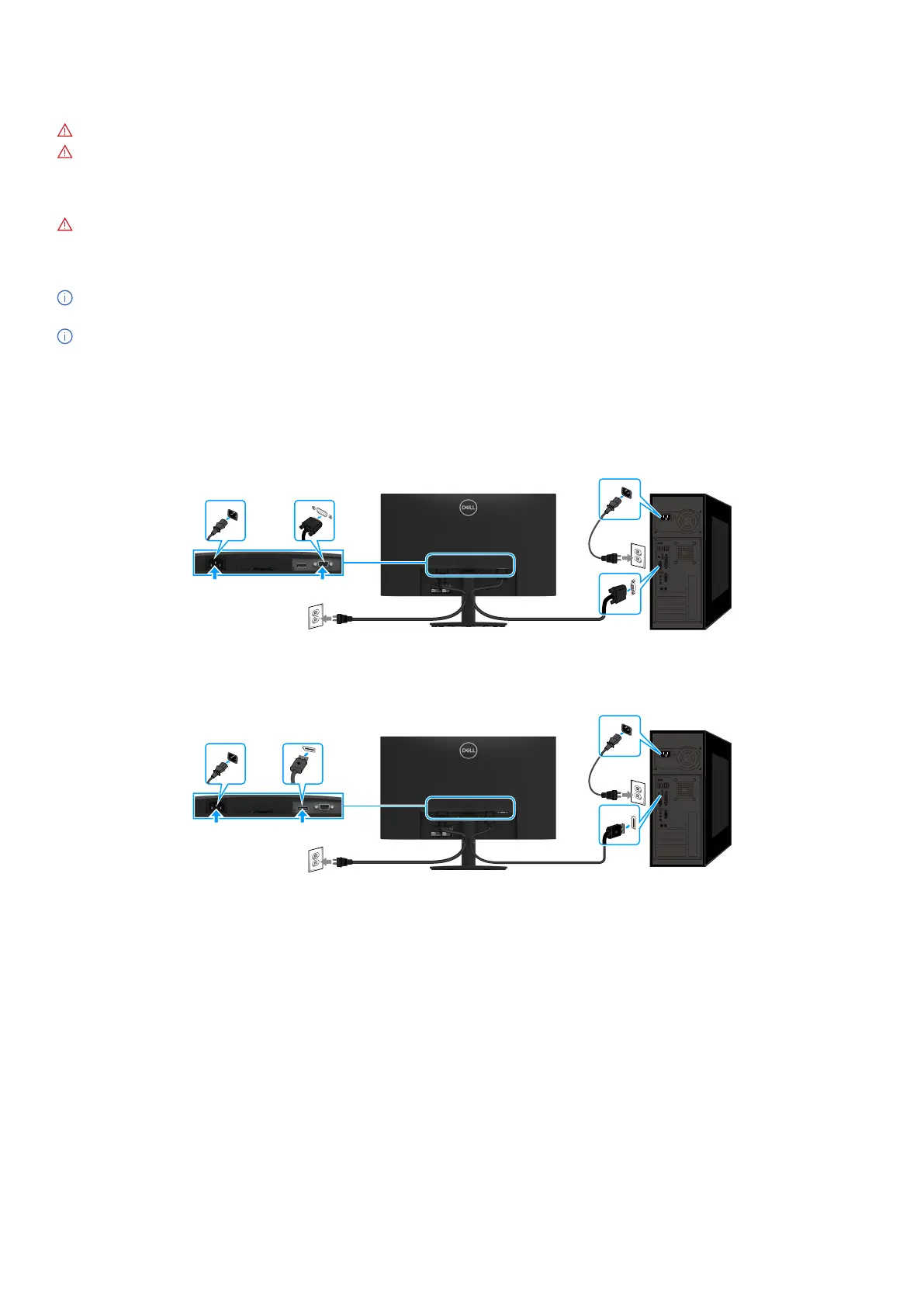
2. Connect the VGA or DP cable from your monitor to the computer.
Connecting VGA cable
VGA
VGA
Figure 14. Connecting VGA cable
Connecting DP cable
DP
DP
Figure 15. Connecting DP cable



 To Next Page