Operating your monitor 31
Operating your monitor
Power on the monitor
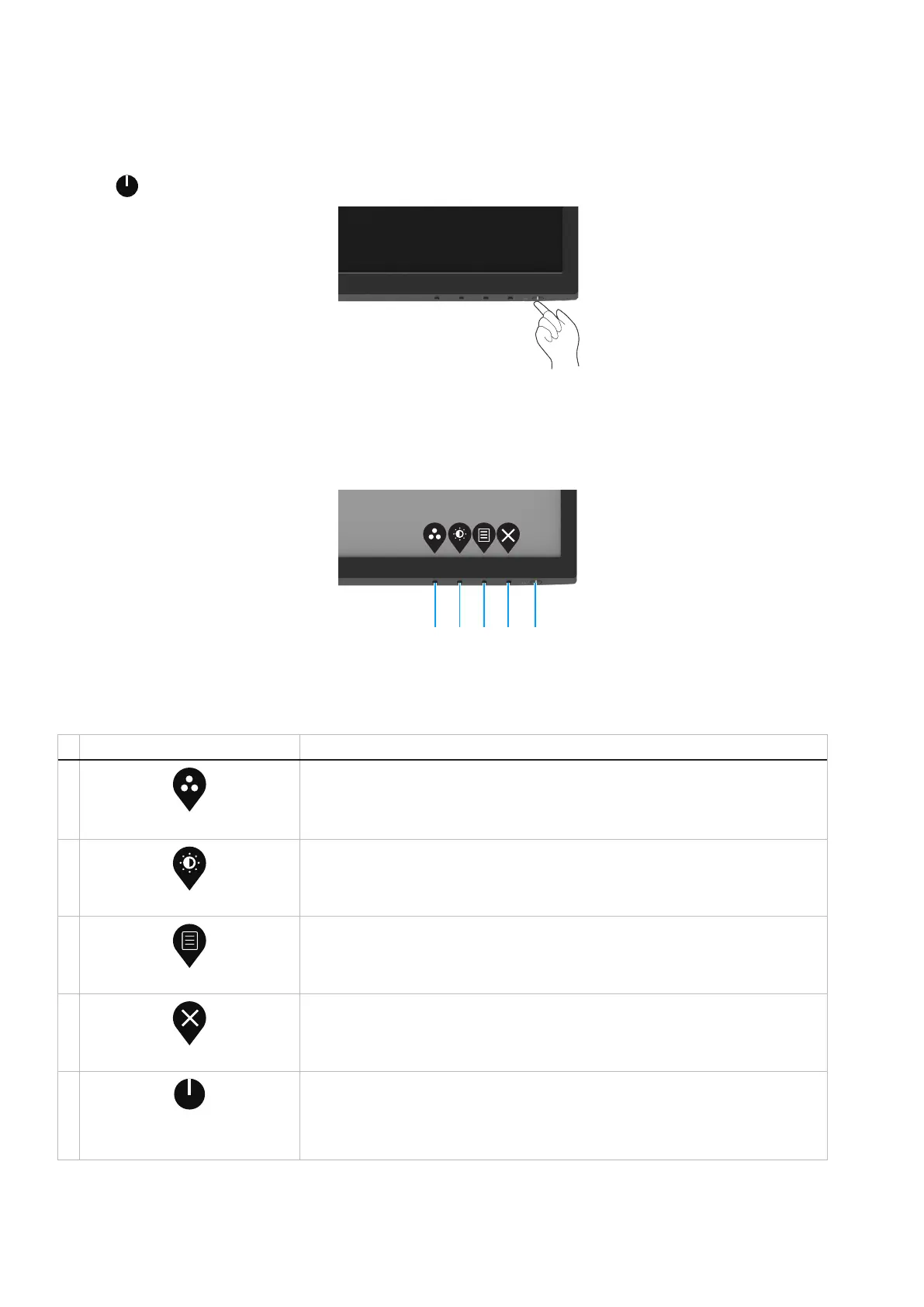
Press the button to turn on the monitor.
Figure 24. Turn on the monitor
Using the front panel controls
Use the control buttons at the bottom edge of the monitor to adjust the image being displayed.
1
2
3
4
5
Figure 25. Front panel controls
The following table describes the control buttons:
Table 16. Control buttons description.
Control buttons Description
1
Preset mode
Use this button to choose from a list of preset modes.
2
Brightness/Contrast
For direct access to the Brightness and Contrast menu.
3
Menu
To launch the On-Screen Display (OSD) menu, or to access the list of items/options of a
menu item. For more information, see Accessing the OSD menu.
4
Exit
To exit or return to the OSD main menu.
5
Power button
(with power-status light)
To turn the monitor on or off.
Solid white light indicates that the monitor is turned on and functioning normally. Blinking
white light indicates that the monitor is in Standby Mode.



 To Next Page